

AI Providers
Review supported AI providers and their availability in CloudStation.
The AI Providers page is where you connect model providers for your current CloudStation project.
Account providers use sign-in (OAuth). API providers require you to add keys first in Settings.
Account Providers
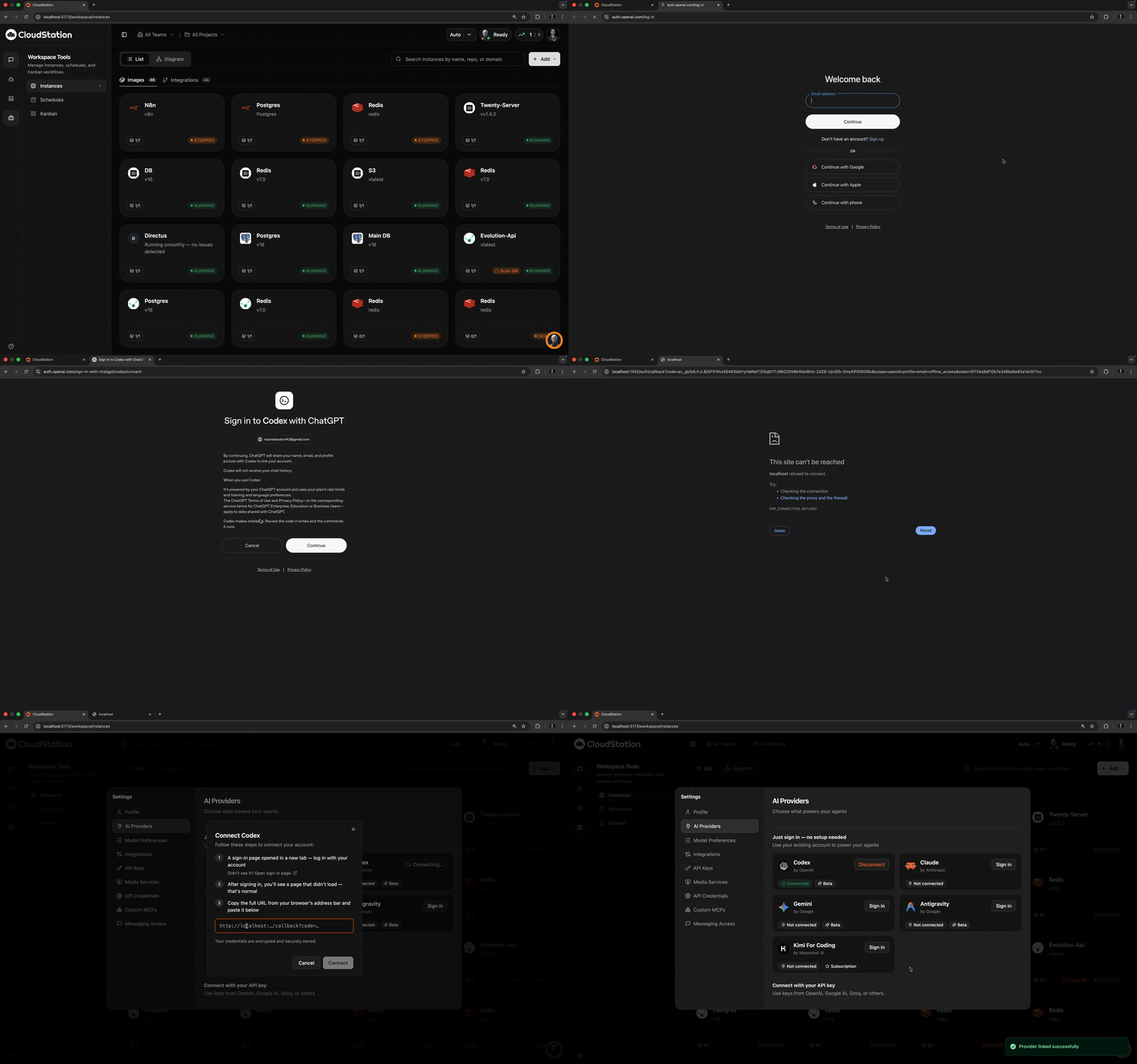
 Codex
Connect with your Codex account directly from the AI Providers page. No manual API key entry is required here.
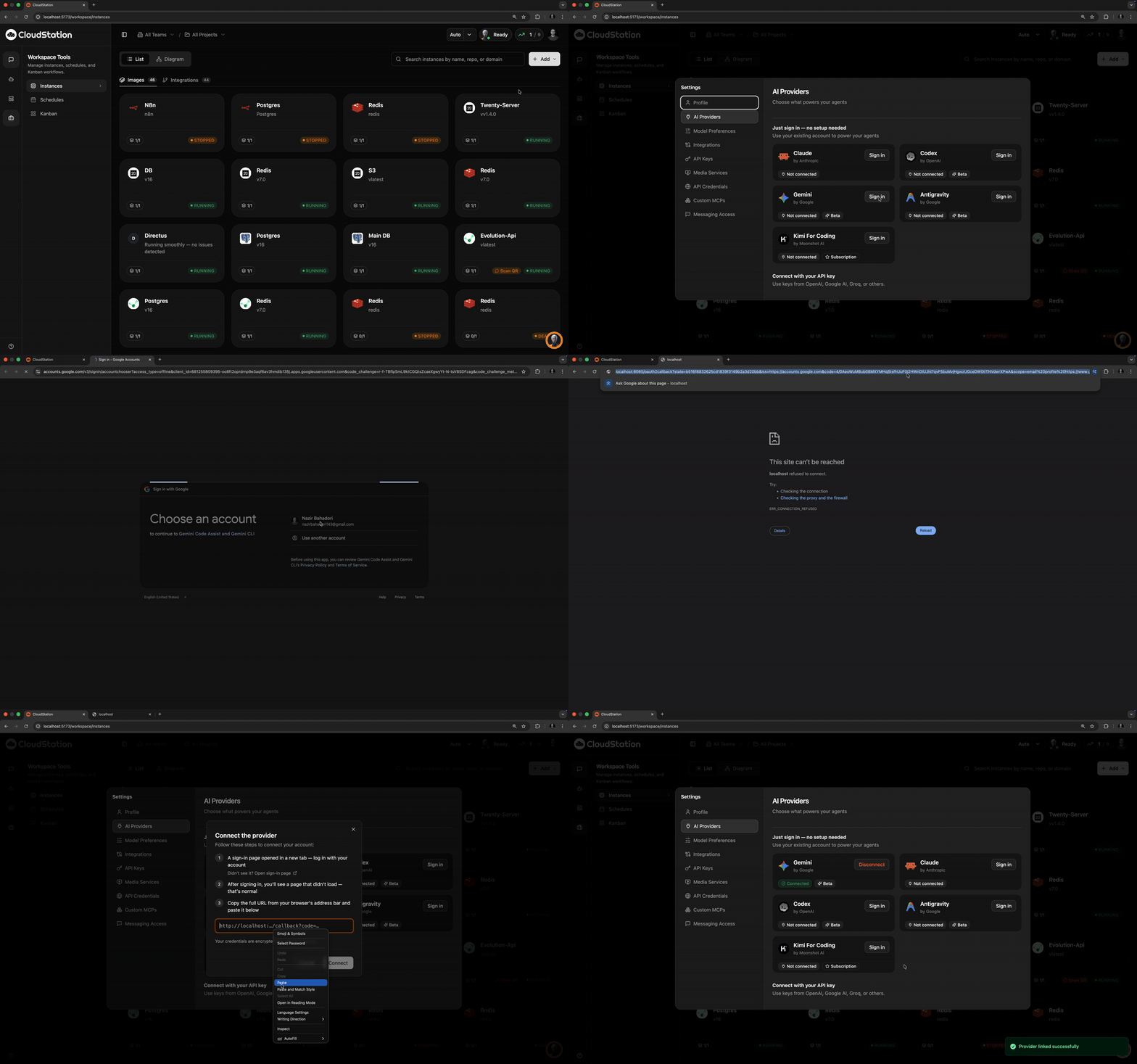
 Gemini
Connect with your Gemini account using the account sign-in flow in AI Providers.
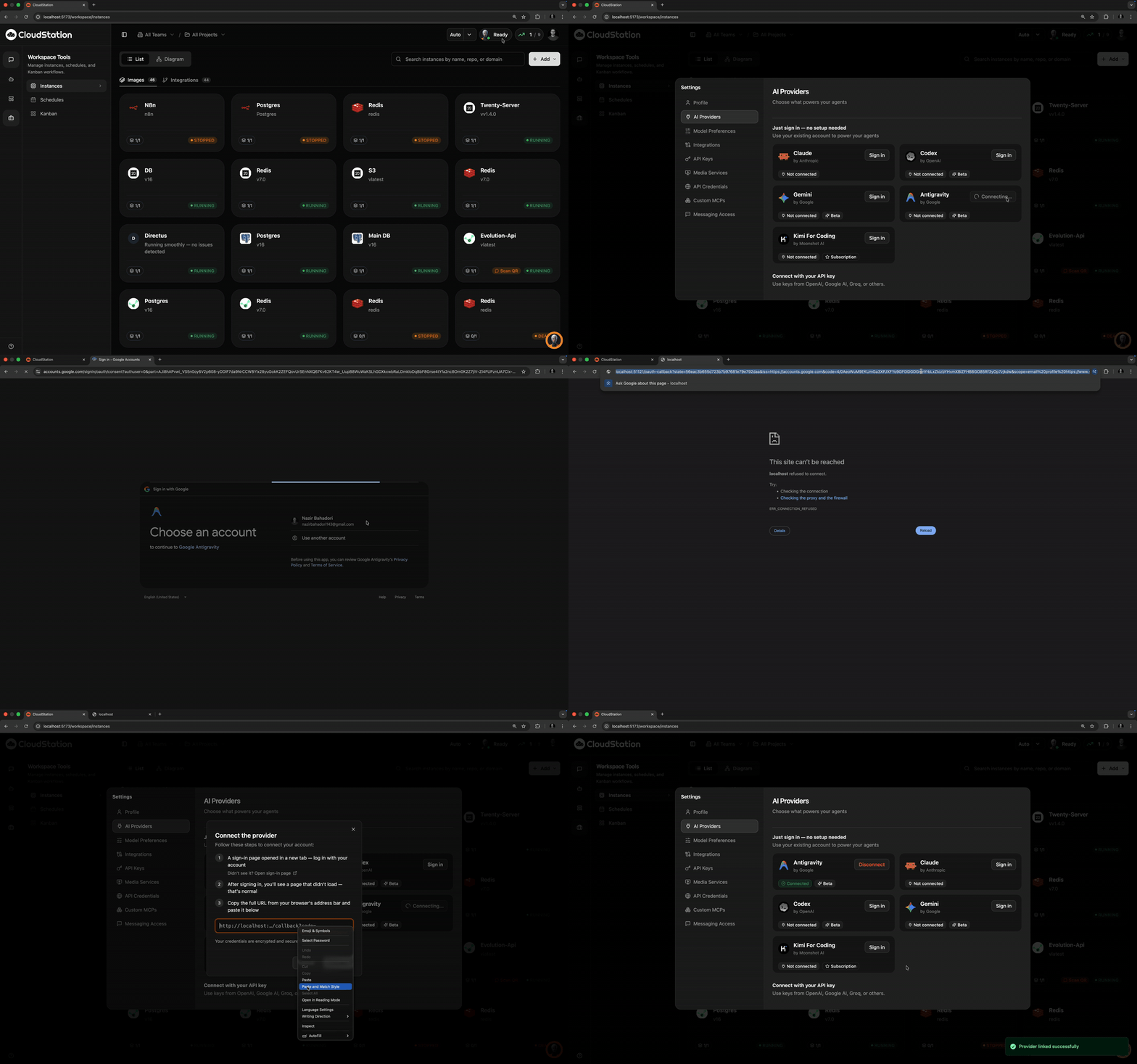
 Antigravity
Connect with your Antigravity account from AI Providers using the built-in sign-in flow.
 Claude
Use the account-based Claude connection flow in AI Providers.
 Kimi For Coding
Use the account-based Kimi For Coding sign-in flow in AI Providers.
API Key Providers
Use the provider card in AI Providers and click Add Key. Fill all required fields, then click Add.
 AWS Bedrock
Run Anthropic models through your AWS account.
AWS Access Key ID(required): IAM access key id, usually starts withAKIA...AWS Secret Access Key(required): matching IAM secret keyAWS Region(required): region where Bedrock is enabled (example:us-east-1)Session Token(optional): only for temporary STS credentialsModel ARN / Inference Profile(optional): custom Bedrock inference profile ARN if you want to override defaults
 Anthropic
Use Claude directly with your Anthropic API key.
API Key(required): paste your Anthropic key (example:sk-ant-...)
 DeepSeek
Access DeepSeek Chat and Reasoner models.
API Key(required): paste your DeepSeek key (example:sk-...)
 Fireworks AI
Use Fireworks-hosted models and inference.
API Key(required): paste your Fireworks key
Google AI
Connect Gemini through Google AI Studio keys.
API Key(required): paste your Google AI key (example:AIza...)
 Google Vertex AI
Run models through your Google Cloud / Vertex AI account.
Google Cloud Project ID(required): your GCP project id (example:my-project-id)Cloud ML Region(required): Vertex region (example:us-east5)Service Account JSON Key(optional): paste full JSON service account key; leave empty ifgcloudauth is already configuredModel ID(optional): override model id when needed (example:claude-opus-4-6@20260205)
 Groq
Use Groq-hosted open models with low-latency inference.
API Key(required): paste your Groq key (example:gsk_...)

 Moonshot
Use Moonshot pay-as-you-go access for Kimi K2 family models.
API Key(required): paste your key fromplatform.moonshot.ai(example:sk-...)

 OpenAI
Access OpenAI models with your own account key.
API Key(required): paste your OpenAI key (example:sk-...)Organization ID(optional): add only if your OpenAI setup requires org scoping (example:org-...)
 OpenRouter
Route requests across many providers through a single OpenRouter key.
API Key(required): paste your OpenRouter key (example:sk-or-...)
 Together AI
Use Together AI-hosted open models.
API Key(required): paste your Together AI key
API access and availability can vary by workspace plan, region, and entitlement.
Model Picker
CloudStation uses a backend-driven model picker to show you exactly which models you can use. Instead of displaying a static catalog, the platform checks your connected providers, account entitlements, and region availability to curate a personalized model list.
Model Tiers
Models are organized into three tiers based on capability and cost:
| Tier | Use Case | Examples |
|---|---|---|
| Heavy | Complex reasoning, large codebases, multi-step tasks | Claude Opus, GPT-4o |
| Standard | General-purpose work, balanced speed and quality | Claude Sonnet, GPT-4o-mini |
| Light | Fast responses, simple tasks, high-volume operations | Claude Haiku, Gemini Flash |
The picker shows one model per family per tier — always the newest version your account can access. When configuring an agent, you select a tier and the system automatically routes to the best available model.
Model Confidence Badges
Each model in the picker displays a confidence badge indicating its verification status:
- Verified — the model has been tested and confirmed working with your provider credentials
- Failed validation — the model could not be validated (check your provider credentials or region settings)
Provider Inventory Status
Each connected provider shows an inventory status panel with real-time information about available models:
- Listed models — total models detected from the provider
- Verified models — models confirmed accessible with your credentials
- Last checked — when inventory was last refreshed
- Source — how the inventory was obtained
For AWS Bedrock providers, the panel also shows:
- Region — the AWS region being used
- Inference profile count — number of available inference profiles
Click Refresh on any provider's inventory panel to manually revalidate model availability. This is useful after updating credentials or enabling new models in your provider's console.
The model picker automatically revalidates when you reconnect to CloudStation or switch focus back to the app, so your model list stays current.