

Teams, Roles & Members
Invite people to your team, assign roles, and understand who can do what
A CloudStation team is one shared workspace for your whole group: shared projects, shared AI keys and credentials, one bill. This page covers who's in a team, what each role can do, and how people join and leave.
The three roles
Every team has exactly one owner — the person who created it and pays for it. Everyone else is either an admin or a member.
| Action | Owner | Admin | Member |
|---|---|---|---|
| Use projects, agents, and shared resources | ✓ | ✓ | ✓ |
| Update team details (name, avatar) | ✓ | ✓ | — |
| Remove a regular member | ✓ | ✓ | — |
| Manage the SSO connection | ✓ | ✓ | — |
| Invite people as members | ✓ | ✓ † | — |
| Invite people as admins | ✓ | — | — |
| Promote or demote members | ✓ | — | — |
| Remove another admin | ✓ | — | — |
| See invoices and payment methods | ✓ | — | — |
| Delete the team | ✓ | — | — |
| Leave the team | — | ✓ * | ✓ |
* An admin can leave only if at least one other admin remains. The owner can never leave their own team — they can only delete it.
† Admins can invite members only on plans where the team has its own subscription. On teams that bill through the owner's personal plan, inviting stays owner-only.
Billing is owner-only by design: admins run the workspace day to day — including bringing in new members on team subscription plans — but only the person paying sees invoices and payment details. Members see a simple "billing is managed by your organization" notice — see Billing for organizations.
Inviting people
Open your team (the Workspaces icon in the left rail → your team) and click Invite, or open the Members card and click View all members.
Enter the person's email, pick their role — Member or Admin — and click Add. On team subscription plans, admins can invite too, but only as Member; handing out the Admin role stays with the owner.
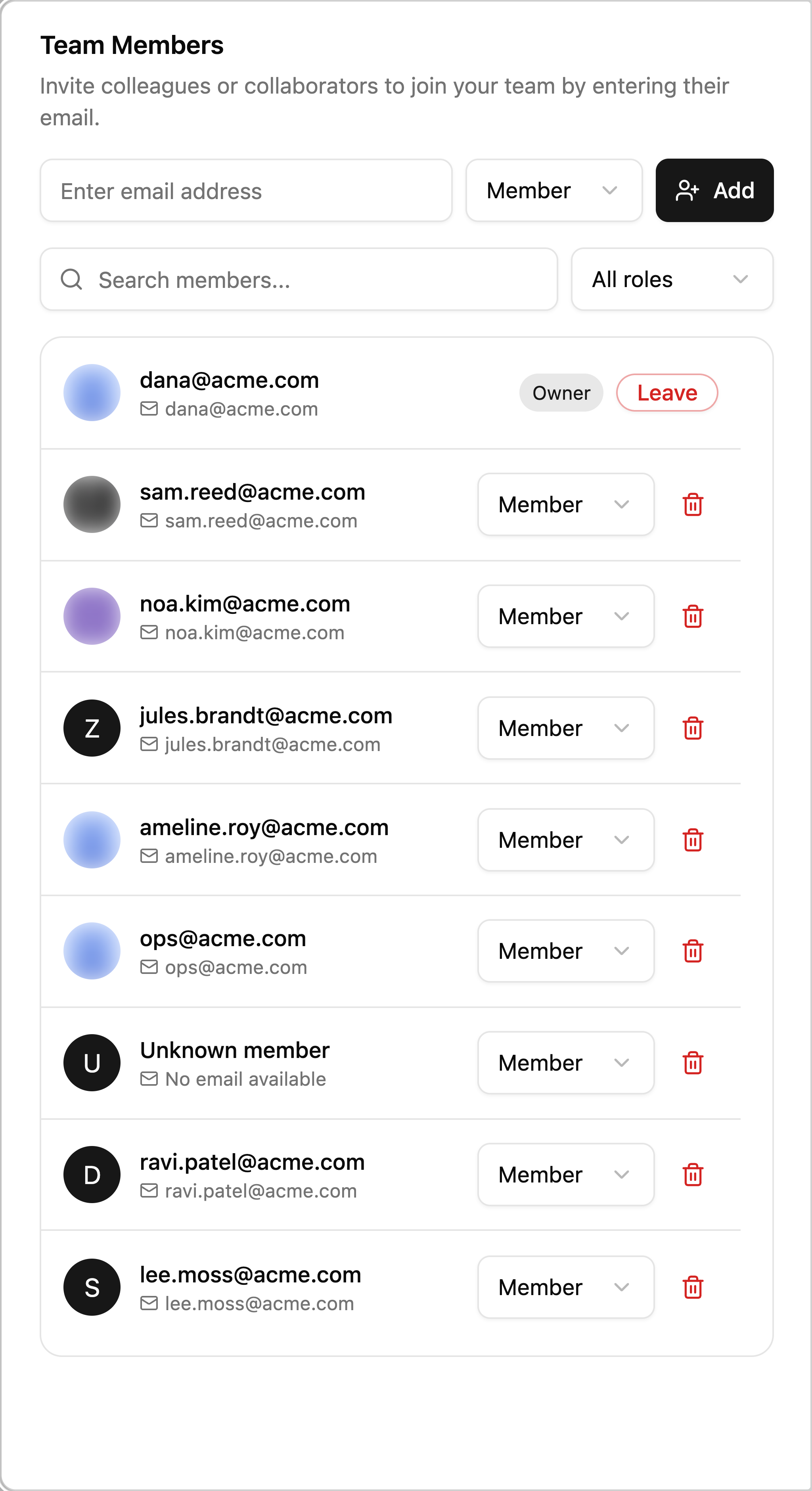
They get access immediately the next time they sign in. The team header shows your seat usage — for example 9 of 10 seats — and invites are blocked once every seat is taken, for owners and admins alike.
If your organization uses Enterprise SSO, you may not need invitations at all: employees who sign in with their work account join the team automatically, as an admin or member depending on your configured groups. Seats are counted the same way either path is used.
Changing roles
Only the owner can promote a member to admin or demote an admin back to member — use the role dropdown next to the person in the members drawer. Two protections apply:
- The owner's own membership can't be changed or removed.
- The last admin can't be demoted; promote someone else first.
Setting someone to the role they already have is harmless — nothing changes.
Removing people and leaving
- Owner and admins can remove regular members (the trash icon next to the member).
- Only the owner can remove an admin.
- Members can leave whenever they like; admins can leave as long as another admin remains.
Removing someone frees their seat immediately. They keep their CloudStation account — they just lose access to the team's projects and shared resources.
Seats
Your plan includes a fixed number of seats, shown on the team header ("9 of 10 seats"). Everyone in the team — owner, admins, members, whether invited or joined via SSO — occupies one seat. To free a seat, remove a member; to add more, the owner can upgrade the plan or contact support.