

Kanban Board
Track tasks and features on a per-project board that agents keep up to date
Every project has a Kanban board. You can plan work on it yourself — but its real strength is that agents use it too: as Charlie and its workers execute, they create tasks, move them across stages, and leave a history you can audit. Open it from Workspace Tools → Kanban, or from the Kanban tab of the tools panel inside a chat.
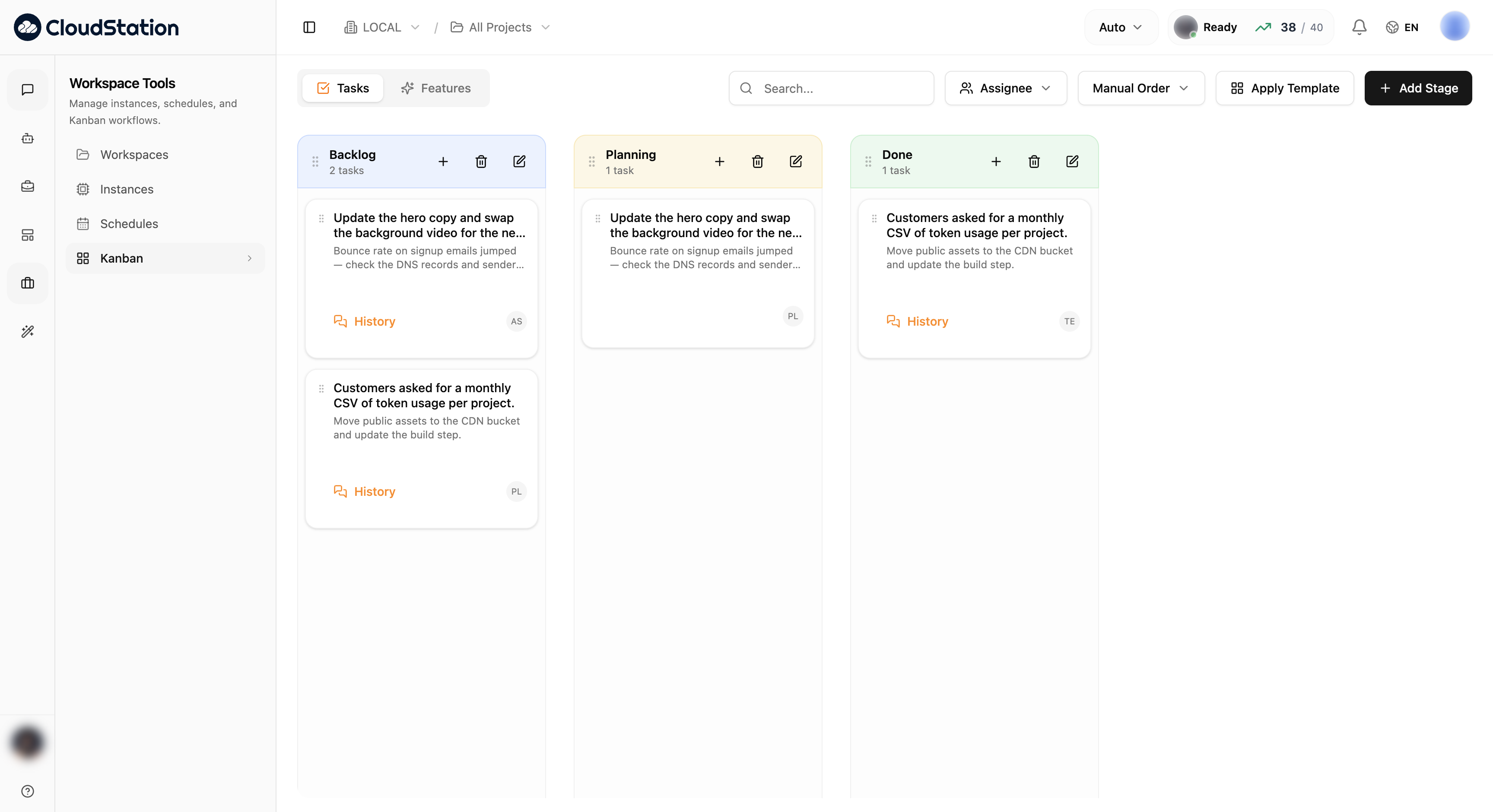
The board
- Stages are columns (for example Backlog, Planning, Done). Each stage shows its task count and has controls to add a task, rename, or delete the stage. Add Stage creates a new column, and you can drag stages to reorder them.
- Cards carry a title, description, and an assignee chip. Drag cards between stages, or click one to edit it.
- History on a card shows what happened to it — including changes made by agents.
- The toolbar has Search, an Assignee filter, and a sort selector (Manual Order by default, so your drag-and-drop order sticks).
The board is scoped by the workspace/project switcher in the header — pick a single project or All Projects.
Tasks and Features
The board has two tabs:
- Tasks — the day-to-day cards agents and teammates work through.
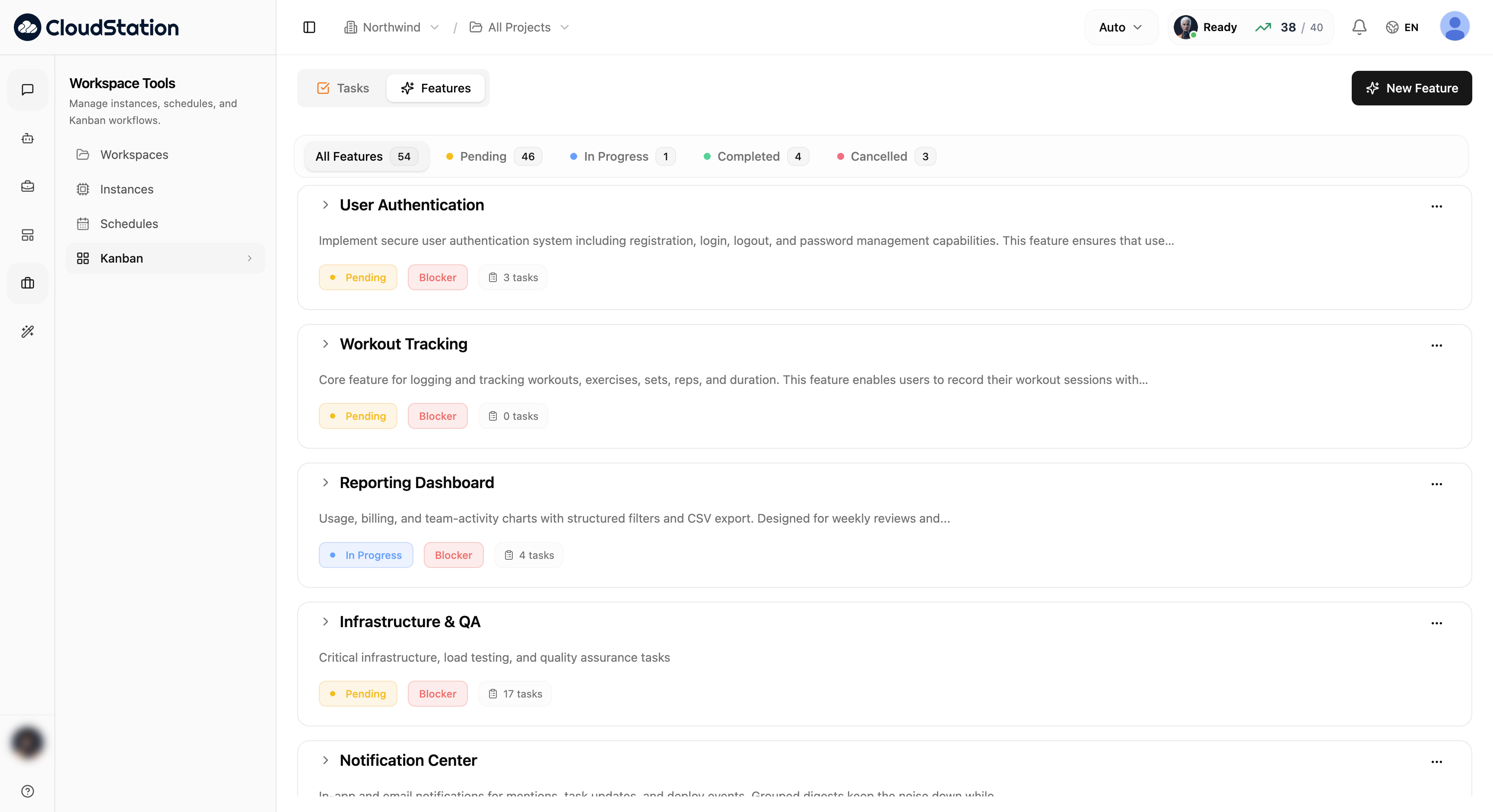
- Features — bigger units of work that group tasks. Each feature has a status (Pending, In Progress, Completed, Cancelled), an optional Blocker flag, and a task count; the filter chips at the top show how many features are in each state. New Feature creates one.
Workflow templates
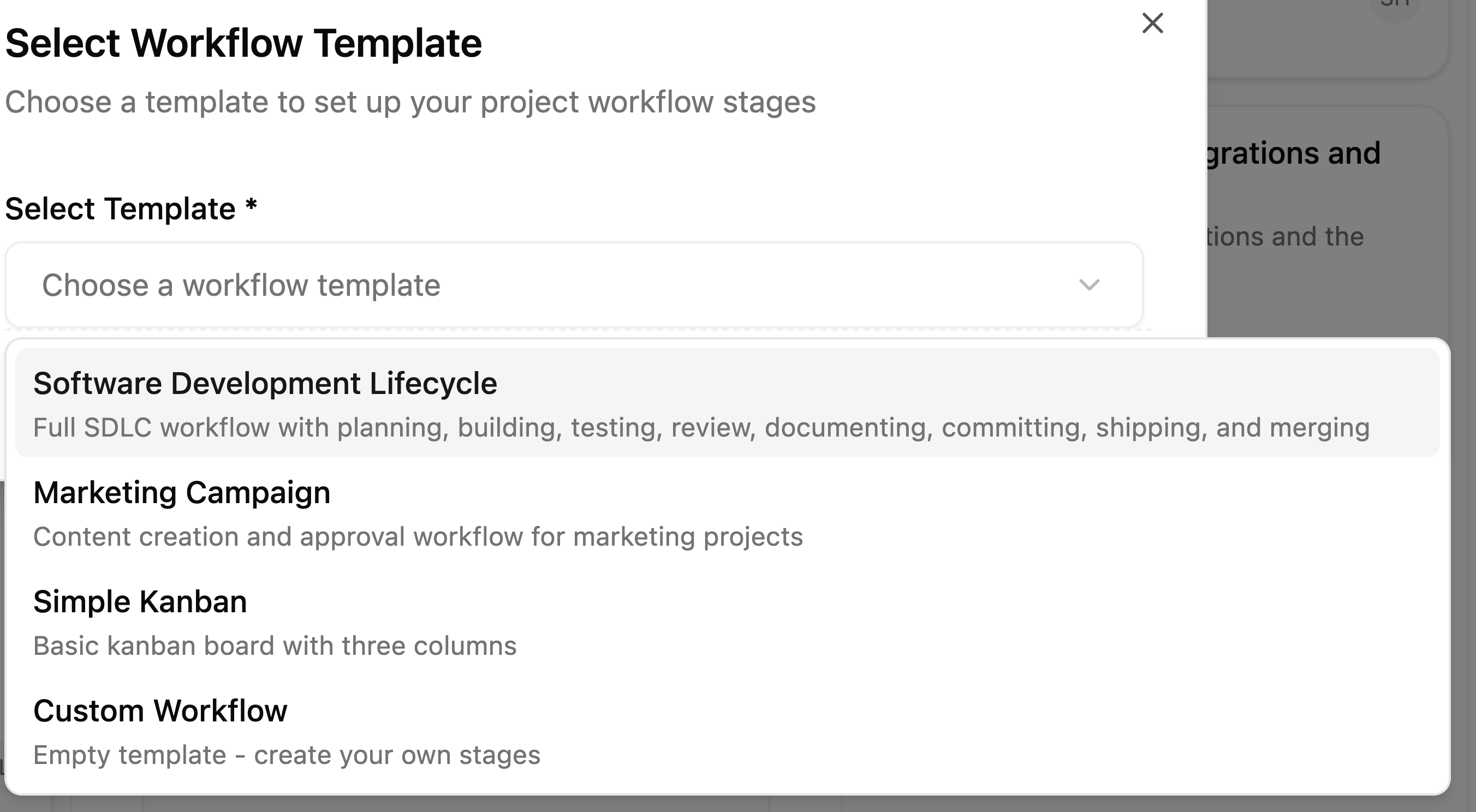
Instead of building columns by hand, Apply Template sets up the whole workflow in one click:
| Template | Stages |
|---|---|
| Software Development Lifecycle | Full SDLC: planning, building, testing, review, documenting, committing, shipping, merging |
| Marketing Campaign | Content creation and approval workflow |
| Simple Kanban | A basic three-column board |
| Custom Workflow | Empty — create your own stages |
Agents working in a chat session create and update cards on this same board. If you ask Charlie to "show my tasks" in a conversation, the Kanban tab opens right in the chat's tools panel.
Related pages
- Inside a conversation — the Kanban tab in the chat tools panel
- Schedules — recurring automations next door
- Workspaces — how projects are organized