

Workspaces, Projects & Sessions
How conversations are organized in the sidebar and how to rename, move around, and clean up
The left sidebar organizes everything into a three-level tree: workspaces contain projects, and projects contain sessions (conversations).
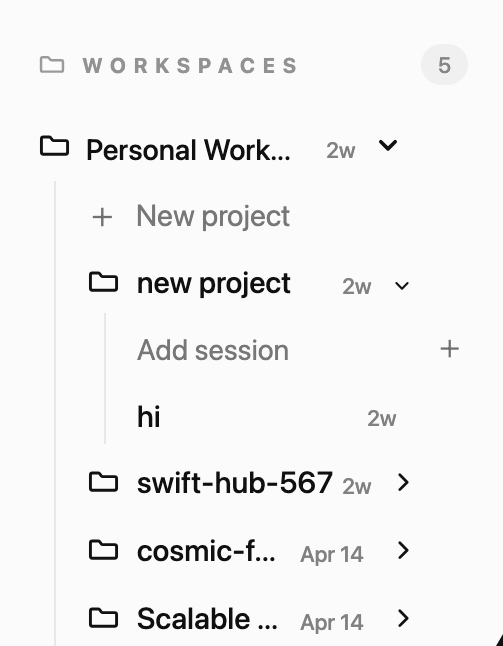
The tree
- Workspaces — your personal workspace plus every shared team workspace. The
+next to the WORKSPACES header creates a new shared workspace. Hover a workspace row to reveal a gear that opens its team settings. - Projects — click a workspace to expand its projects. New project at the top creates one. Projects you haven't touched are folded behind a "N more projects" row to keep the list short; drafts are tagged draft.
- Sessions — click a project to expand its conversations, newest first, each with a relative timestamp. Add session starts a new conversation in that project.
Renaming and deleting
Hover a session row and click the gear:
- Rename — set a custom title (leave empty to reset to the auto-generated one).
- Delete — removes the thread. This cannot be undone.
Hover a project row and click the gear:
- Project Settings — opens the project's settings drawer.
- Rename — rename the project.
- Set as WhatsApp Project — route incoming WhatsApp messages to this project.
- Delete — removes the project and everything in it: all services and running deployments, all volumes and stored data, all environment variables and secrets, and all API keys scoped to the project.
Deleting a project is permanent and takes its deployments and data with it. Read the confirmation dialog carefully — it lists exactly what will be removed.
Search and time filters
- Search chats matches session titles and message text.
- The All / Today / Yesterday / This week / This month chips filter every list in the sidebar and show live counts.
- Recent lists all your threads grouped by day and week; older threads group by month. Each group header is collapsible.
Shared with me
Threads that teammates shared with you appear in the SHARED WITH ME section, labeled with the owner's name and the last activity time. Shared threads are read-only — see Thread Sharing.
Related pages
- Chat with Charlie — the chat home
- Composer & targeting — how messages pick a workspace and project
- Team Workspaces — managing shared workspaces and members