

Sharing Conversations
Share a chat thread with your team or a specific person, read-only
Solved something worth showing? Share the conversation. Teammates get read-only access to the full thread — every message, result, and file the agent produced — without being able to send messages into it.
Typical uses: handing a support investigation to a colleague, letting your team follow a build, or showing an admin exactly what you asked and what came back.
Sharing a thread
Open the conversation and click the share icon in the thread header.
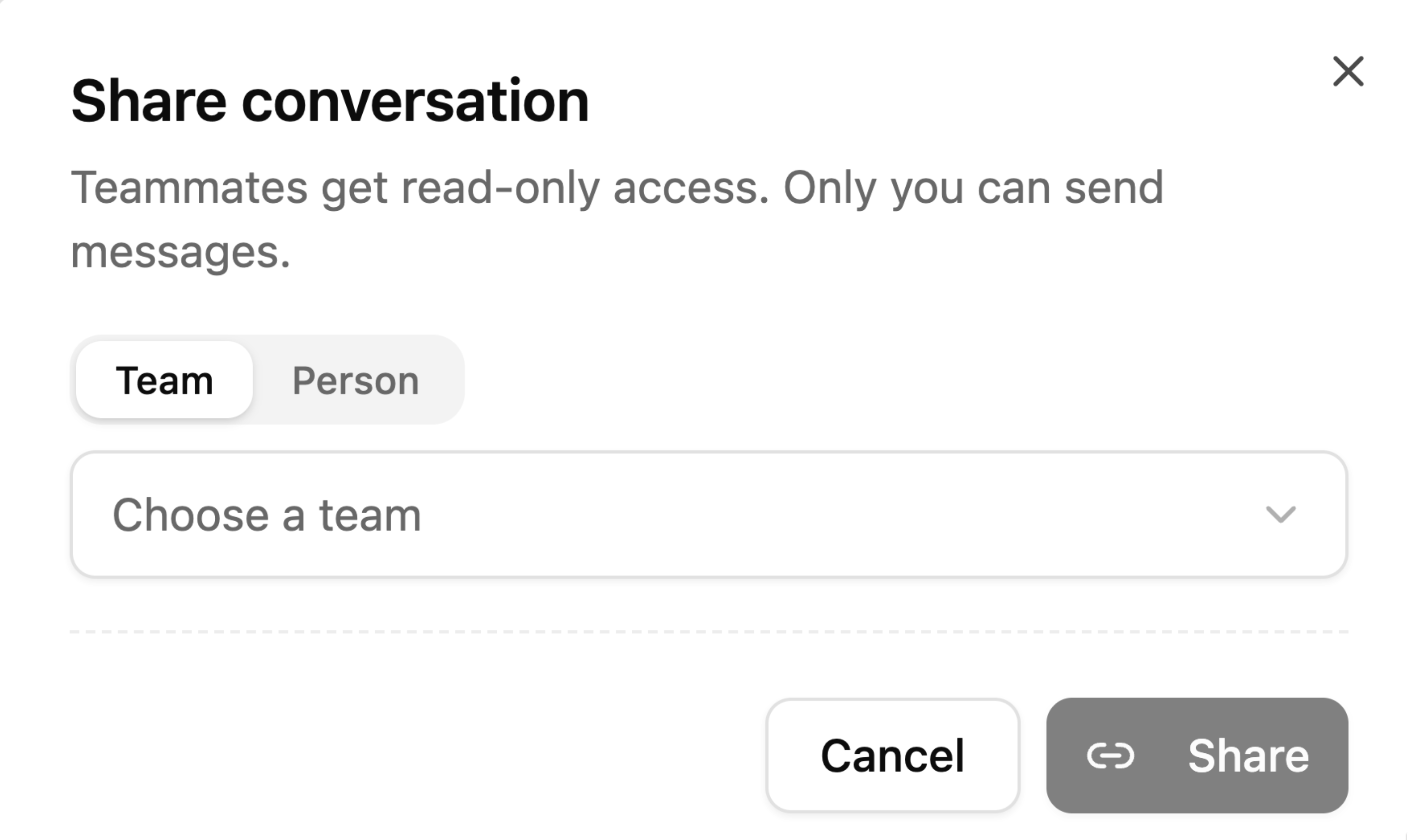
Pick who gets access:
- Team — everyone in the selected team can read the thread.
- Person — pick a team, then a specific teammate from it.
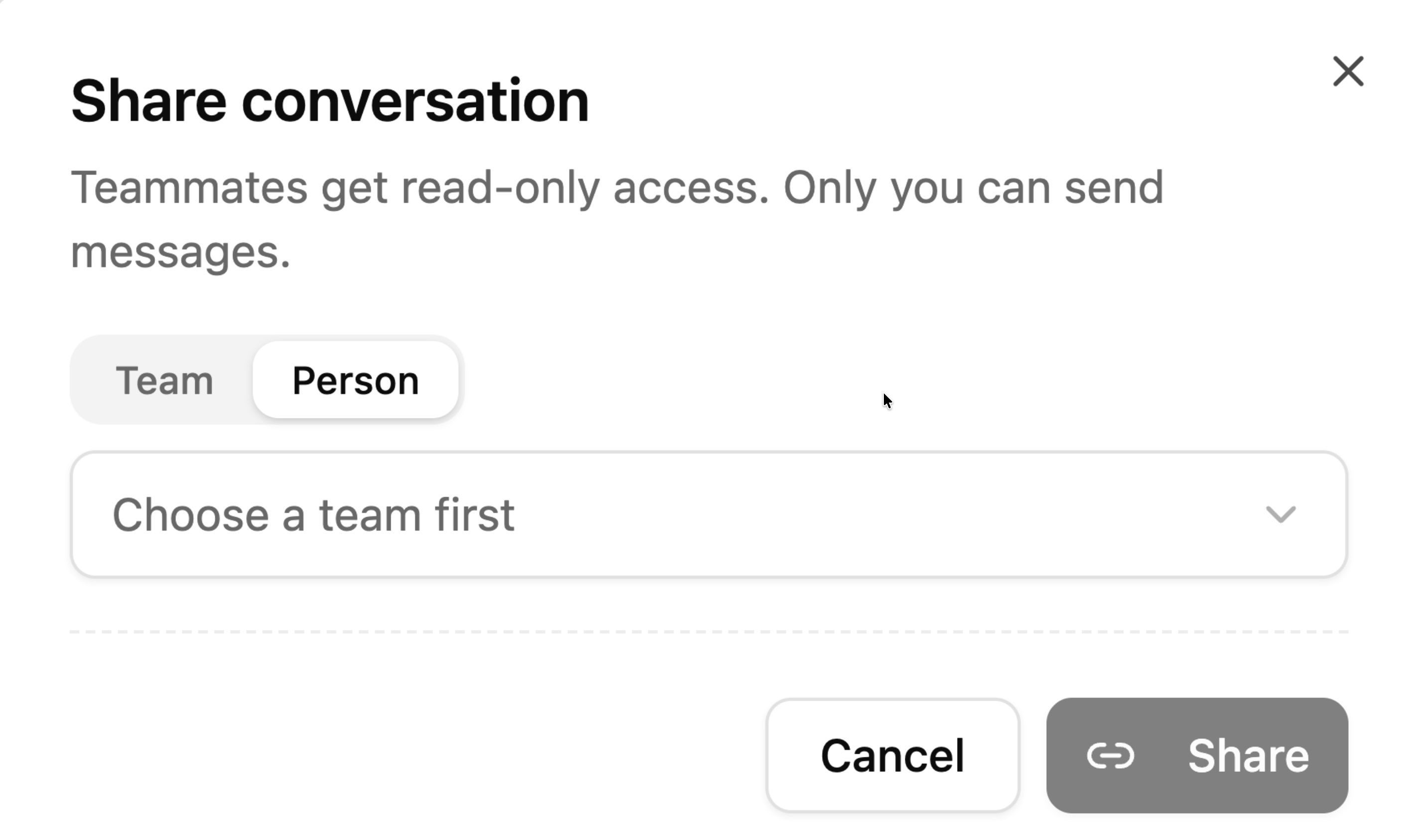
Click Share. Recipients see the conversation immediately under Shared with me — no link to copy, nothing leaves CloudStation.
Sharing is read-only by design: only you can send messages in your thread. Recipients can read everything, including new messages as the conversation continues.
Finding what's shared with you
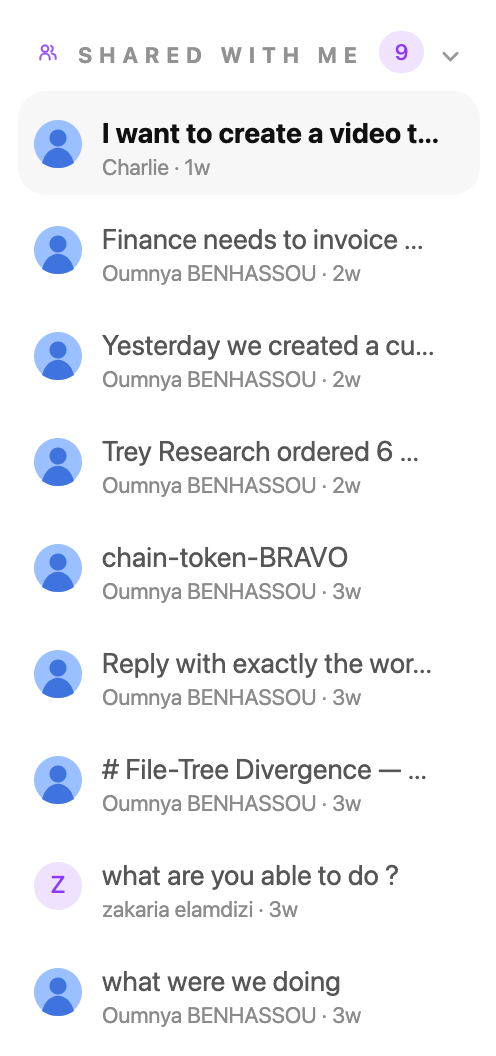
Conversations shared with you appear in the chat sidebar under Shared with me, with the sharer's name on each row:
Revoking access
Open the same share dialog on your thread — every current grant is listed with a revoke button. Revoking removes the thread from the recipient's Shared with me immediately. Only the thread's owner can share or revoke.