

Deleting Projects
Permanently remove a project and all its associated resources from your workspace.
Deleting a project permanently removes it and all associated resources from your workspace. This action cannot be undone.
What Gets Deleted
When you delete a project, the following are permanently removed:
- All services and running deployments — every instance in the project is stopped and deleted
- All volumes and stored data — persistent storage attached to your services
- All environment variables and secrets — configuration and credentials stored in the project
- All API keys scoped to this project — any project-specific API keys are revoked
This action cannot be undone. Make sure you have backed up any important data before proceeding.
Deleting from the Project Card
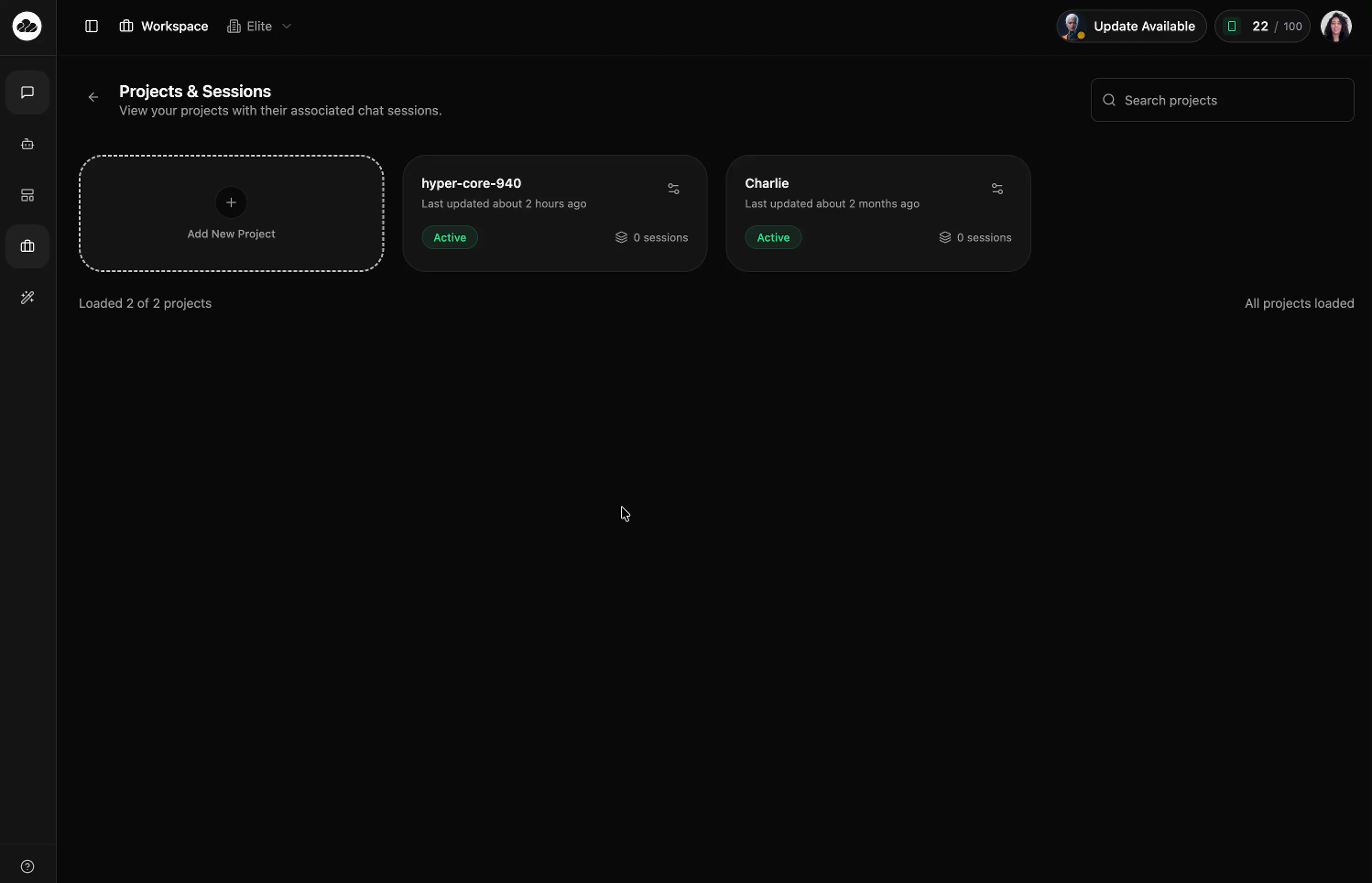
The quickest way to delete a project is from the Projects & Sessions page.
Navigate to Projects & Sessions
Open your Workspace to land on the Projects & Sessions page where all your projects are listed.
Open the Project Menu
Click the settings icon (sliders) on the project card you want to delete. A dropdown menu appears with three options:
- Project Settings — Opens the settings drawer
- Set as WhatsApp Project — Designate for WhatsApp integration
- Delete Project — Shown in red at the bottom
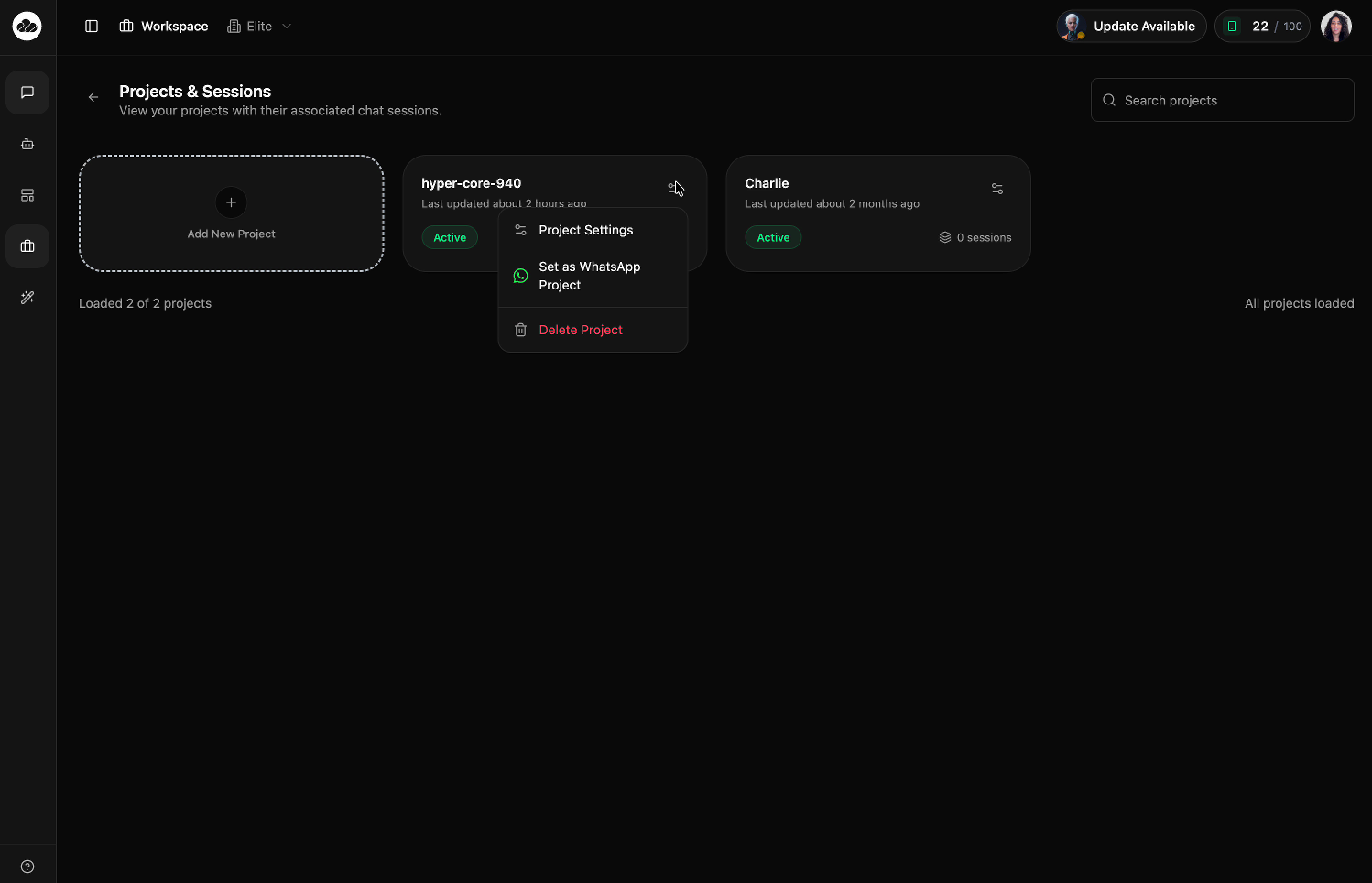
Click Delete Project
Select Delete Project from the dropdown. A confirmation dialog appears showing the project name and a warning about what will be permanently deleted.
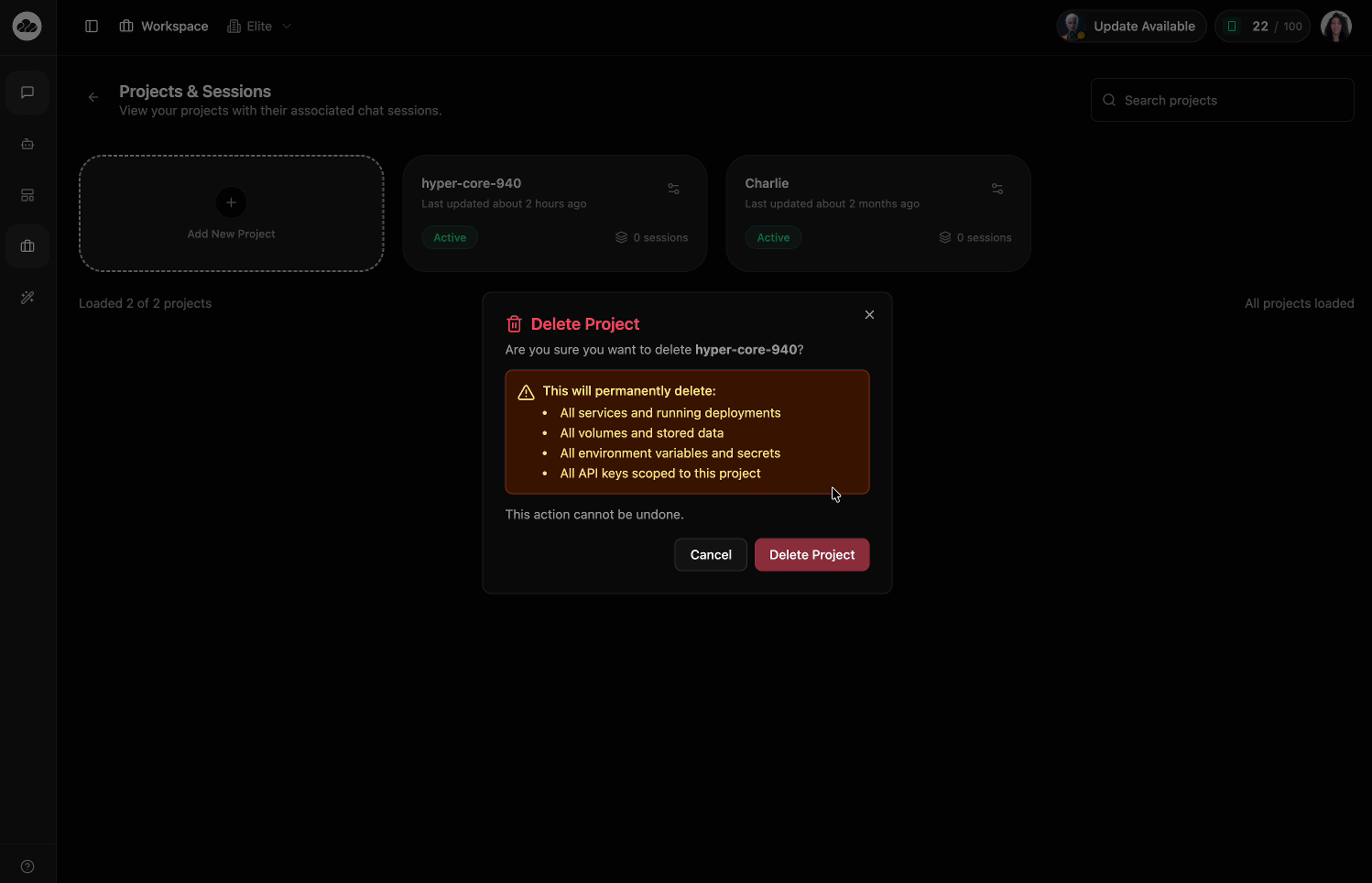
Confirm Deletion
Review the warning carefully. Click the red Delete Project button to confirm, or click Cancel to go back.
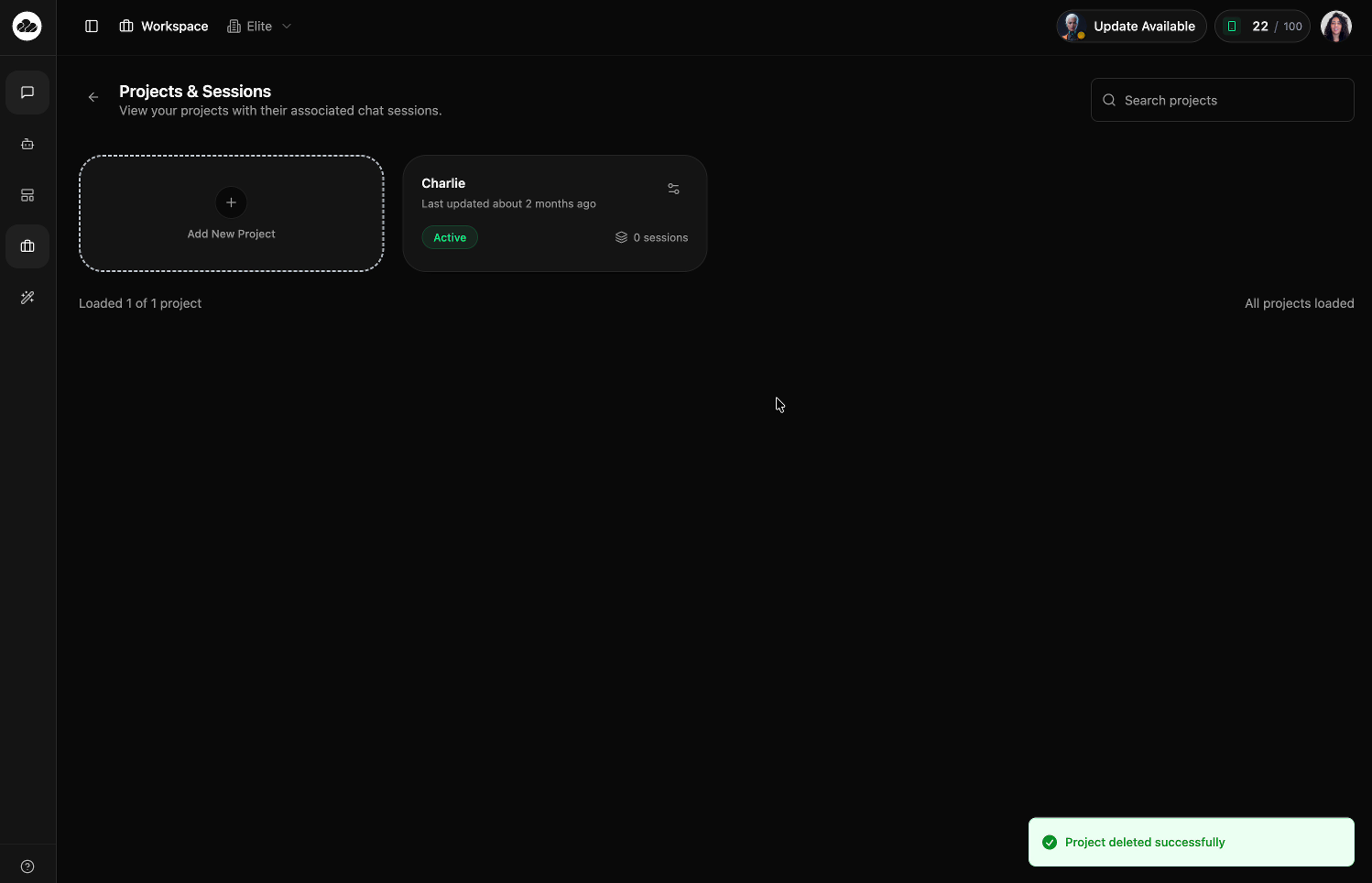
Once confirmed, the project is removed and a success notification appears: "Project deleted successfully".
Deleting from Project Settings
You can also delete a project from the settings drawer:
- Click the settings icon on the project card
- Select Project Settings from the dropdown
- Scroll to the Danger Zone section at the bottom
- Click the red Delete button
- Confirm the deletion in the dialog
See Project Settings for more details on the settings drawer.
Permissions
Only Admins can delete projects. If you're a Member and need a project deleted, contact your workspace Admin.
Learn more about roles in Team Management.