

Enterprise SSO Setup
Connect your Microsoft Entra ID tenant so employees sign in with their work accounts
Connect your Microsoft Entra ID (Azure AD) tenant to CloudStation and your employees sign in with Continue with company single sign-on using their normal work account — no passwords, no separate CloudStation credentials, no invitation emails. On first sign-in they land in your team automatically, governed by your directory.
Total setup time is typically under 30 minutes, most of it waiting for DNS.
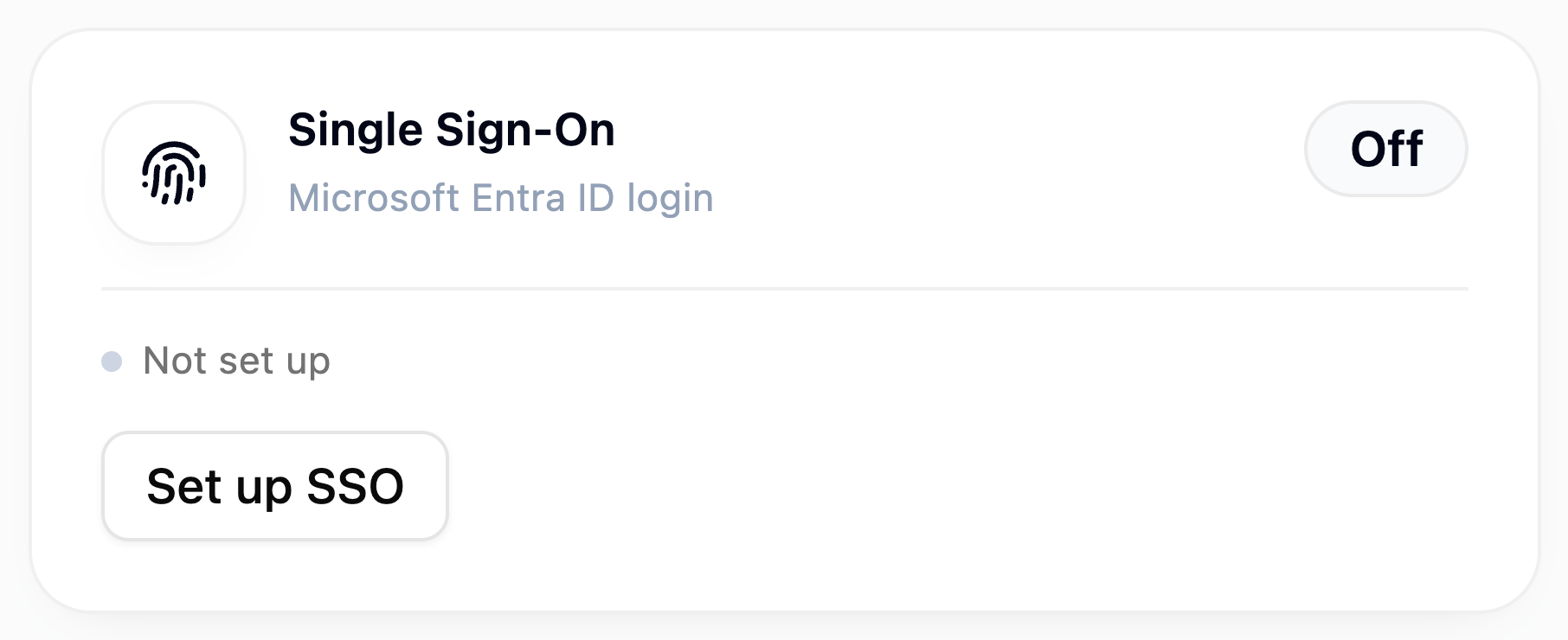
The team owner and team admins can manage the SSO connection. Everything below happens in your team's overview page: open your team and find the Single Sign-On card.
1. Claim your email domain
Click Set up SSO on the Single Sign-On card and enter your company email
domain (for example contoso.com):
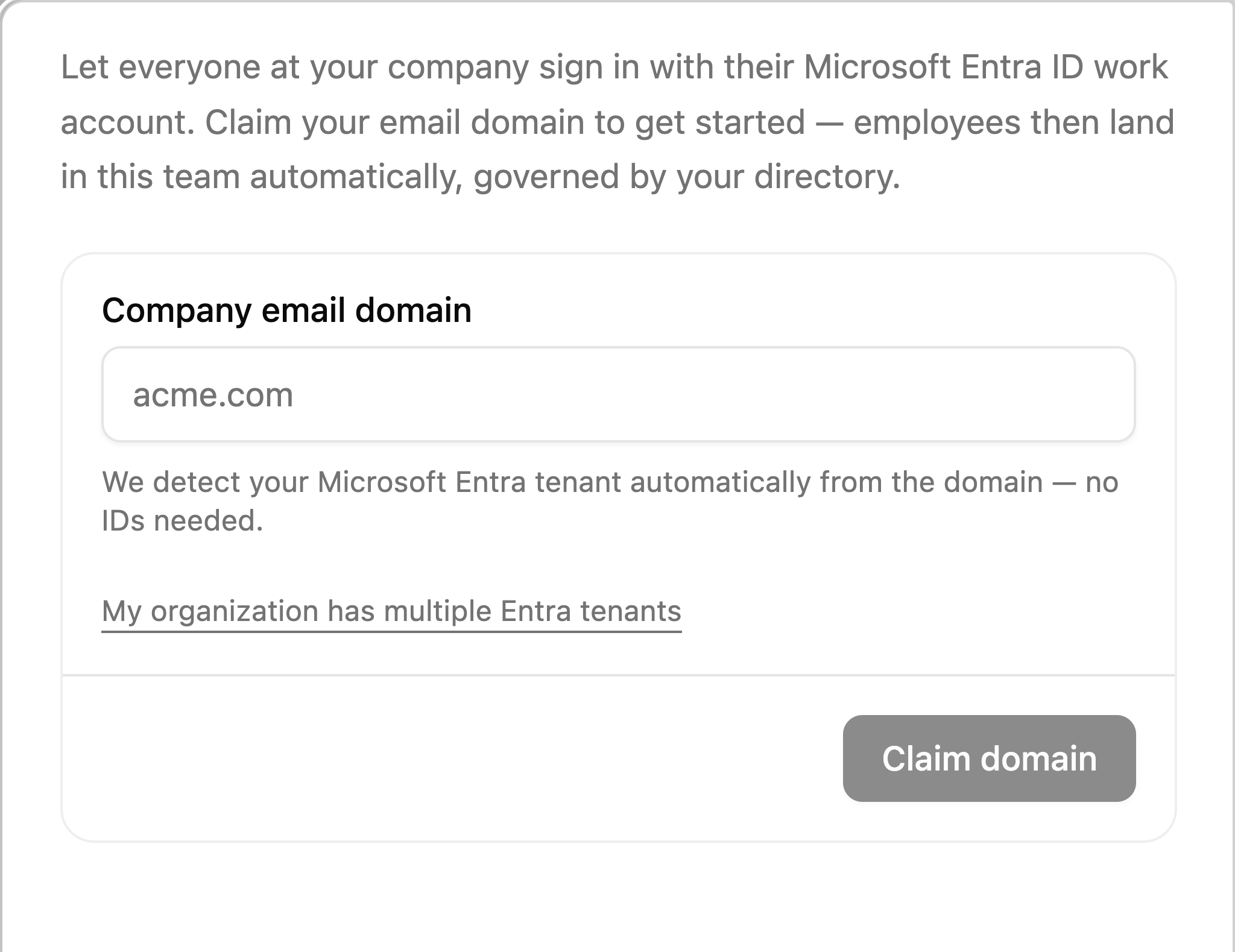
CloudStation detects your Entra tenant automatically from Microsoft's public directory metadata — you never need to look up a tenant GUID. If your organization operates several tenants, use My organization has multiple Entra tenants to supply the tenant ID explicitly and pick the right one.
Click Claim domain. The connection is created in the Pending DNS verification state.
2. Prove domain ownership (TXT record)
Claiming the domain gives you a DNS record to publish:
| Field | Value |
|---|---|
| Name | _cs-sso.<your-domain> (e.g. _cs-sso.contoso.com) |
| Type | TXT |
| Value | cs-sso=<token> (shown in the Single Sign-On panel) |
Add it in your DNS provider's console. Verification happens automatically once the record is live — usually within minutes — and the connection flips to Active on its own. No further action needed.
If verification is marked failed (the record took too long to appear), press Check again in the panel to re-run the check immediately.
You can confirm the record from any terminal with
dig TXT _cs-sso.your-domain.com.
Connection statuses
| Status | Meaning |
|---|---|
| Pending DNS verification | Waiting for the TXT record to appear |
| Verified | Domain proven — sign-in isn't enabled yet; turn it on to let members use their work account |
| Active | SSO sign-in is live for your domain |
| Disabled | Connection kept, but SSO sign-in is switched off |
| Verification failed | The TXT record wasn't found in time — press Check again |
3. Grant admin consent (one click, once)
So employees never see an individual consent prompt, a Microsoft Global Administrator should pre-consent for the whole tenant. The Single Sign-On panel shows a ready-made link — have an Entra admin open it once and accept:
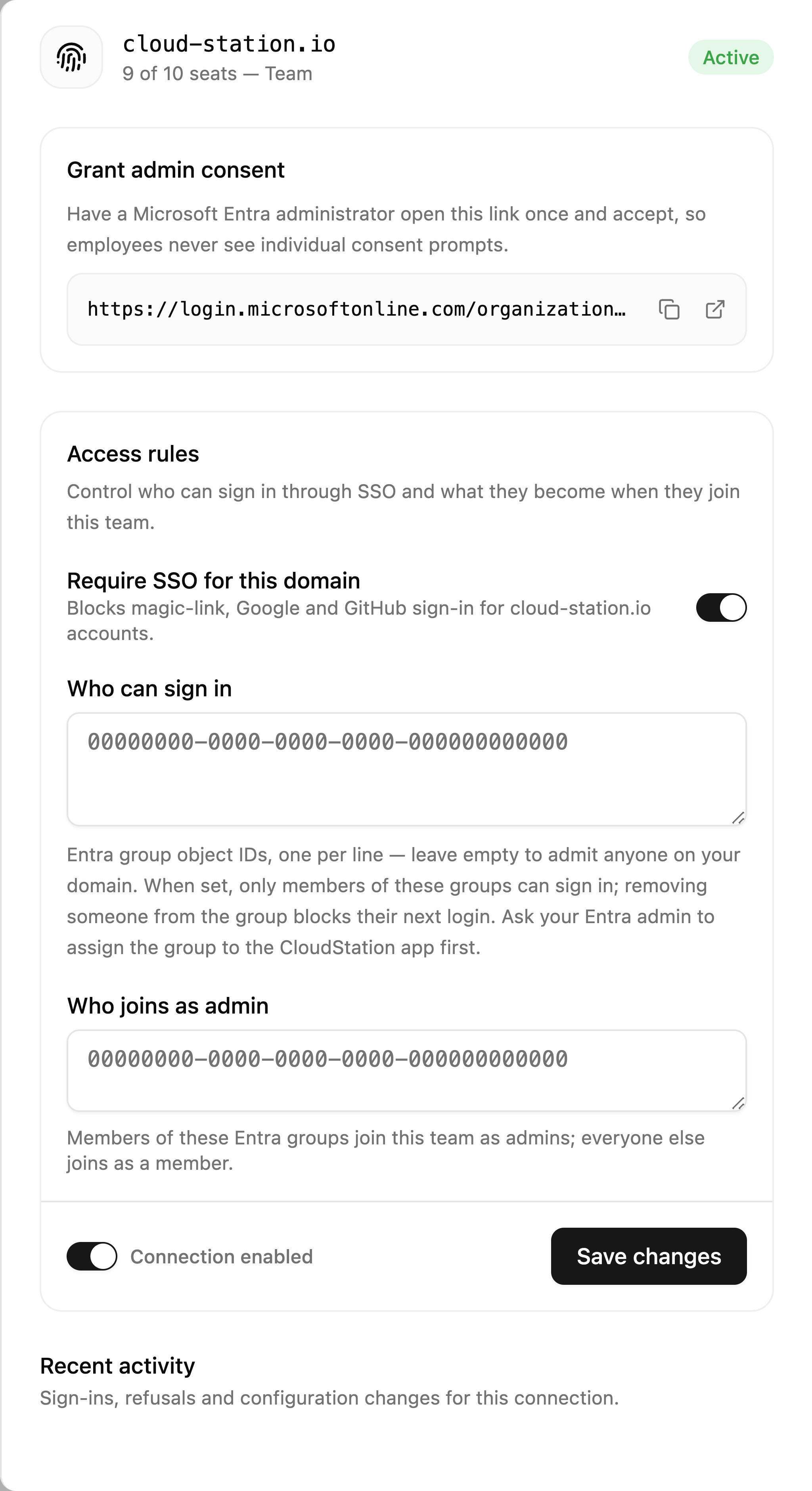
CloudStation only requests basic sign-in claims (name, email) — no mailbox, files, or directory write access.
If a user later reports error AADSTS650051 during sign-in, consent was granted against a stale permission snapshot. Open the same link and consent again.
4. Access rules — who gets in, and as what
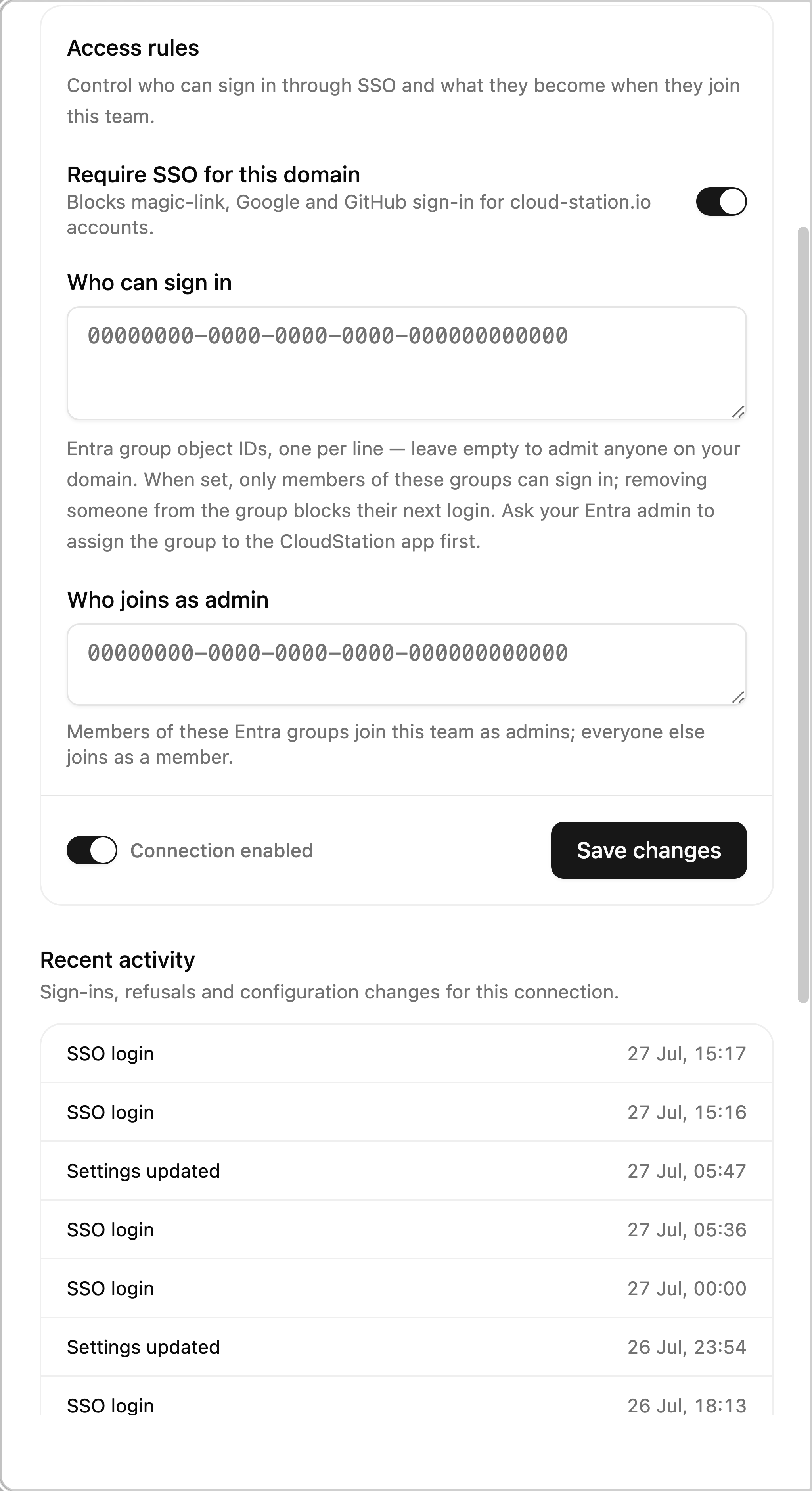
By default, anyone in your tenant with an email on your domain can sign in (up to your seat cap, first-come-first-served). For per-seat contracts we strongly recommend restricting access to a licensed group. The panel gives you two independent layers — use both:
Layer 1 — in your tenant (recommended for everyone)
- In the Entra admin center, open Enterprise applications → CloudStation → Properties and set Assignment required? = Yes.
- Under Users and groups, assign your licensed group (e.g.
sg-cloudstation-users).
From that moment Microsoft refuses tokens for anyone outside the group — you manage access entirely in your own directory. Remove someone from the group and their next sign-in fails.
Layer 2 — enforced by CloudStation (defense in depth)
In Who can sign in, paste the object IDs of your licensed groups (Entra admin center → Groups → your group → Object Id), one per line. CloudStation then independently verifies group membership on every sign-in — first-time and returning users alike.
In Who joins as admin, you can map an admins group: members of those groups join your CloudStation team as team admins; everyone else joins as a member.
Layer 2 relies on the group claims Microsoft includes in the sign-in token, and those are only emitted for groups assigned to the CloudStation app (layer 1). Enable Assignment required and assign the group before turning on allowed groups — otherwise users are refused with "groups could not be verified".
Require SSO for the whole domain
The Require SSO for this domain toggle blocks magic-link, Google, and GitHub sign-in for accounts on your domain. Anyone trying another method is told to use company single sign-on instead. Turn this on once you've confirmed SSO works — it's the single switch that guarantees every employee session is governed by your directory.
Sessions for SSO-managed users last 12 hours, so disabling a user in your directory locks them out of CloudStation within hours.
5. What your employees experience
- They open CloudStation and click Company single sign-on.
- They authenticate with Microsoft — your conditional-access, MFA, and device policies apply as usual.
- Done. On first sign-in an account is created automatically and they land in your team with the configured role. No invitations, no password setup.
The employee-facing flow, with screenshots, is on Sign in with Company SSO.
Monitoring: the activity tail
Once the connection exists, the panel shows Recent activity — sign-ins, refusals, and configuration changes for the connection:
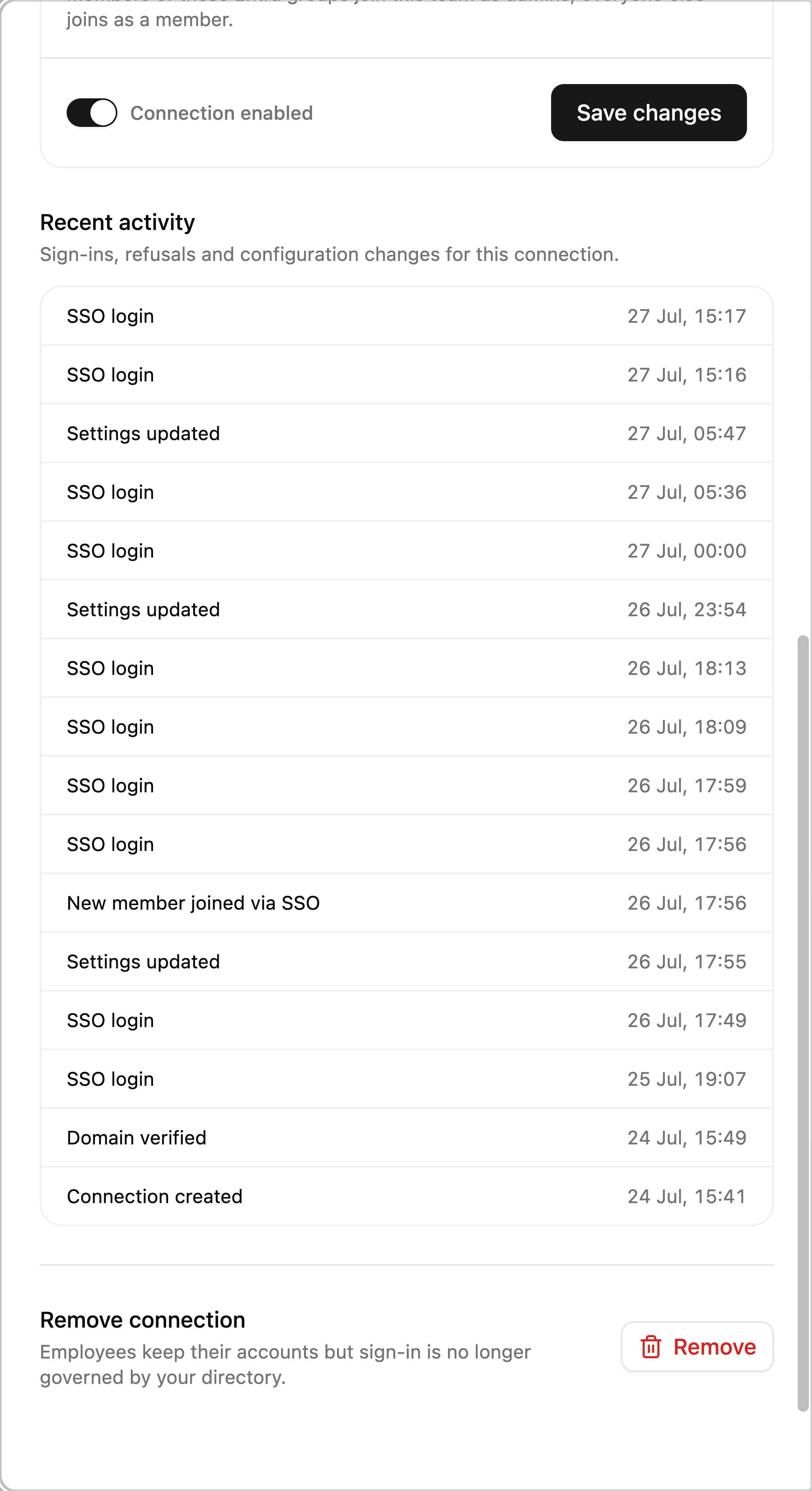
When the SSO connection needs attention, admins get a notification that opens the team page with this panel already open — no hunting for it.
| Event | Meaning |
|---|---|
| Connection created / Settings updated / Connection removed | Configuration changes, with timestamps |
| Domain verified | The TXT record was found and the connection activated |
| DNS verification failed | A verification attempt timed out |
| SSO login | A successful employee sign-in |
| New member joined via SSO | First sign-in of a new employee (automatic account + team join) |
| Login refused: wrong Microsoft organization | Someone picked an account from another tenant |
| Login refused: not in an allowed group | Access-rule layer 2 blocked a sign-in |
| Login refused: groups could not be verified | The token carried no usable group claims — see the layer-2 warning above |
| Login refused: seat limit reached | All purchased seats are taken |
| Non-SSO login blocked | Require SSO stopped a password/Google/GitHub attempt |
| Sessions revoked | An admin revoked active sessions |
Removing the connection
At the bottom of the panel, Remove connection releases the domain claim and disables SSO sign-in for your organization. Employees keep their CloudStation accounts — sign-in is simply no longer governed by your directory. The audit history is kept.
Troubleshooting
| Symptom | Cause | Fix |
|---|---|---|
AADSTS650051 during sign-in | Tenant-wide consent missing or stale | Re-open the admin-consent link from the panel and accept again |
| Wrong Microsoft organization refusals | User picked a personal or other-tenant account | Have them choose their work account; check the connection's tenant if your org has several |
| Not in an allowed group refusals | User isn't in a group listed under Who can sign in | Add them to the licensed group (and to the app assignment) |
| Groups could not be verified refusals | Group claims missing from the token (group overage) | Enable Assignment required on the CloudStation enterprise app and assign the licensed group — only assigned groups are then emitted |
| Seat limit reached refusals | All seats taken | Remove a team member to free a seat, or contact us to increase seats |
| Stuck in Pending DNS verification | TXT record missing or not propagated | Verify with dig TXT _cs-sso.<domain>; press Check again |
Still stuck? Email [email protected] with your domain and the message from the activity tail.