

Sign in with Company SSO
Sign in to CloudStation with your Microsoft work account
If your organization has connected its Microsoft Entra ID (Azure AD) tenant to CloudStation, you sign in with your normal work account — no password to create, no invitation email to wait for.
Not sure if your company uses SSO? Try it — the sign-in page tells you immediately whether SSO is configured for your email domain. If it isn't, you can still use any of the other sign-in options, or ask your admin to set up Enterprise SSO.
Sign-in options
The CloudStation sign-in page offers several ways in:
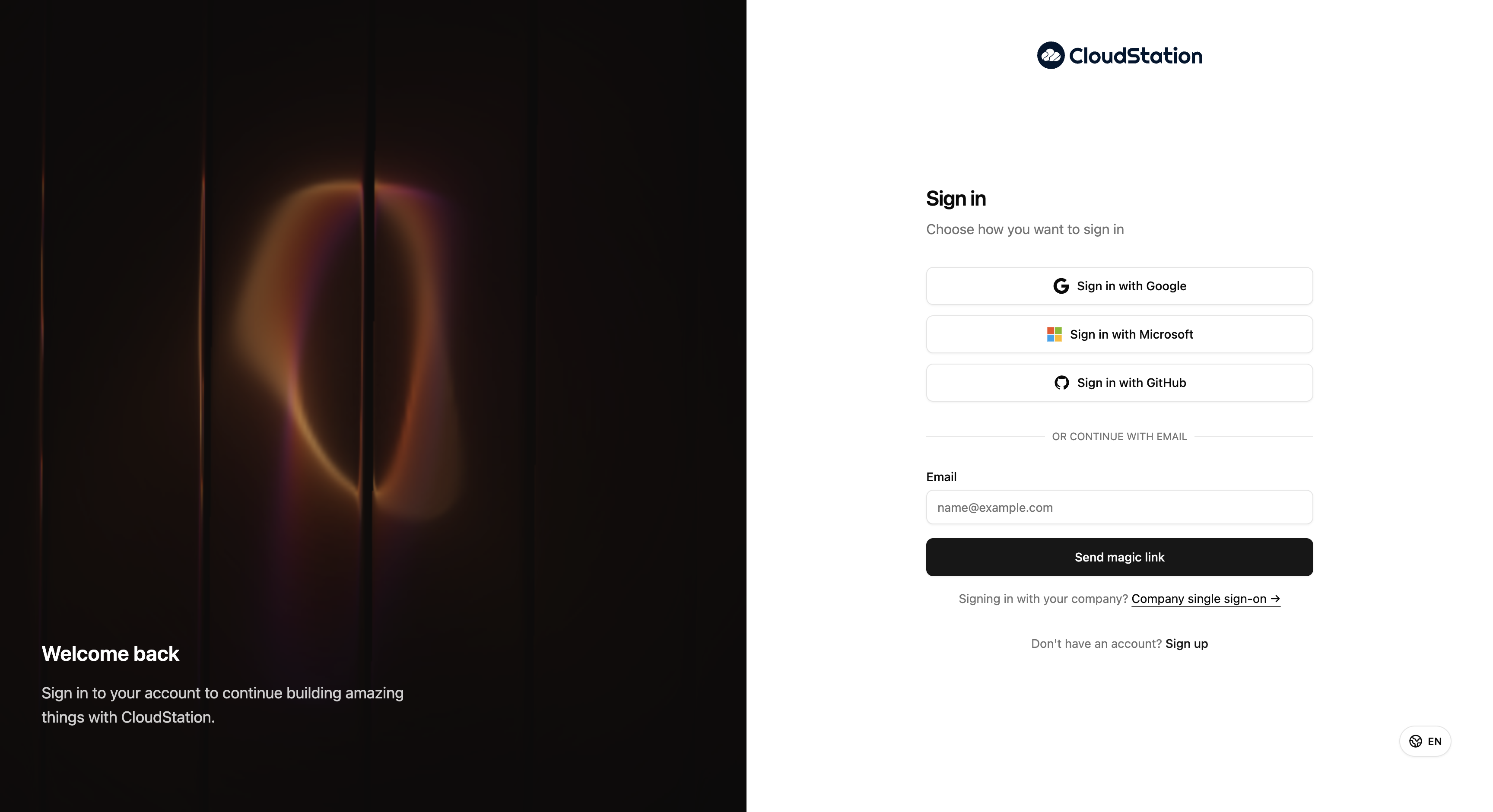
- Google, Microsoft, or GitHub — one-click sign-in with an existing account.
- Magic link — enter your email and we send you a link that signs you in. No password at all.
- Company single sign-on — for organizations with Enterprise SSO. This is the option this page is about.
Signing in with your work account
On the sign-in page, click Company single sign-on → under the magic-link button.
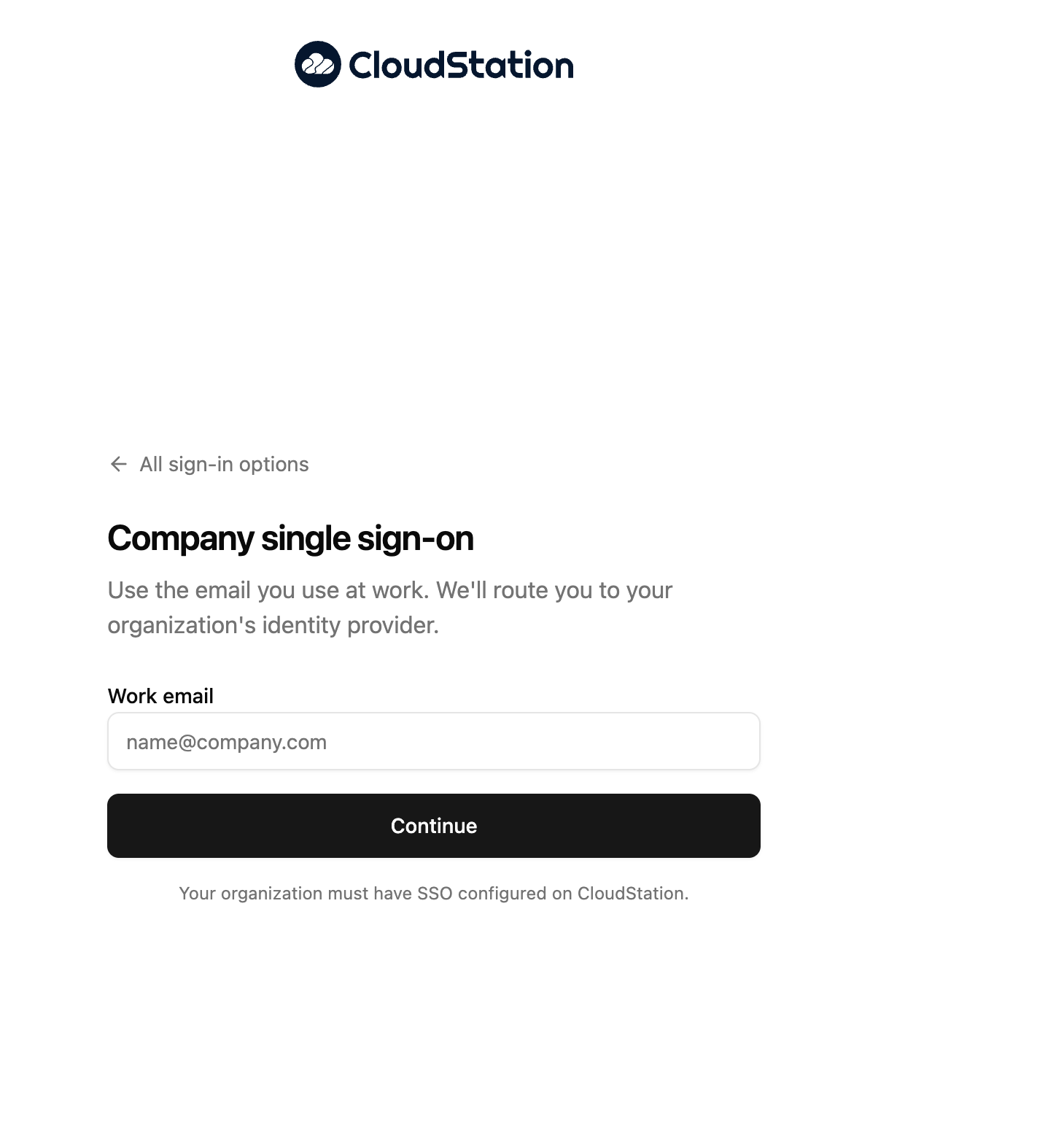
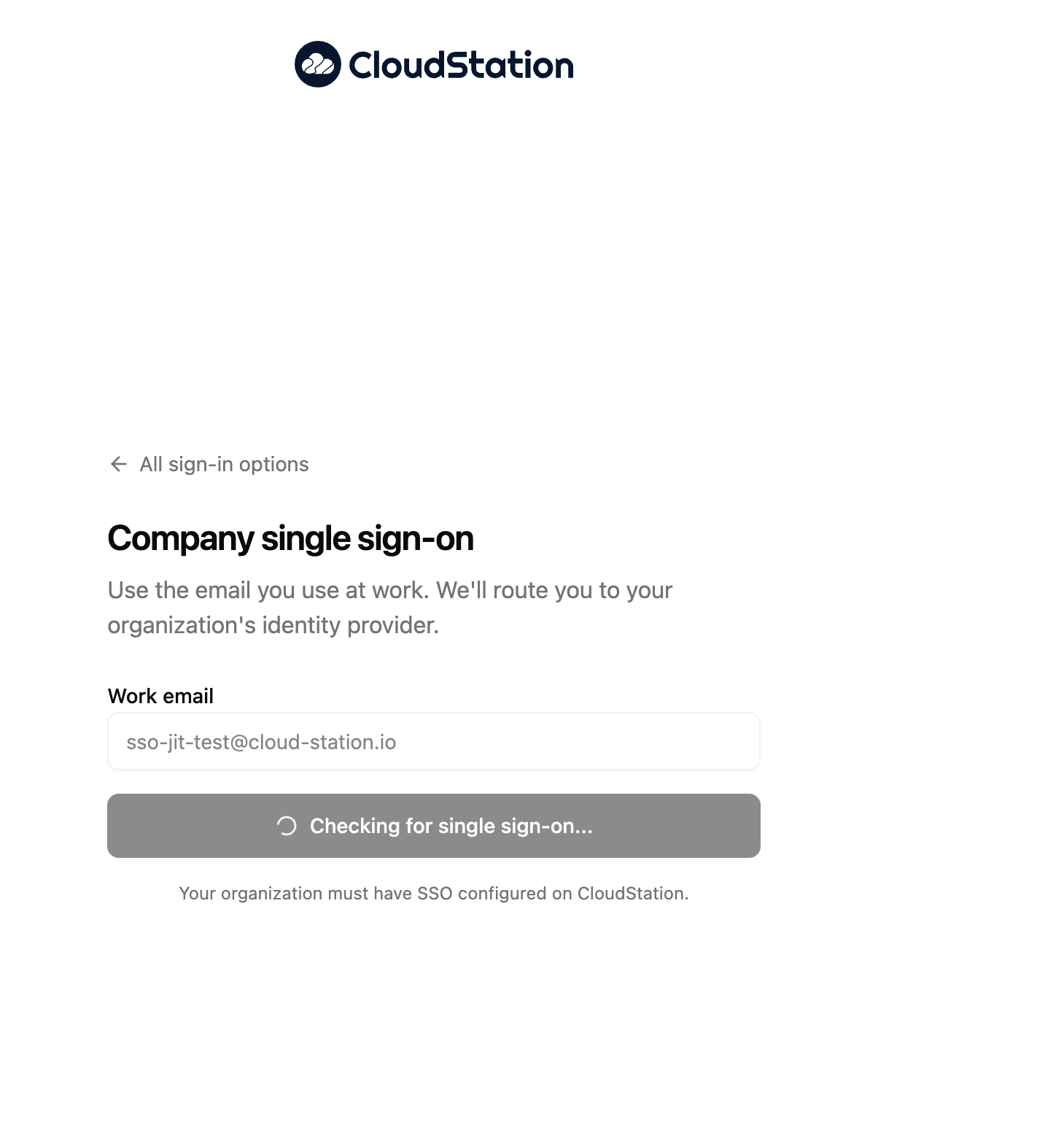
Enter your work email and click Continue. CloudStation checks whether your organization has SSO configured.
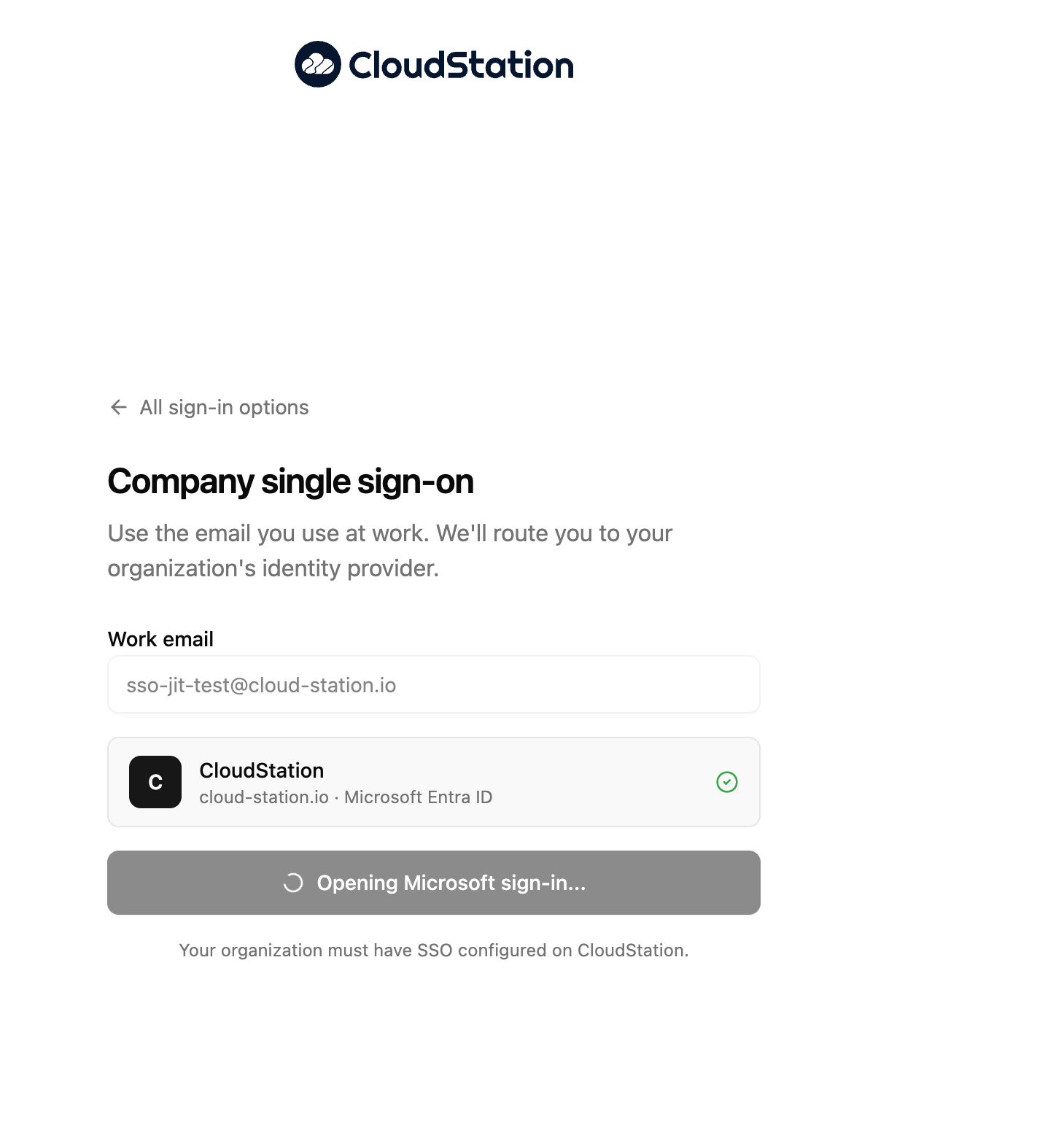
When your organization is found, its name and identity provider appear so you can confirm you're heading to the right place. The Microsoft sign-in window then opens automatically.
Sign in with Microsoft as you normally would. Your company's own security rules — multi-factor authentication, device policies, conditional access — all apply as usual.
That's it. On your first sign-in, CloudStation creates your account automatically and places you in your organization's team with the right role. There is nothing to configure.
Your session lasts 12 hours. After that you simply sign in with Microsoft again — there is still no password to remember.
If something goes wrong
Sign-in problems show a clear message right on the page — for example, when SSO isn't configured for the email domain you entered:
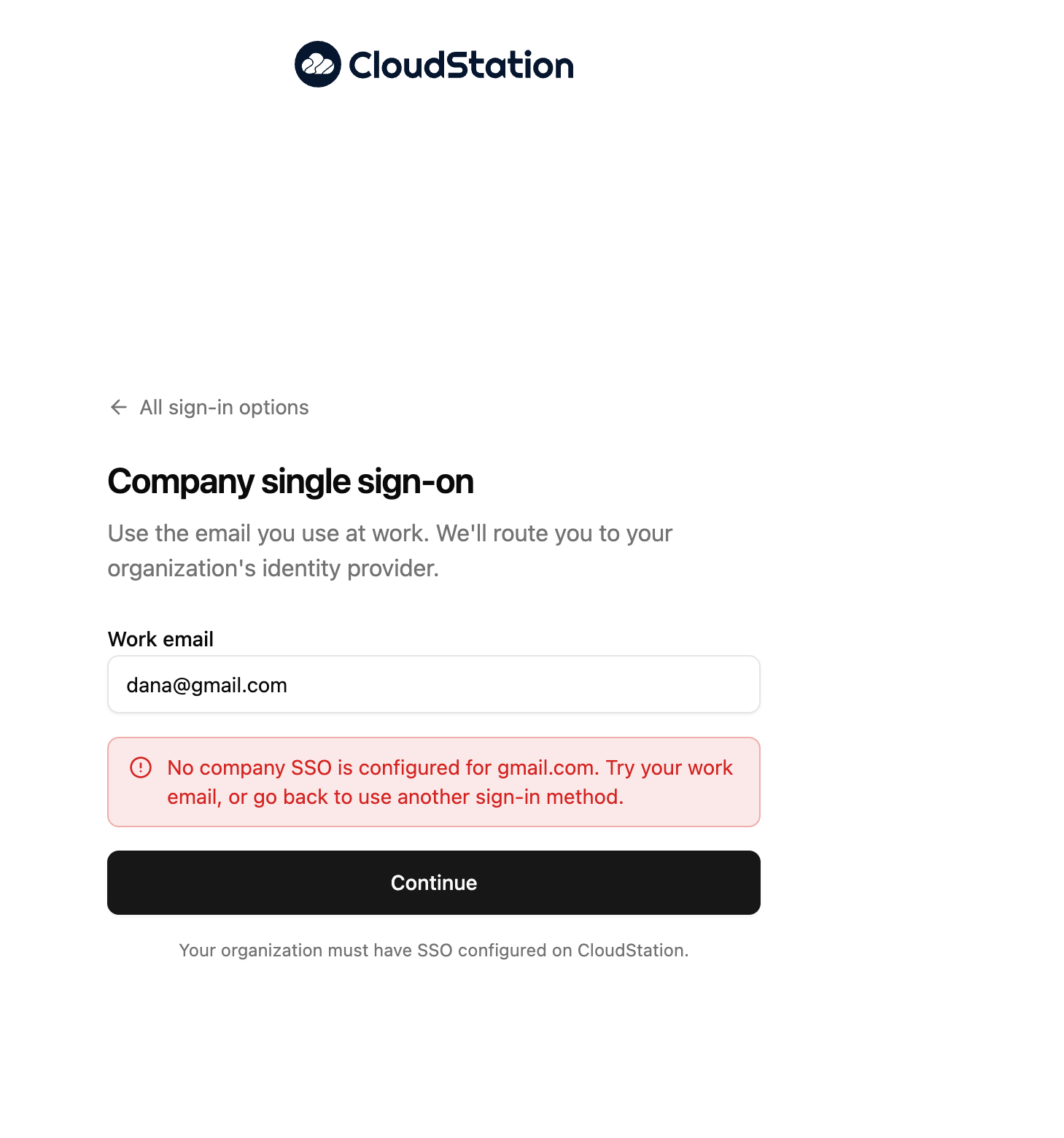
| What you see | What it means | What to do |
|---|---|---|
| No company SSO is configured for your domain | Your organization hasn't set up SSO on CloudStation | Use another sign-in method, or ask your admin to set up SSO in Team Settings |
| Your organization requires single sign-on | Your company enforces SSO, so password, Google, and GitHub sign-in are blocked for your domain | Use Company single sign-on |
| This Microsoft account belongs to a different organization | You picked a personal or other-company Microsoft account in the popup | Choose your work account in the Microsoft window |
| Your organization's seat limit has been reached | All purchased CloudStation seats are taken | Ask your admin to free a seat or increase the seat count |
| Your account is not in the group your organization licensed | Your company restricts CloudStation to a specific group, and you're not in it | Ask your IT admin to add you to the licensed group |
| Your organization's SSO group setup could not be verified | A configuration issue on your company's side | Ask your IT admin to check the CloudStation app configuration — the fix is described in Enterprise SSO setup |