

Volumes
Volumes provide persistent storage for your instances. Unlike the temporary storage built into every container, volumes preserve your data even when instances restart, redeploy, or crash.
Why Volumes Matter
Containers are ephemeral - without volumes, any data written inside the container is lost when the instance restarts or updates.
Use volumes for: Databases (PostgreSQL, MySQL, MongoDB), file uploads, application state, and logs you want to preserve.
Not needed for: Stateless APIs, services that store data elsewhere, or read-only services.
Databases and applications that store important data MUST use volumes. Without volumes, you will lose all your data when the instance restarts or updates.
Viewing Storage Volumes
Volumes are displayed in the Overview tab of the instance detail panel.
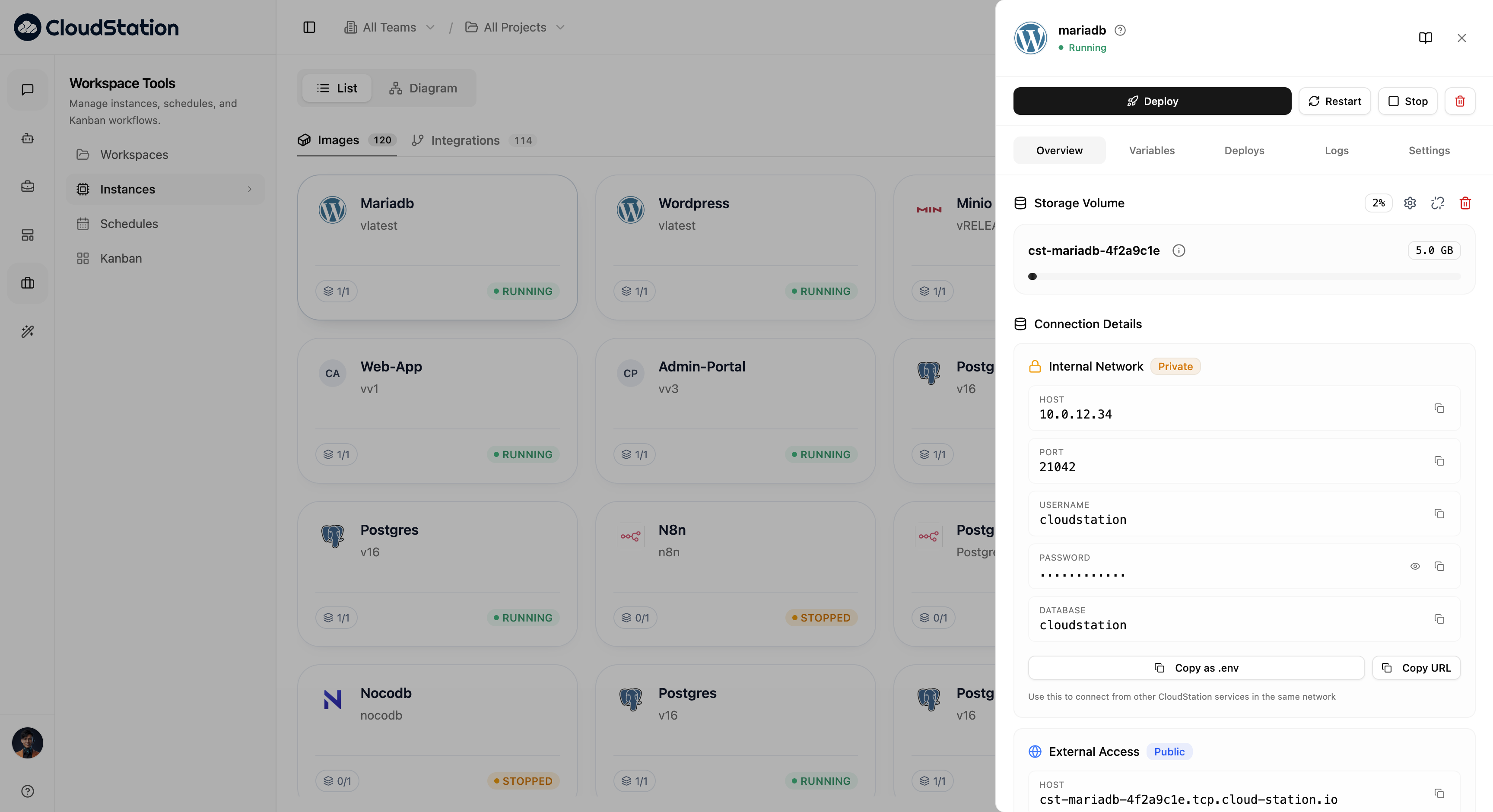
Click an instance card to open the details sidebar and go to the Overview tab. The Storage Volume section displays:
- Volume name (e.g., "cst-nocodb-omvegdzp")
- Total size (e.g., "20.0 GB")
- Current usage percentage (e.g., "1%") with a visual progress bar
- Gear icon for settings and resize icon for adjusting size
Creating Volumes
During Service Deployment
Add volumes when deploying a new instance:
Click Add Service and configure your service
Scroll to the Volumes section
Click Add Volume
Enter a name for the volume (e.g., postgres-data)
Set the size in GB (e.g., 10 GB)
Specify the mount path where data will be stored (e.g., /var/lib/postgresql/data)
Deploy your service with the volume attached
CloudStation templates automatically configure volumes for databases and other stateful services. The mount paths and sizes are pre-configured based on best practices.
Mount Paths
The mount path determines where your volume appears inside the container. Choose paths based on where your application stores data.
Common Mount Paths
Mount Path: /var/lib/postgresql/data
Description: PostgreSQL data directory
Recommended Size: 10-100 GB
Mount Path: /var/lib/mysql
Description: MySQL data directory
Recommended Size: 10-100 GBMount Path: /data/db
Description: MongoDB data directory
Recommended Size: 20-200 GBMount Path: /data
Description: Redis persistence directory
Recommended Size: 5-50 GBMount Path: /app/uploads
Description: User file uploads
Recommended Size: 10-500 GB
Mount Path: /var/log/app
Description: Application logs
Recommended Size: 5-20 GBCheck your application's documentation for the correct data directory. Using the wrong mount path means your data will not be persisted.
Resizing Volumes
You can increase volume size as your data grows:
Open the instance details sidebar and go to the Overview tab
Click the resize icon next to the volume
Enter the new size (must be larger than current size)
Confirm the resize operation
You can increase volume size but cannot decrease it. Start with a reasonable size and scale up as needed.
Choosing the Right Size
Consider your data growth rate when selecting volume size:
| Size | Use Cases |
|---|---|
| 1-10 GB | Development databases, small Redis caches, configuration storage |
| 10-50 GB | Production databases with moderate data, file uploads for small apps |
| 50-500 GB | Large production databases, heavy file storage, media assets |
| 500+ GB | Enterprise databases, video storage, long-term archives |
Troubleshooting
Data Not Persisting
If data disappears after restarts, verify the volume is listed in the Overview tab and that the mount path matches your application's data directory. Test by creating a file and restarting the instance.
Volume Full
When storage is exhausted, resize the volume to a larger capacity, clean up old data (logs, temporary files), or archive old data to external storage.
Applications may crash or behave unpredictably when volumes are full. Monitor your usage regularly.
Next Steps
- View instance details - Learn about the Overview tab and other panels
- Configure environment variables - Set database connection strings
- Deploy services - Launch databases with persistent storage