

Team Overview & Health
The team overview page — members, SSO, shared resources, and connection health at a glance
Open the Workspaces icon in the left rail and select your team to reach the team overview — one page that answers "is everything set up and healthy?" for your whole organization.
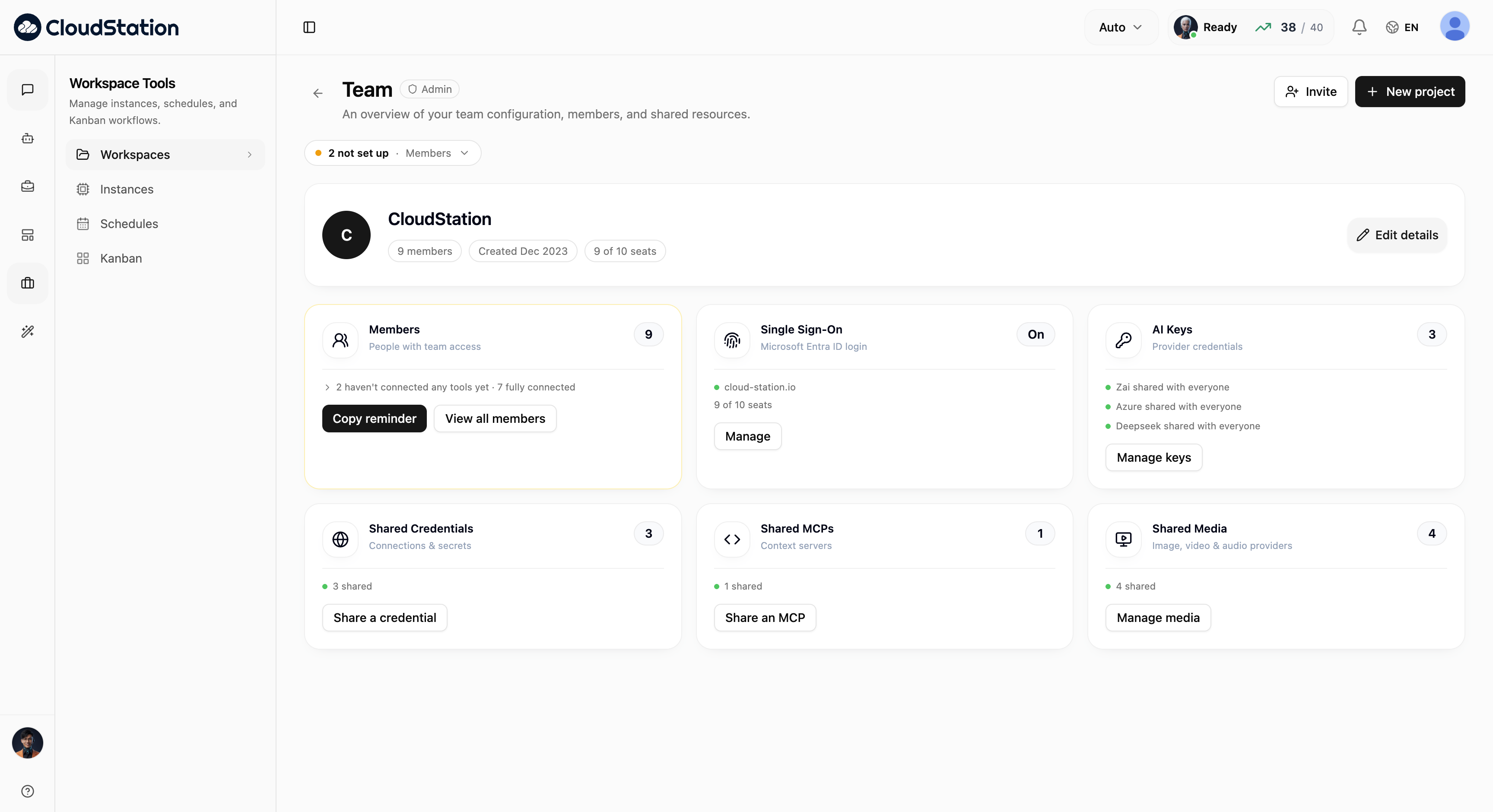
The header shows your team's name, member count, creation date, and seat usage. Around it, one card per area: Workspace health, Members, Single Sign-On, AI Keys, Shared Credentials, Shared MCPs, and Shared Media.
Attention chips
When something needs a look, chips appear under the page title — for example "2 not set up" when two members haven't connected any tools, or "1 broken connection" when someone's integration stopped working.
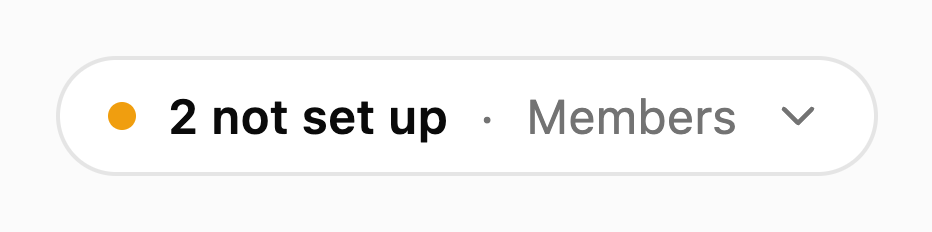
Clicking a chip highlights the card it refers to, so you always know where to act.
The Workspace health card
The first card answers the page's real question. A donut shows how your connections are doing — green for working, amber for at risk, red for failing — and the line underneath counts them: "12 of 14 connections working", with Last checked and a relative time when something has actually been tested. Three small stats spell out the same split: Working, Failing, Not checked.
One unit here is one credential, one MCP server, or one member connection — never a person. Anything that has never been tested stays on the muted part of the ring instead of being counted as fine.
Two buttons:
- View report opens the member list, where the same health is broken down person by person.
- Test everything re-tests what the team shares, right now: the AI provider keys first, then the team's shared credentials, then the shared MCP servers — one after another, so a busy backend degrades gracefully rather than failing in a heap. You get a "9 of 11 checks passed" toast, with the failures named.
Test everything never re-tests members' personal connections. Those are read-only aggregates on this card: members are checked automatically and fix their own connections from a notification.
The Members card and connection health
The Members card doesn't just count people — it tells you who is actually ready to work:
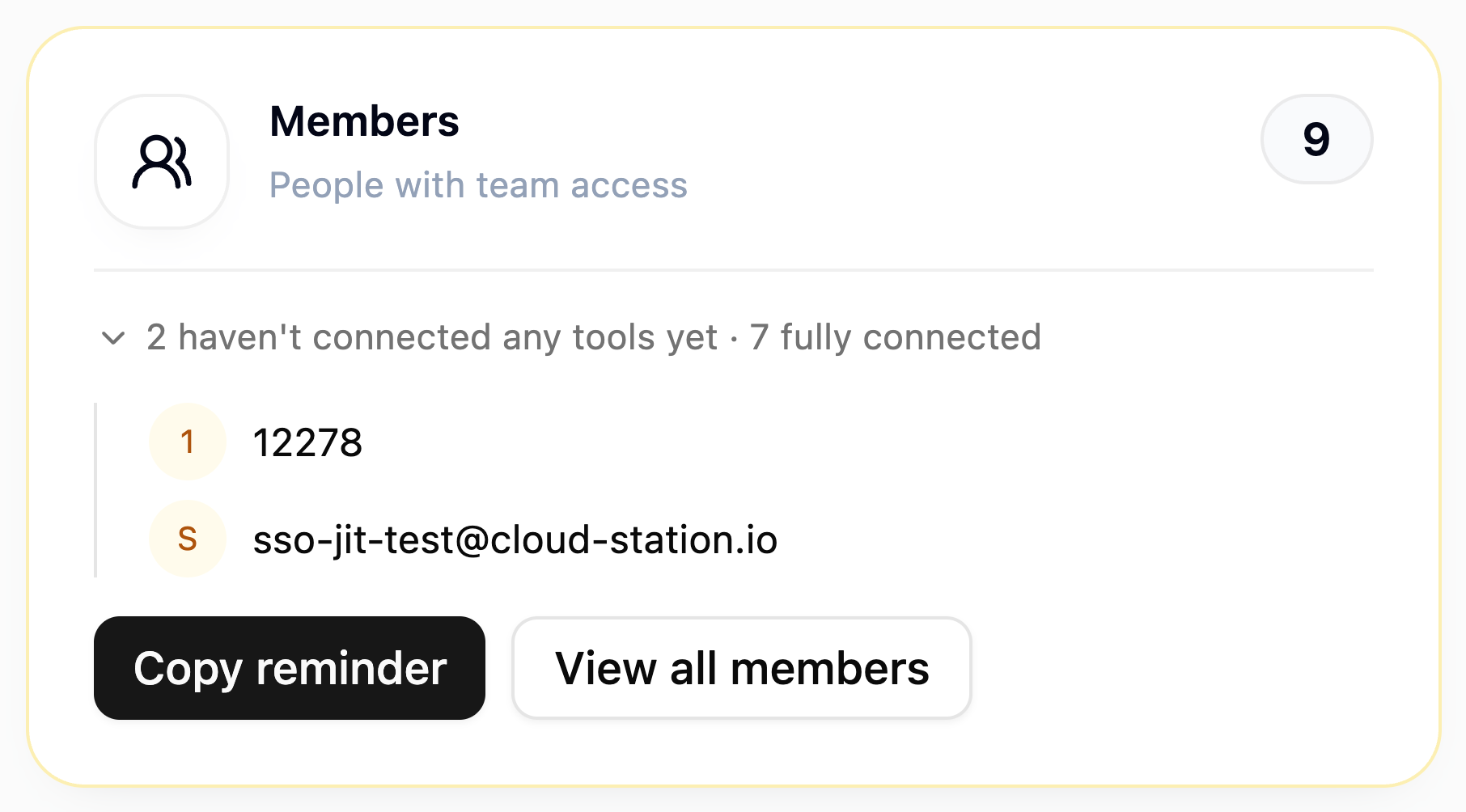
The card leads with the people who need chasing: "6 members need to reconnect · alerts sent automatically", or "2 members may lose access soon", or — when there is nothing to do — "All 14 members are connected". Each row opens the member list already filtered to the people it counts.
"Alerts sent automatically" is literal. Anyone whose connection breaks is notified with a one-click Reconnect button, without you doing anything; see Notifications & connection alerts. You only need to step in for the ones that stay broken.
For those stragglers, the Copy menu is the fallback:
- Copy reminder — copies a short, ready-to-paste message with a deep link, worded for whichever case applies (reconnect, or connect for the first time). Paste it in Teams or Slack; the link opens Settings → Integrations for them right after they sign in.
- Copy addresses — copies the email addresses of everyone who needs a reconnect, is missing a required tool, or hasn't connected anything, so you can mail them in one go.
Required tools
Sharing an agent or a skill with the team creates an expectation: the tools that agent needs, every member is now expected to have. The card counts the gap — "36 members are missing Business Central", with "needed by 2 agents shared with this team" underneath — and the member list shows Missing Business Central next to each person concerned.
Nothing here is a checklist you maintain. Expectations are derived from what the team currently shares: share an agent and its needs appear, unshare it and they vanish. Shared AI provider keys never create one — one team key covers everybody, so no individual can be missing it.
A missing tool is not a broken connection. Nobody's credential has failed; they simply never connected that tool. The remedy is connect, not reconnect, which is why these counts are kept separate from the reconnect rows.
The Single Sign-On card
The SSO card shows your connection at a glance — the claimed domain, seat usage, and an On / Off state:
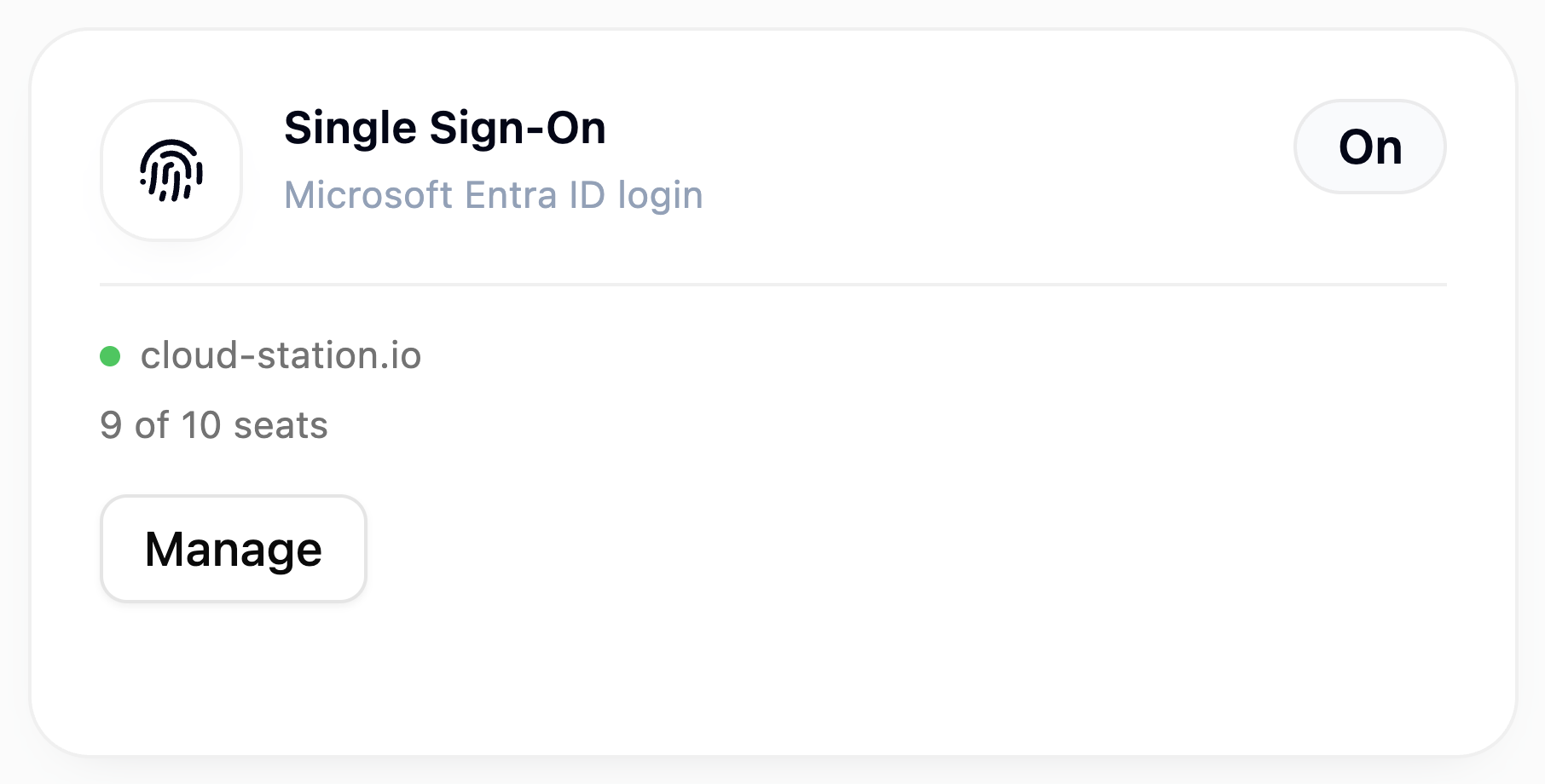
Manage opens the full panel (domain claim, access rules, activity). If SSO isn't configured yet the card shows Set up SSO instead — the whole flow is described in Enterprise SSO setup.
Shared resources
The remaining cards manage what the team shares. Whatever is shared here is usable by every member — without the member ever seeing the actual secret.
-
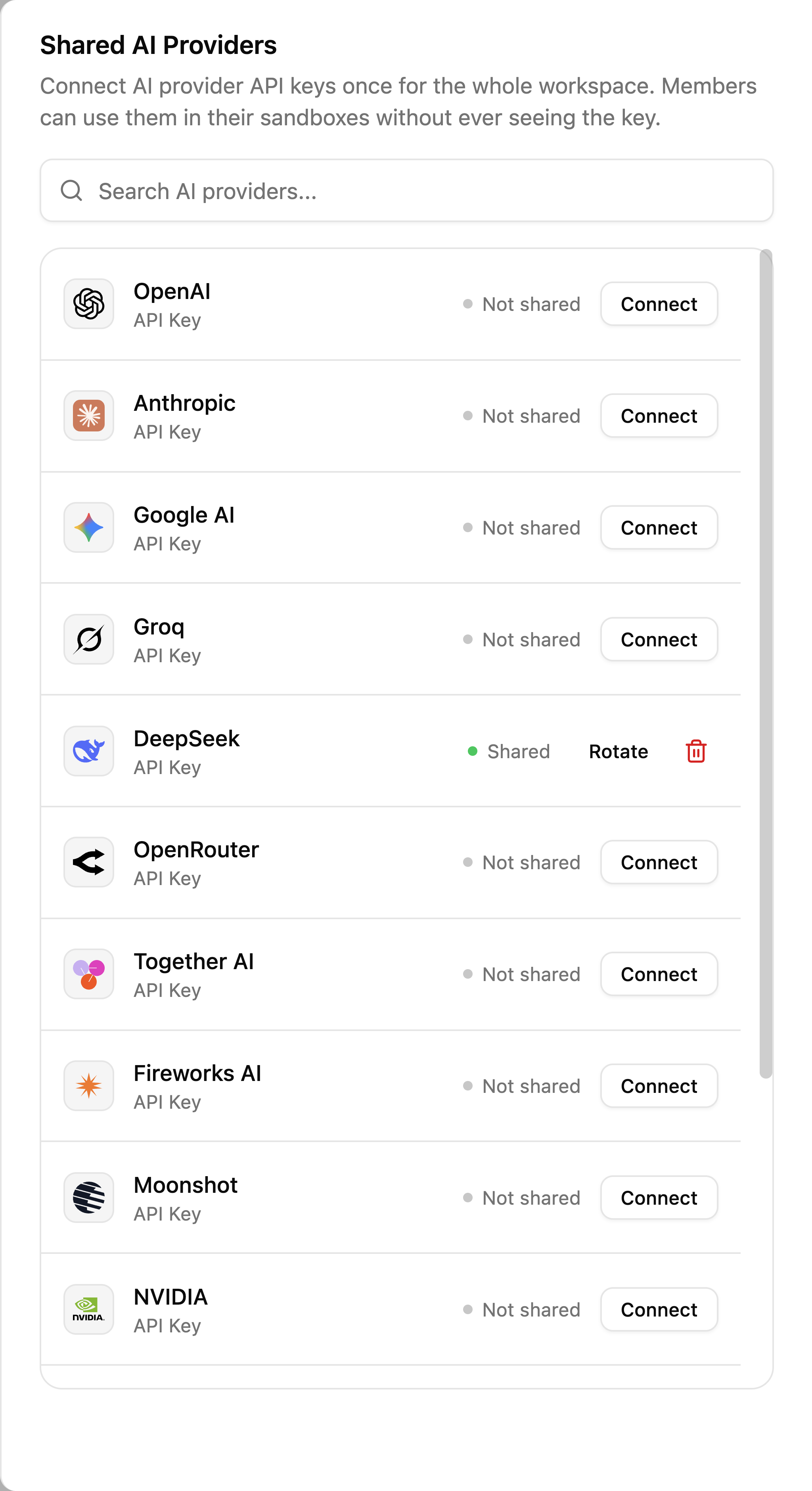
AI Keys — provider API keys (OpenAI, Anthropic, Google AI, and more). Connect a key once and the whole workspace can use it.
-
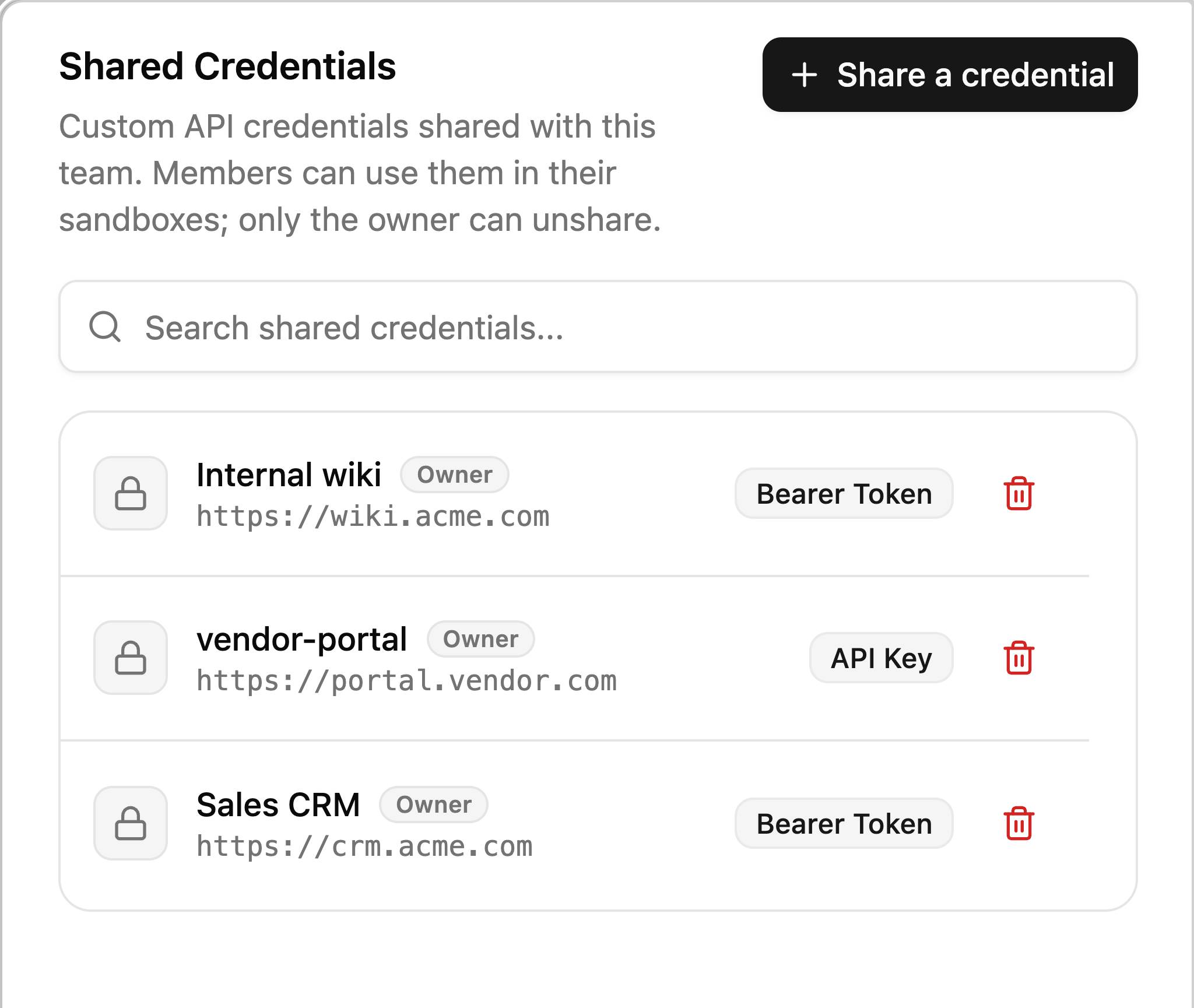
Shared Credentials — custom API credentials (bearer tokens, API keys) for your internal or third-party services. Members can use them in their sandboxes; only the person who shared a credential can unshare it.
-
Shared MCPs — context servers shared with the team.
-
Shared Media — image, video, and audio providers.
Personal versions of the same connections live in Settings → Integrations (see Integrations hub). Personal connections belong to one person; team-shared ones serve everyone.
What members see
Members get the same overview, minus the administration: no invite-role controls, no Workspace health card, no SSO card, no attention chips — just the team's shared resources and the member list. The docked setup guide and the first-visit tour are admin-only too; members never see either.
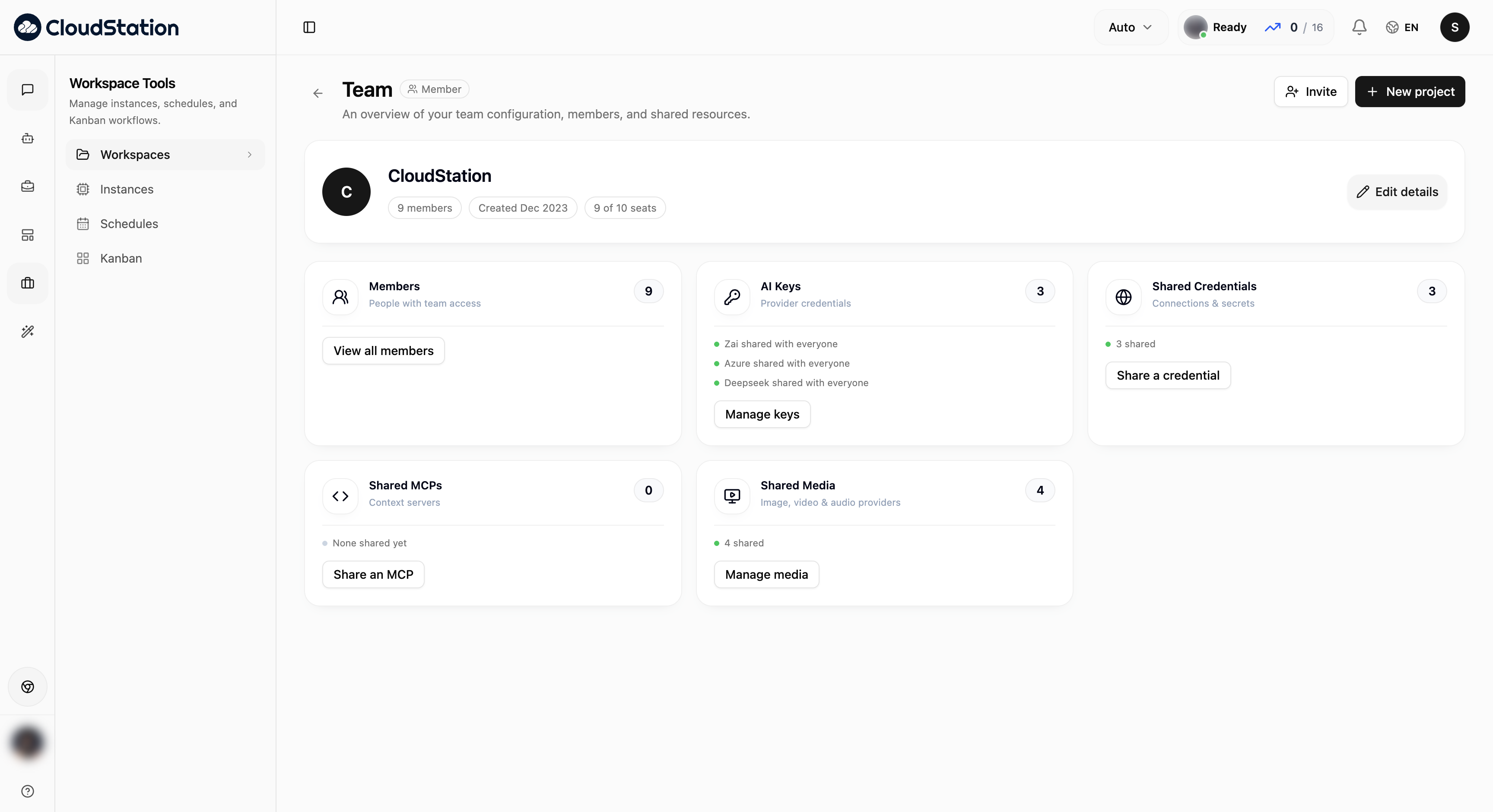
The Member badge next to the page title tells you which view you're in (the owner and admins see Admin).