

Projects & Sessions
Organize your AI chat sessions and cloud infrastructure within Projects.
When you open a workspace, you land on the Projects & Sessions page. Projects are displayed in a 4-column card grid. The first card is always Add New Project with a dashed border and plus icon. A search bar in the top-right lets you filter projects, and a status bar at the bottom shows "Loaded X of X projects."
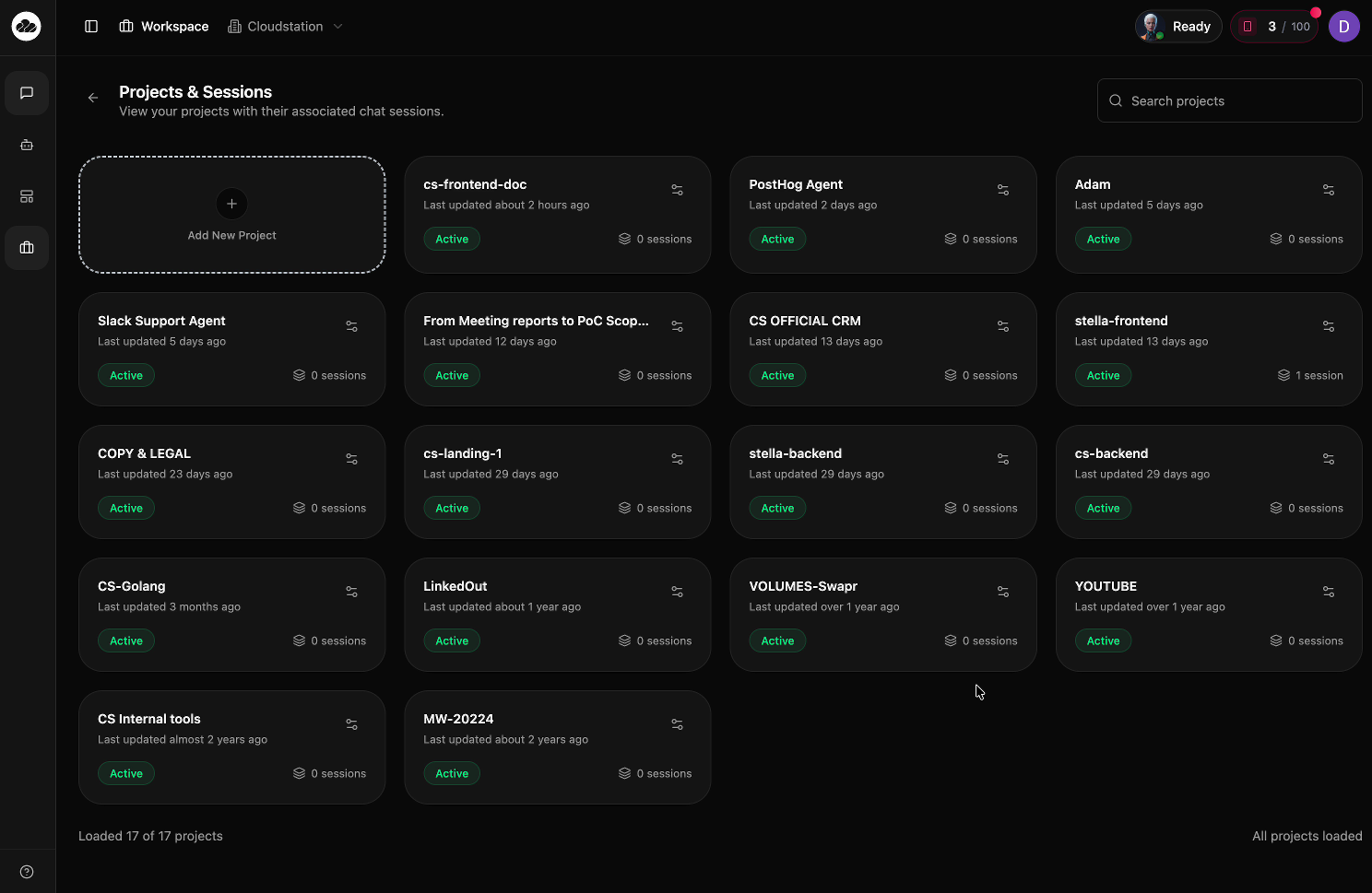
What Each Project Card Shows
Every project card displays:
- Project name - the name you gave the project (e.g., "cs-frontend-doc", "PostHog Agent")
- Last updated - when the project was last modified (e.g., "Last updated about 2 hours ago")
- Status badge - a green "Active" pill
- Session count - an icon with the number of chat sessions (e.g., "0 sessions", "1 session")
- Settings icon - a gear/sliders icon in the top-right corner to configure the project
What is a Project?
A Project is a container used across CloudStation. The same Project concept is used in both Cloud and AI features, but serves a different purpose in each:
In Cloud
A Project groups related Instances together. Services within the same Project can discover each other automatically — so your frontend, backend, and database instances can communicate because they belong to the same Project. This is the service discovery boundary.
In AI
A Project organizes your Sessions (chat conversations) and provides an API endpoint. You can interact with a Project through the chat UI or programmatically via the Agents API from tools like n8n, Zapier, or Make.
Projects also support:
- Git Integration - Connect a code repository to the Project
- Kanban - Visual task management board
- Schedules - Scheduled tasks and automation
The hierarchy is: Workspace > Projects > Instances
Opening a Project
Click any project card to open the cloud/instance management view. This view has three tabs:
- Instances - your running cloud services and applications
- Kanban - visual task management board
- Schedules - scheduled tasks and automation
The breadcrumb navigation shows your path: Workspace > [workspace name] > [project name]
Project Sessions
Sessions are accessed from the sidebar, grouped by project. Each project shows a session count badge on its card so you can see how many conversations are associated with it.
Next Steps
- Create your first Project
- Configure Project settings
- Start an AI chat Session
- Connect GitHub for Git-based deployments
- Set up the Agents API