

Notifications & Connection Alerts
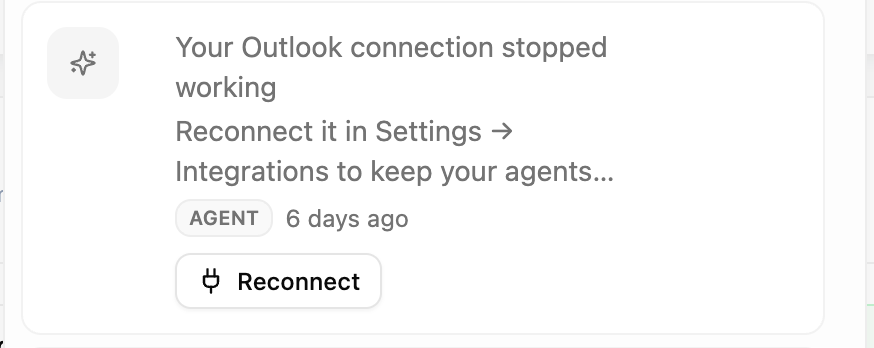
The notification bell, what a broken-connection alert looks like, and the one-click fix behind it
Connections break quietly. A token expires, someone changes a password, an admin revokes an app — and your agents stop being able to read that mailbox long before you notice. CloudStation checks for that on your behalf and tells you, so you never have to find out from a failed task.
The bell
The bell sits in the top bar. When something needs you, it carries an unread badge; opening it lists your alerts, newest first, and the count clears as you read them. The bell keeps itself up to date — you don't need to reload the page.
A coloured dot marks how urgent each one is: orange for something that needs action from you, amber for something worth a look, and a muted dot for plain information.
What the alerts say
The first line names what stopped working; the second line tells you where to fix it.
| Alert | Second line |
|---|---|
| Your Outlook connection stopped working (your own connection, provider known) | Reconnect it in Settings → Integrations to keep your agents working. |
| One of your connections stopped working (provider not identified) | Reconnect it to keep your agents working. |
| A shared Business Central credential stopped working — or A shared credential stopped working | Update it in team settings — agents that use it are failing. |
| The Notion MCP server stopped working — or An MCP server stopped working | Check the server in team settings — agents that use it are failing. |
| Company SSO setup for contoso.com needs attention — or Company SSO setup needs attention | — |
Provider names appear the way the vendor writes them — Business Central, GitHub, OneDrive, OpenAI, Power BI, SharePoint, WhatsApp.
What clicking does
Each alert carries a button, and clicking the row does the same thing as clicking the button.
| Alert | Button | Where it takes you |
|---|---|---|
| Your own connection | Reconnect | Settings → Integrations, with that provider's card in focus — reconnect right there |
| Shared credential | View | Your team's page, where shared credentials live |
| MCP server | View | Your team's page (or Settings → Custom MCPs if the server is your own) |
| Company SSO | View | Your team's page with the Single Sign-On panel already open |
A personal connection is fixed in about a minute: click Reconnect, sign in with the provider again, done. See Integrations hub.
How the checking works
You should know four things about the machinery, because they explain what you will and won't see:
- Checks run by themselves, about every 30 minutes. Nobody has to press anything for an alert to appear.
- One alert per problem. A connection that keeps failing check after check updates the alert you already have instead of ringing the bell again.
- At most one reminder a day. If something stays broken you'll hear about it again, but never more than once in 24 hours. Once a day is a reminder; every half hour is a reason to mute the bell.
- Alerts clear themselves. When a connection starts working again, its alert disappears on its own — you don't have to tidy up after a fix.
A few practical consequences:
- Gmail, Google Calendar, and Google Drive are one Google sign-in behind the scenes, so they raise a single Google Workspace alert rather than three.
- Only connections that can actually be asked "is this still valid?" are checked — Microsoft 365, Google Workspace, GitHub, Notion, and Slack. Telegram and WhatsApp aren't probed, so they report as unchecked rather than being claimed healthy.
- Shared AI provider keys aren't polled on a timer; they're judged from real usage instead. They appear in your team's health card, not as scheduled alerts.
For admins
Everything above happens for every member without an admin lifting a finger, which is why the team page frames member connections as "alerts sent automatically" — your job is only the people who stay broken. The team's own view of the same data is on Team overview & health, and the checklist that walks a new workspace through it is the Admin setup guide.