

Workspace Status & Usage
The Ready pill, storage and restarts, and what the apps counter tracks
Two controls in the top bar tell you how your environment is doing: the workspace status pill and the usage counter.

The workspace status pill
Your workspace is the environment Charlie uses to build and run your apps. The pill shows its state at a glance:
| Pill | Meaning |
|---|---|
| Ready (green dot) | Everything is up and running |
| Starting (yellow dot) | The workspace is coming up |
| Updating (orange dot) | Workspace changes are being applied |
| Update (yellow dot) | A refresh is available — restart to get the latest version |
Click the pill to open the status panel:
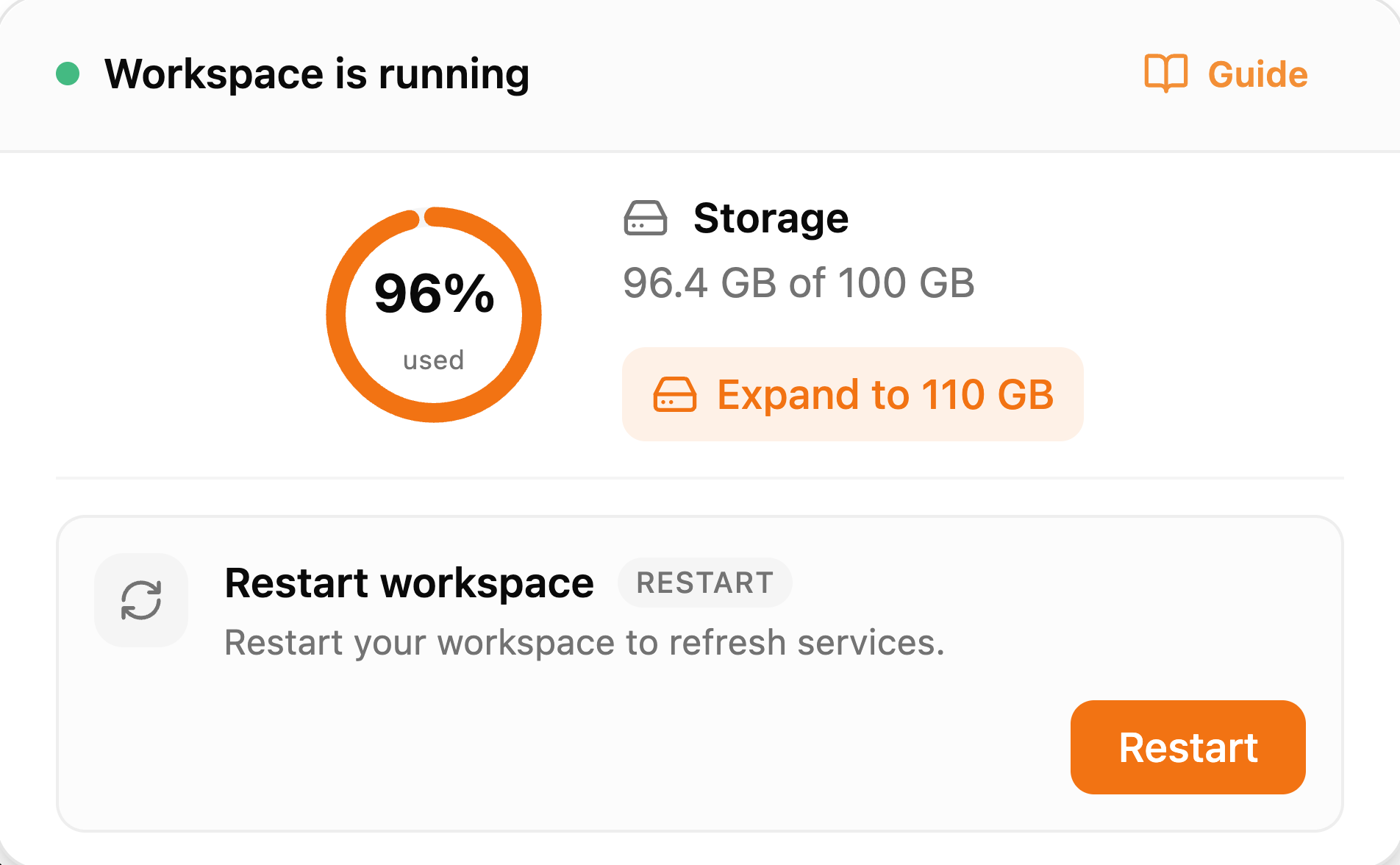
- The header states the current condition — Workspace is running, Updating workspace..., or Workspace is paused.
- Storage shows how much of your workspace disk your apps and files use, with a one-click Expand button when you need more.
- Restart workspace refreshes services without losing your files — like restarting your computer. Reach for it when something isn't responding.
- Guide replays the interactive tour of these controls.
The usage counter
The 38/40-style counter tracks deployed applications — how many apps you're running out of your plan's allowance. It has nothing to do with messages; chatting with Charlie doesn't consume it.
Click the counter for the Usage Overview:
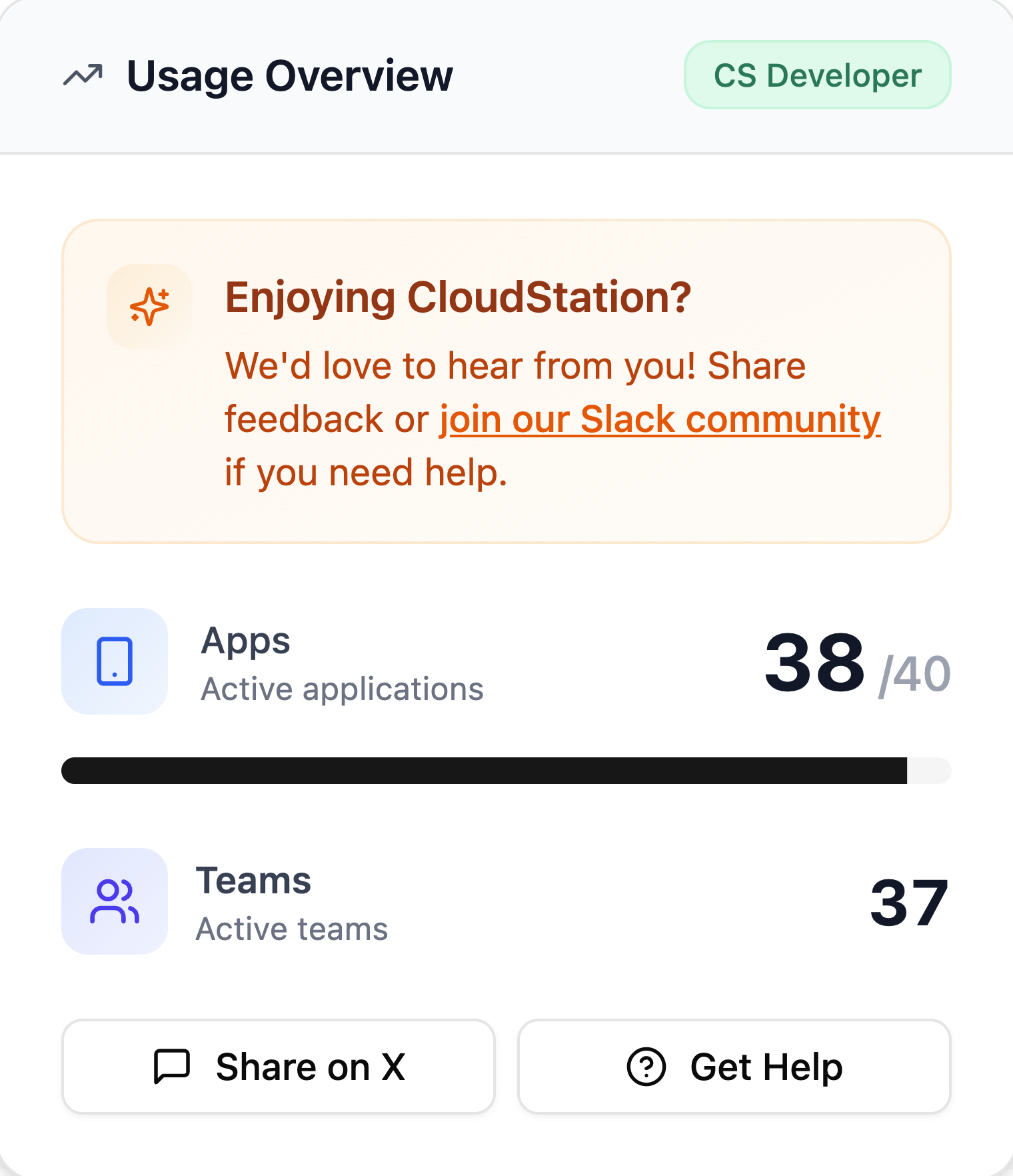
- Apps — active applications against your plan limit, with a progress bar.
- Teams — how many active teams you belong to.
When you're close to the limit the pill shows N apps remaining; at the limit it shows App limit reached and deployments pause until you remove an app or upgrade. The panel's Upgrade Plan button takes you to billing.
On a free trial, the counter also shows the time left: in hours when less than 2 days remain, in days otherwise. When the trial ends, your apps are stopped, not deleted; choose a plan to restart them. See Billing.
Related pages
- Chat with Charlie — the chat home
- Billing — plans, upgrades, and invoices
- Workspaces & Instances — the apps the counter is counting