

Deleting Instances
Permanently remove cloud service instances from your project, individually or in bulk.
Deleting an instance permanently stops and removes the service from your project. If the instance was deployed as part of a template, you can choose to delete just that service or all services from the template deployment.
What Gets Deleted
When you delete an instance, the following are permanently removed:
- The running container — the service is stopped and its container is destroyed
- Attached volumes and stored data — persistent storage linked to the instance
- Environment variables — configuration specific to this service
- Deployment history — all deploy records for the instance
This action cannot be undone. Make sure you have backed up any important data stored in volumes before proceeding.
Deleting a Single Service
Open the Instance Detail Panel
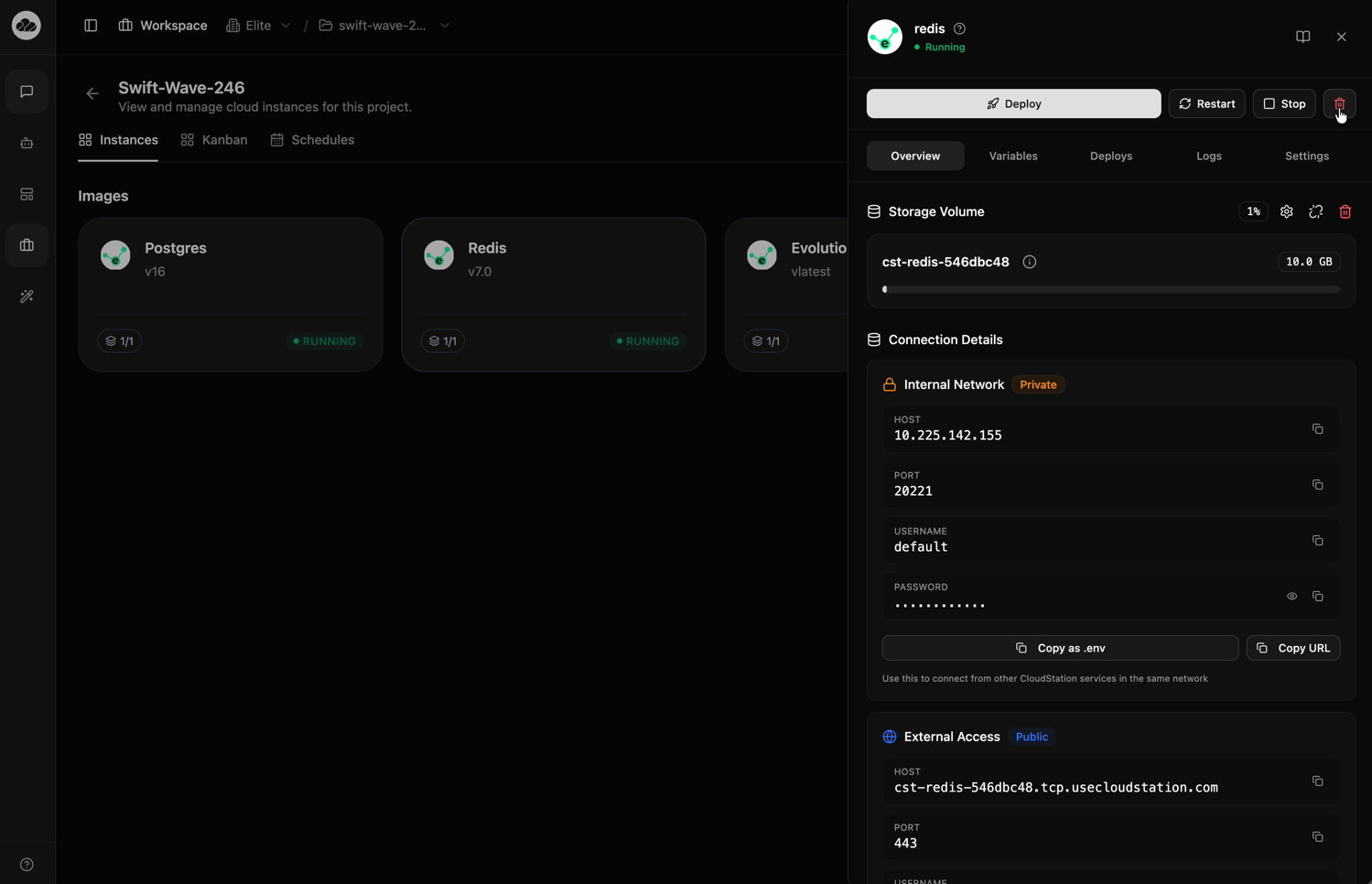
Navigate to your project's Instances tab. Click on the service card you want to delete to open the detail panel on the right.
Click the Delete Button
Click the red trash icon at the far right of the action buttons row (next to Stop).
Choose a Deletion Option
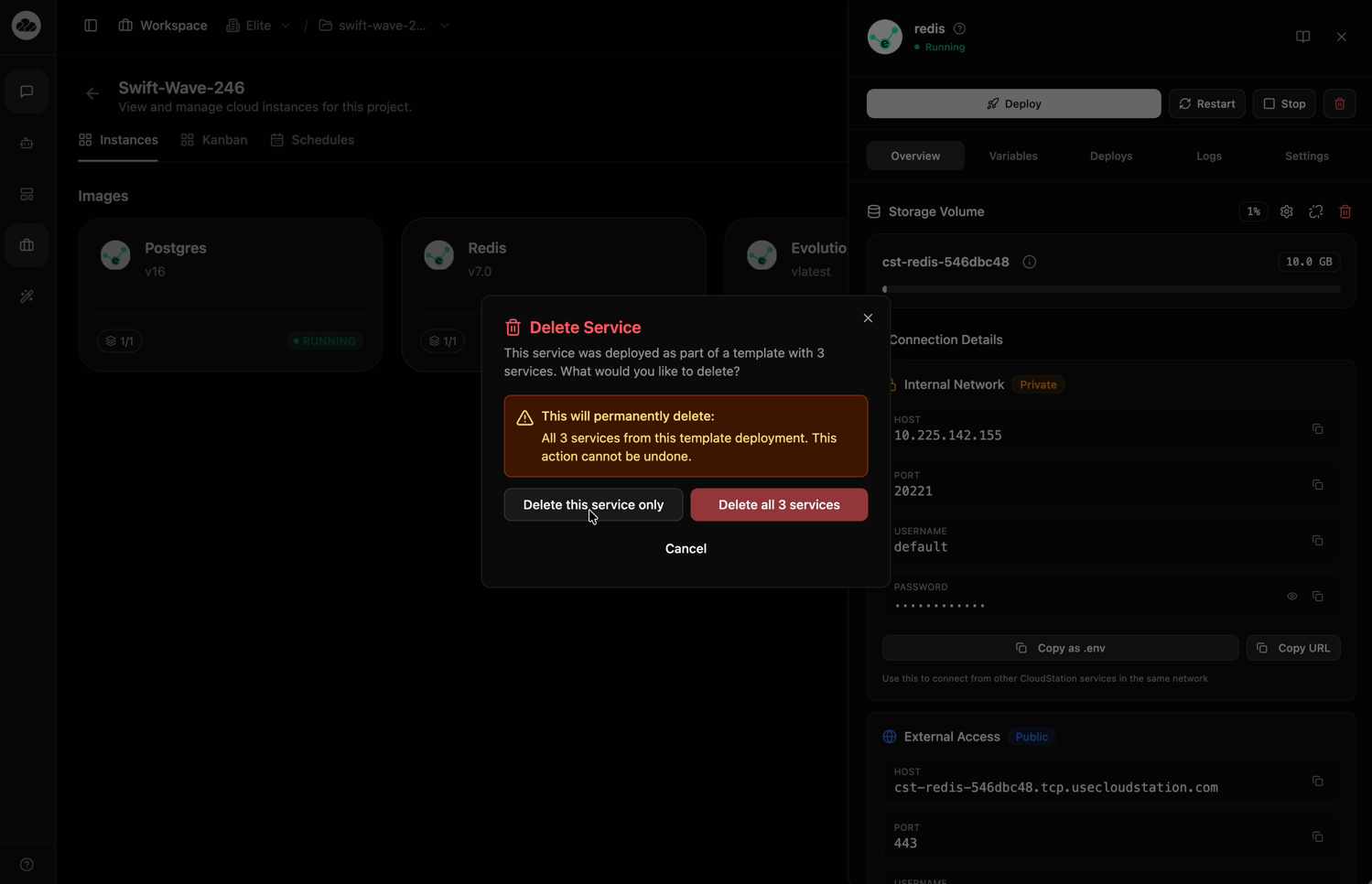
A Delete Service dialog appears. If the service was deployed as part of a template with multiple services, you'll see two options:
- Delete this service only — removes just this instance, leaving other template services intact
- Delete all N services — removes every service from the template deployment
Select "Delete this service only" to remove just the selected service.
Confirm Deletion
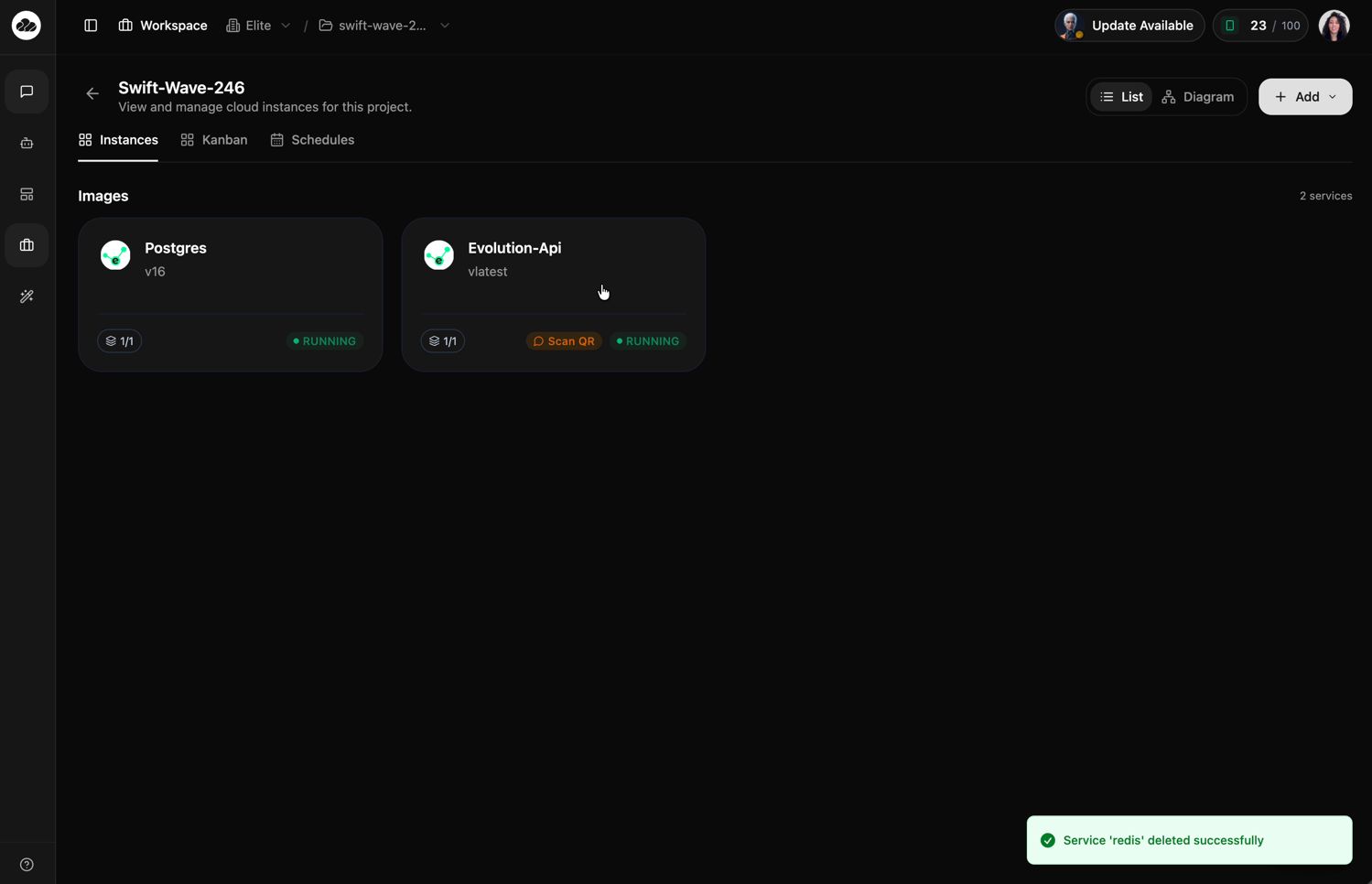
The button shows a "Deleting..." spinner while the service is being removed. Once complete, a green success notification appears confirming the deletion.
The service card is removed from the instance list and the service count updates accordingly.
Deleting All Template Services
If your services were deployed together from a template, you can remove them all at once.
Open Any Template Service
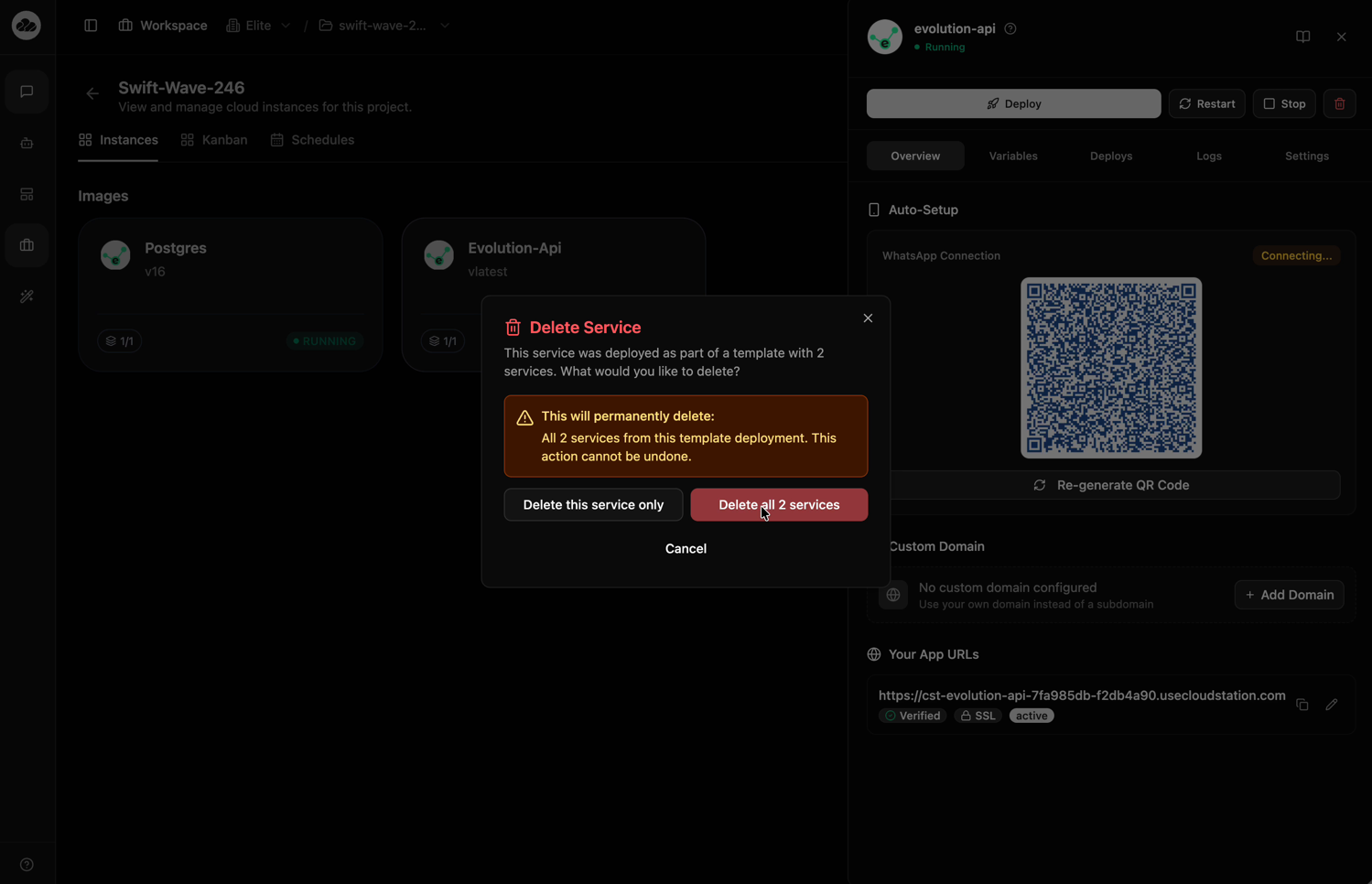
Click on any service card from the template deployment to open its detail panel, then click the red trash icon.
Select Delete All Services
In the Delete Service dialog, click the red "Delete all N services" button. The warning banner confirms how many services will be permanently deleted.
Wait for Completion
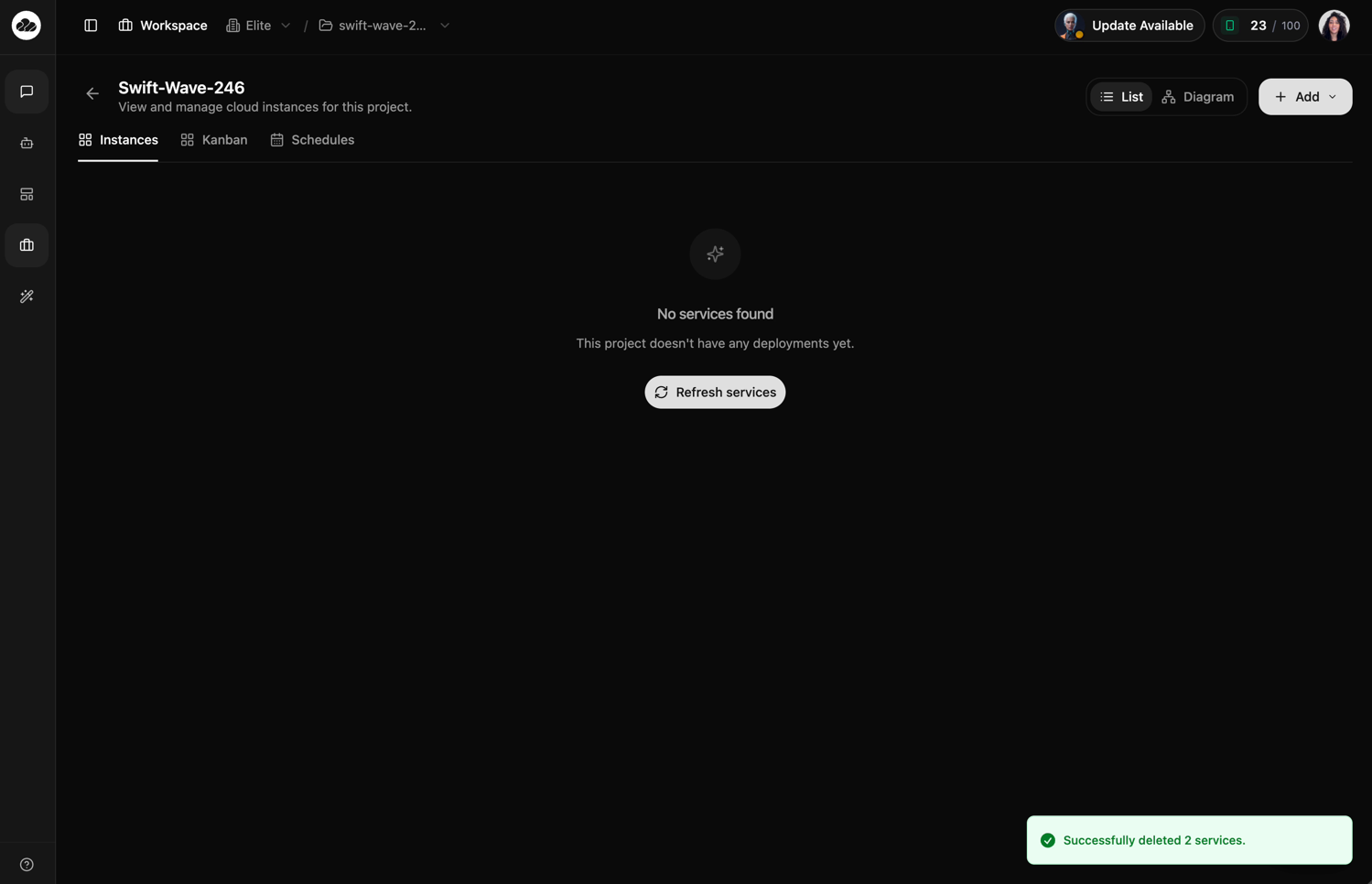
A notification appears showing "Deleting N services..." while all services are removed. Once complete, the project shows an empty state with "No services found" and a success notification confirming the bulk deletion.
Permissions
Only Admins can delete instances. If you're a Member and need an instance deleted, contact your workspace Admin.
Learn more about roles in Team Management.
Next Steps
- Deploy a new service — Add new instances to your project
- Set up volumes — Manage persistent storage for your services
- View your instances — Monitor and manage running services