

What Invited Members See
The first-run experience for employees joining an organization's team
Joining a CloudStation organization takes an employee a couple of minutes. This page walks through their first session, so admins know exactly what to tell their team ("just sign in — that's it") and new members know what to expect.
Getting in
There are two doors, and both lead to the same place:
- Invitation — an owner added you by email in Teams & members. Sign in with that email using any method on the sign-in page.
- Company SSO — your organization connected its Microsoft tenant, so you just sign in with your work account. No invitation needed; your account is created on the spot.
Either way you land inside your organization's team, with its shared projects, AI keys, and credentials already available.
The welcome wizard
On first sign-in, a short wizard introduces the essentials — pick your language, meet Charlie (the assistant that builds and runs things for you), see a worked example, and you're in. Three steps, no configuration.
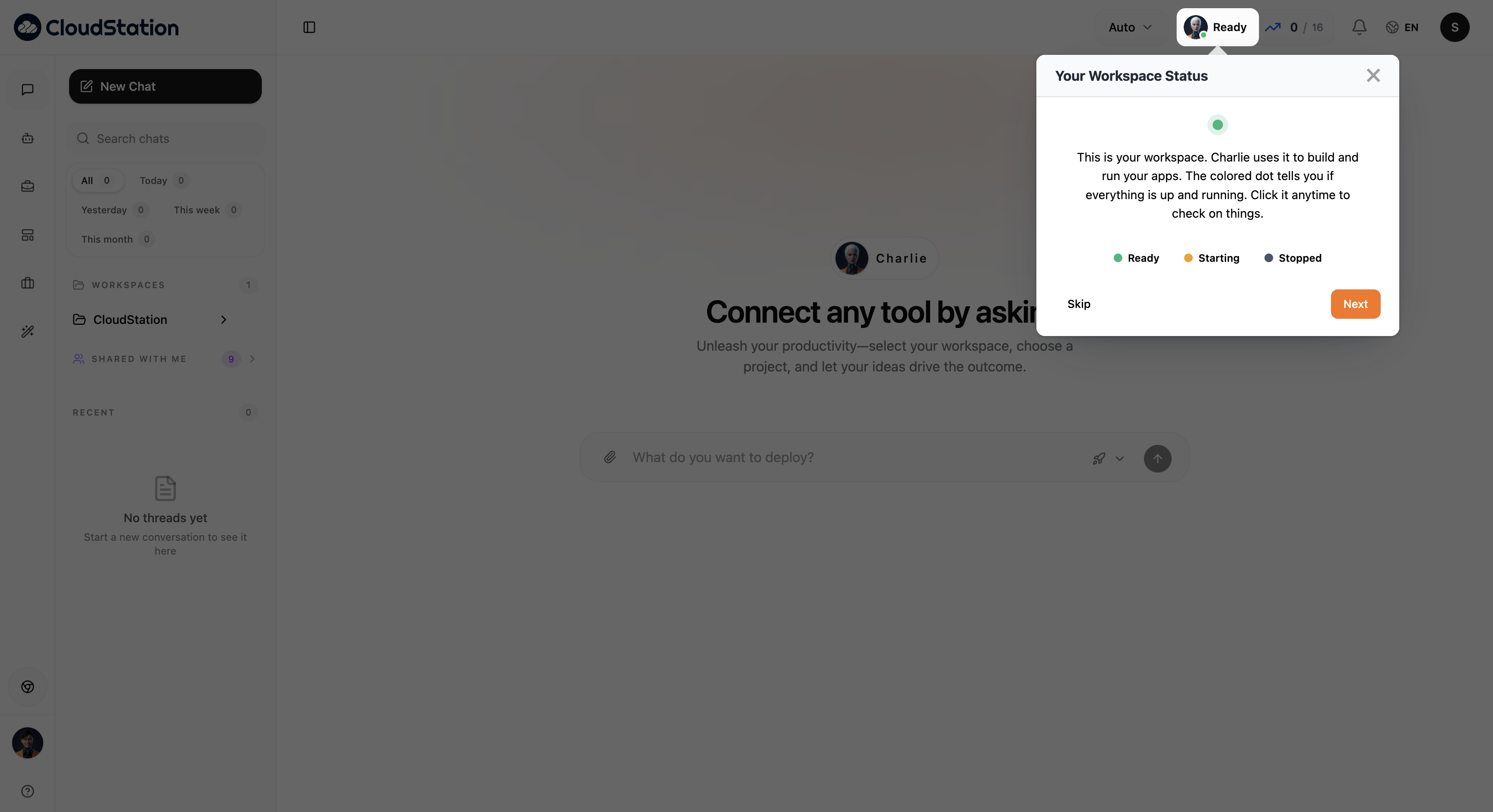
After the wizard, quick tooltips point out the workspace controls you'll actually use — like the status indicator that tells you whether your workspace is up:
Your first five minutes
Connect your personal tools. Open your avatar (top right) → Integrations and connect what you use — Outlook, Teams, SharePoint, Google Drive, and more. Team-shared AI keys are already there; personal tools are yours to connect. See the Integrations hub.
If your admin sent you a setup reminder link, it opens this exact screen after you sign in.
Find what's shared with you. The Shared with me section in the chat sidebar lists conversations teammates shared with you — read-only, with the full history. See Thread sharing.
Just ask. Type what you want in the chat box — deploy an app, analyze a file, draft a document. Your team's shared resources are used automatically.
What members don't deal with
- No billing. Opening Billing shows "Billing is managed by your organization" — the owner handles plans, invoices, and payment methods (why).
- No passwords (SSO organizations). Sessions refresh through Microsoft; your company's MFA and device policies apply as usual.
- No workspace administration. Roles, seats, and SSO are the owner's and admins' job — the team overview member view keeps day-to-day work uncluttered.