

Environment Variables
Configure your services securely with environment variables and secrets
Environment variables let you configure your services without hardcoding values into your code. They're essential for managing API keys, database URLs, feature flags, and any configuration that changes between environments.
Accessing Environment Variables
Click any instance to open the details sidebar
Select the Variables tab
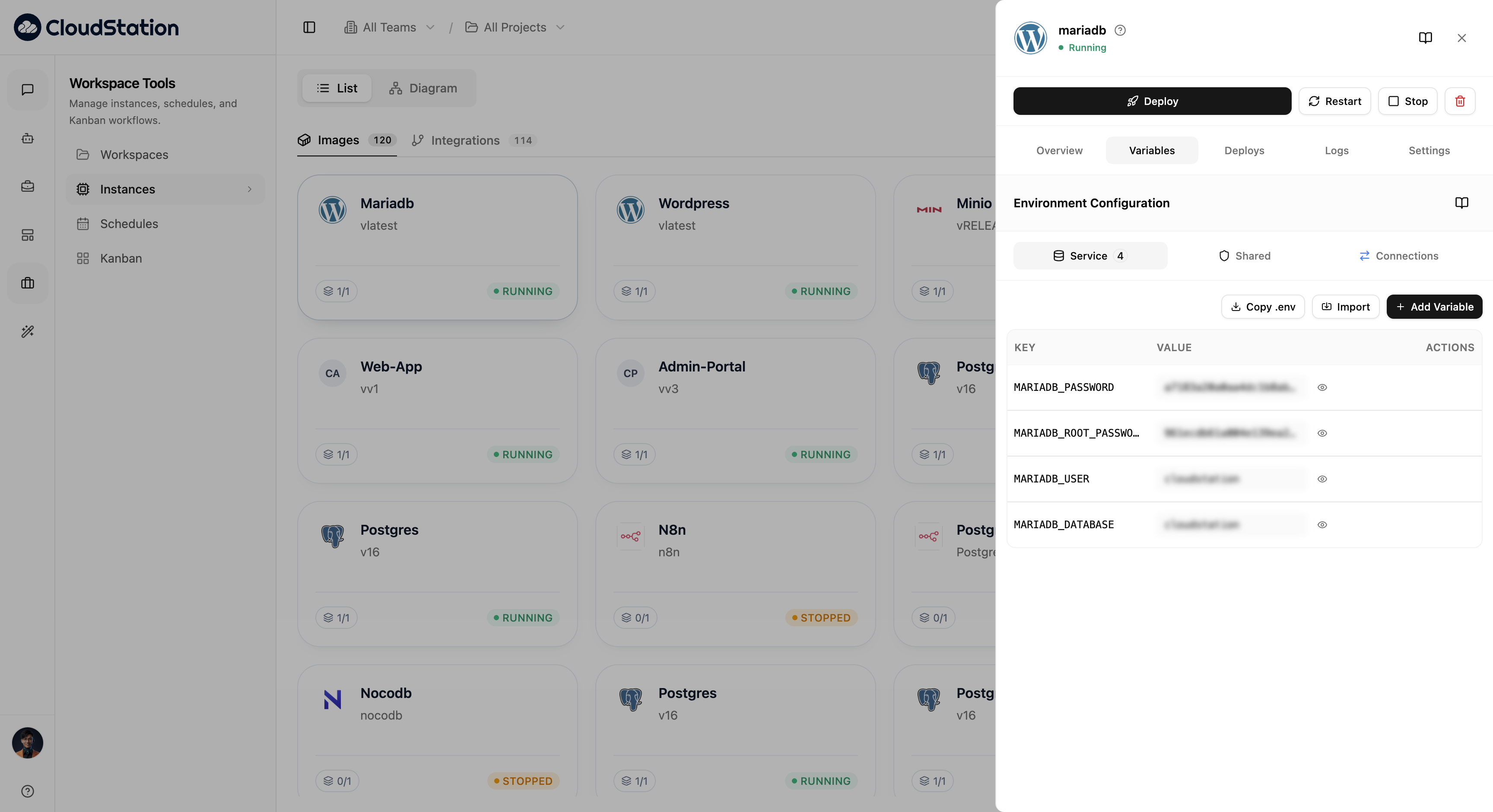
You'll see the Environment Configuration panel
Variable Scopes
The Variables tab organizes environment variables into three scopes, shown as tabs with count badges:
Service Variables
Variables specific to this instance only. The badge shows the count (e.g., "4" in the screenshot). Use these for:
- Instance-specific credentials
- Configuration unique to this service
- Overrides for shared variables
Shared Variables
Variables available to all services in the project. Use these for:
- Common API keys used across services
- Environment identifiers (
ENVIRONMENT=production) - Feature flags that apply globally
- Service discovery URLs
Service variables override Shared variables with the same name. This lets you customize individual services while maintaining shared defaults.
Connection Variables
Variables that link this instance to other services in your project. The badge shows active connections (e.g., "2"). CloudStation automatically manages these when you connect services.
Managing Variables
Action Buttons
At the top of the variables list, you'll find three action buttons:
- Copy .env - Download all variables in
.envformat for local development - Import - Import variables from a file
- + Add Variable - Add a new key-value pair
Variables Table
The table displays your variables with three columns:
| Column | Description |
|---|---|
| KEY | The variable name (e.g., NC_ADMIN_PASSWORD) |
| VALUE | The variable value (masked by default) |
| ACTIONS | Eye icon to reveal/hide the value |
Values are hidden by default for security. Click the eye icon next to any variable to reveal its value.
Adding Variables
Click + Add Variable
Enter the Key (variable name in UPPERCASE_WITH_UNDERSCORES)
Enter the Value
Save and restart the service to apply changes
Changes to environment variables require a service restart to take effect.
Common Use Cases
Database Connections
DATABASE_URL=postgresql://username:password@hostname:5432/database
DB_HOST=postgres.internal
DB_PORT=5432
DB_NAME=myapp
API Keys and Secrets
STRIPE_API_KEY=sk_live_abc123xyz
SENDGRID_API_KEY=SG.abc123xyz
JWT_SECRET=your-256-bit-secret
Application Configuration
NODE_ENV=production
LOG_LEVEL=info
ENABLE_ANALYTICS=true
Reading Variables in Code
const apiKey = process.env.API_KEY;
const port = process.env.PORT || 3000;
import os
api_key = os.environ.get('API_KEY')
port = int(os.environ.get('PORT', 3000))$apiKey = getenv('API_KEY');
$port = getenv('PORT') ?: 3000;import "os"
apiKey := os.Getenv("API_KEY")
port := os.Getenv("PORT")Best Practices
Naming Conventions
- UPPERCASE_WITH_UNDERSCORES: Standard convention
- Descriptive:
DATABASE_URLnotDB - Prefixed: Group related vars (
STRIPE_API_KEY,STRIPE_WEBHOOK_SECRET)
Security
- Mark all sensitive values as secrets
- Use different credentials per environment
- Never commit secrets to Git
- Use the Copy .env feature for local development instead of copying values manually
Troubleshooting
Variable Not Working
- Service not restarted: Changes require restart
- Typo in variable name: Check exact spelling and case
- Wrong scope: Ensure the variable is in the correct scope tab (Service vs Shared)
- Accessing incorrectly: Verify how your framework reads env vars
Next Steps
- Add persistent storage - Configure volumes for data persistence
- Monitor your services - Set up logging and alerts
- Deploy services - Launch new instances with your configuration