

GitHub Integration
Connect your GitHub account to CloudStation for Git-based deployments
Connect your GitHub account to CloudStation to enable deploying services directly from your repositories. This is a one-time setup that unlocks Git-based deployments across all your projects.
What GitHub Integration Does
Connecting your GitHub account to CloudStation:
- Enables "Deploy from Git" — browse and deploy any of your repositories
- Auto-deploy on push — automatically redeploy services when you push changes
- Links your code to Projects for AI-assisted development in Sessions
You must connect your GitHub account before you can use the Deploy from Git or Browse Repos features. This is a prerequisite for all Git-based deployments.
Connecting GitHub
Connect your GitHub account from the Settings > Integrations page.
Open Settings
Click your avatar in the top-right corner to open the user menu, then click Integrations.

Find GitHub Integration
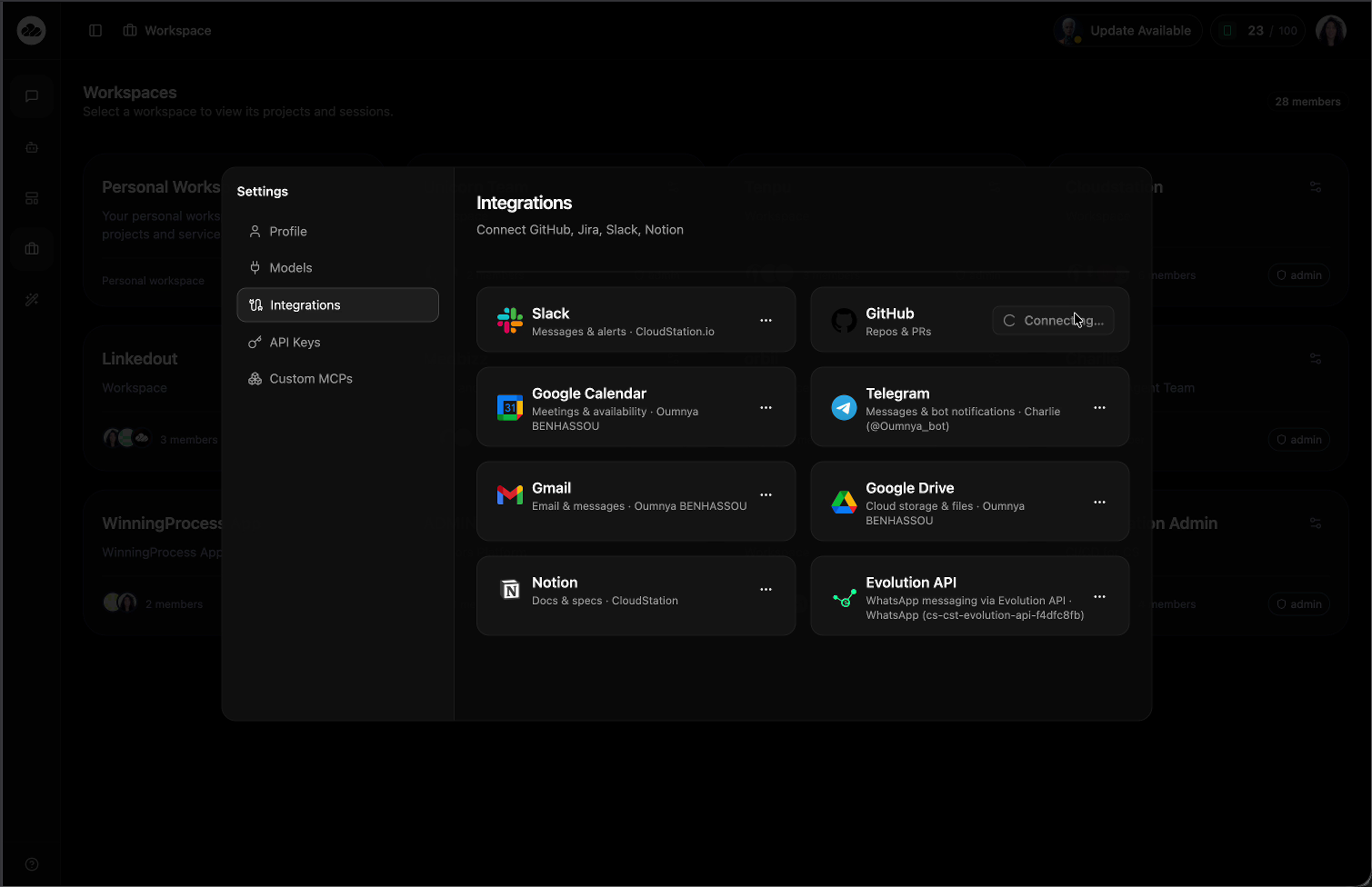
The Integrations page shows all available connections. Find the GitHub card — it displays "Repos & PRs" and a Connecting... button. Click the GitHub card to start the OAuth flow.
Authorize CloudStation
A GitHub popup opens asking you to Authorize cloudstation.io. Choose which GitHub account to use (personal or organization), then click Continue.

Connection Complete
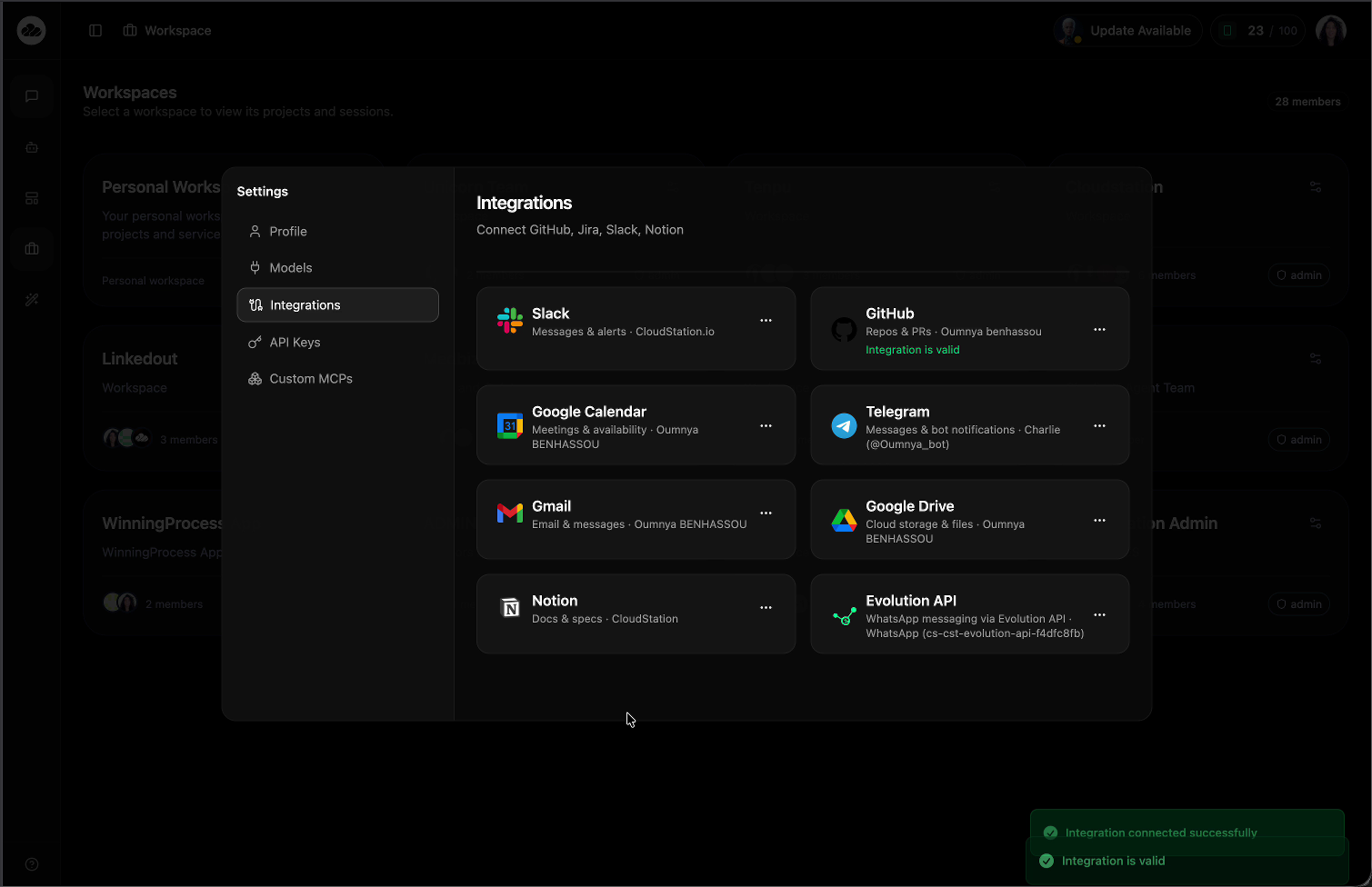
After authorization, you're redirected back to CloudStation. The GitHub card now shows your username and a green "Integration is valid" status. Two success toasts confirm: "Integration connected successfully" and "Integration is valid".
This is a one-time setup. Once connected, you can deploy from any of your GitHub repositories across all your CloudStation projects.
Verifying Your Connection
After connecting, the GitHub card on the Integrations page shows:
- Your GitHub username (e.g., "Repos & PRs · Oumnya benhassou")
- A green "Integration is valid" status badge
- A three-dot menu (⋯) for managing the connection

Linking a Repository to a Project
After connecting GitHub, you can optionally link a specific repository URL to a Project. This gives the AI assistant context about your codebase during Sessions.
Click the settings icon on your project card and select Project Settings to open the settings drawer.
Click the Project Details collapsible section to reveal the Description, Project Path, and Git Repository fields.
Enter your repository URL in the Git Repository field.
Examples:
https://github.com/username/repositoryhttps://gitlab.com/username/repositoryhttps://bitbucket.org/username/repository
Click Save Details at the bottom of the section.
Linking a repository is optional. You can deploy from Git without it — it mainly helps the AI assistant understand your code during Sessions.
Disconnecting GitHub
To disconnect your GitHub account:
- Go to Settings > Integrations
- Click the three-dot menu (⋯) on the GitHub card
- Select Disconnect
Disconnecting GitHub only removes the CloudStation connection. Your GitHub repositories and code are not affected. Existing Git-deployed services will continue running but won't receive auto-deploy updates.
Next Steps
- Deploy from Git - Deploy your first Git-based service
- Project Settings - Full settings reference