

Inside a Conversation
Tool-call cards, delegation, the Agents strip, and the tools panel — how to read what Charlie is doing
A conversation is more than a transcript: Charlie shows its work. Every command it runs, every file it reads, and every agent it hires renders as a card in the thread, so you can follow — and audit — exactly what happened.
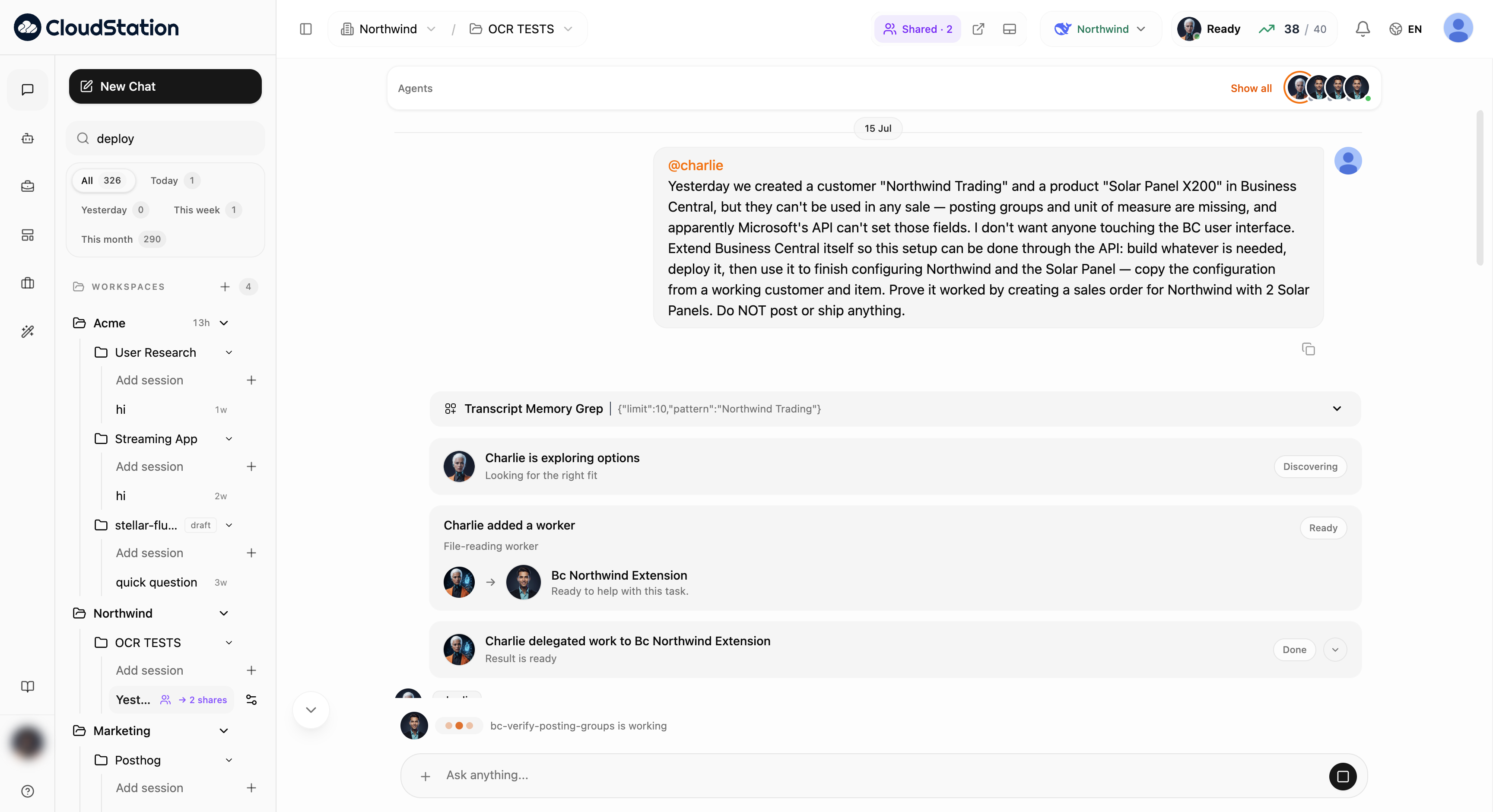
The thread header

- Workspace / project switcher — two dropdowns showing where this conversation lives. Owners can switch context; viewers of a shared thread see a Shared by … chip instead.
- Share — share the conversation read-only with a team or teammate. Once shared, the icon becomes a Shared · N pill. See Thread Sharing.
- Detach — pop the chat out into its own window.
- Tools panel toggle — show or hide the right-hand tools panel (⌘B / Ctrl+B).
The Agents strip
Below the header, the Agents strip shows the avatars of every agent active in the thread, with a status dot (green = running, amber = idle, gray = inactive) and a +N bubble when there are more than five.
- Click an avatar to filter the transcript to that agent's messages — Show all clears the filter.
- The avatar popover shows the agent's token usage (context used and window size) and recent messages.
- While agents work, a typing indicator shows who: "⟨name⟩ is working", or "N agents working".
Tool-call cards
When Charlie (or any agent) uses a tool, the call renders as a compact card: the tool name, a preview of its arguments, and a chevron that expands the full input and output.

Common cards include Shell (commands, with output), Read / Write / Edit (file operations — click a file card to open it in the File Editor tab), Grep / Glob / List (searches), Task List, Skill, and Questions (when an agent needs your input).
Delegation cards
Charlie doesn't do everything itself — for bigger jobs it hires specialist agents and delegates. Each step renders as a card:
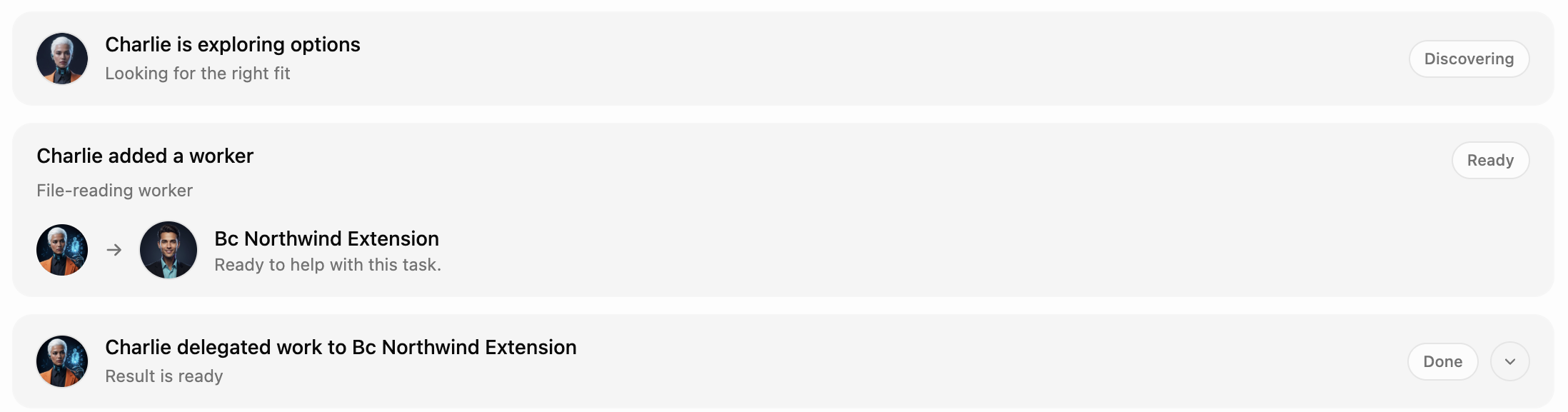
| Card | Meaning |
|---|---|
| Charlie is exploring options | Discovering agents, skills, models, or tools that fit the job |
| Charlie added a worker | A new agent joined the thread, ready to help |
| Charlie delegated work to ⟨agent⟩ | Work handed off — the badge tracks it: Working, Done, Paused, or Failed |
| ⟨agent⟩ is working / finished | Status checks while Charlie monitors progress |
| Charlie checked the workers | A roster of the agents in this conversation and what they're doing |
Expand any card with its chevron to see the task text, the target agent, and the model in use. When delegated work completes, the badge flips to Done with "Result is ready" and Charlie folds the result into its reply.
You don't manage this — Charlie hires, delegates, monitors, and collects on its own. The cards exist so you can see (and trust) each step. To steer a specific agent yourself, mention it with @ in the composer.
The tools panel
The right-hand panel is a live workspace alongside the conversation. Tabs:
- File Editor — files created or modified during the session; click any file reference in the chat to open it here.
- Kanban — the session's task board; agents create and update tasks as they work.
- Browser — an embedded browser for testing and previewing what agents build.
- Cloud — your deployed services and instance health, without leaving the chat.
- Schedules — automations tied to this session or project.
- Web Preview — appears when agents run a web app.
Toggle the panel with ⌘B / Ctrl+B. Your choice of tab is remembered per session.
Messages from other channels
Threads can receive messages from outside the web app — WhatsApp, Slack, Telegram, the embeddable Chat Widget, or the API. Each external message is labeled with its source and the sender's name from the originating channel.
Related pages
- Composer & targeting — sending messages and stopping agents
- Thread Sharing — read-only sharing
- Agents — where the hired specialists come from