

Workspaces
Learn how Workspaces help you organize your team, projects, and cloud infrastructure in CloudStation.
A Workspace is your team's home in CloudStation. It's where you and your team manage cloud projects, applications, and infrastructure together.
The Workspaces Page
The Workspaces page shows all your workspaces as cards. Each card displays:
- Workspace name and description
- Member avatars and total member count
- Your role badge (admin or member)
- Settings icon to open the workspace settings panel
Select a workspace to view its projects and sessions.
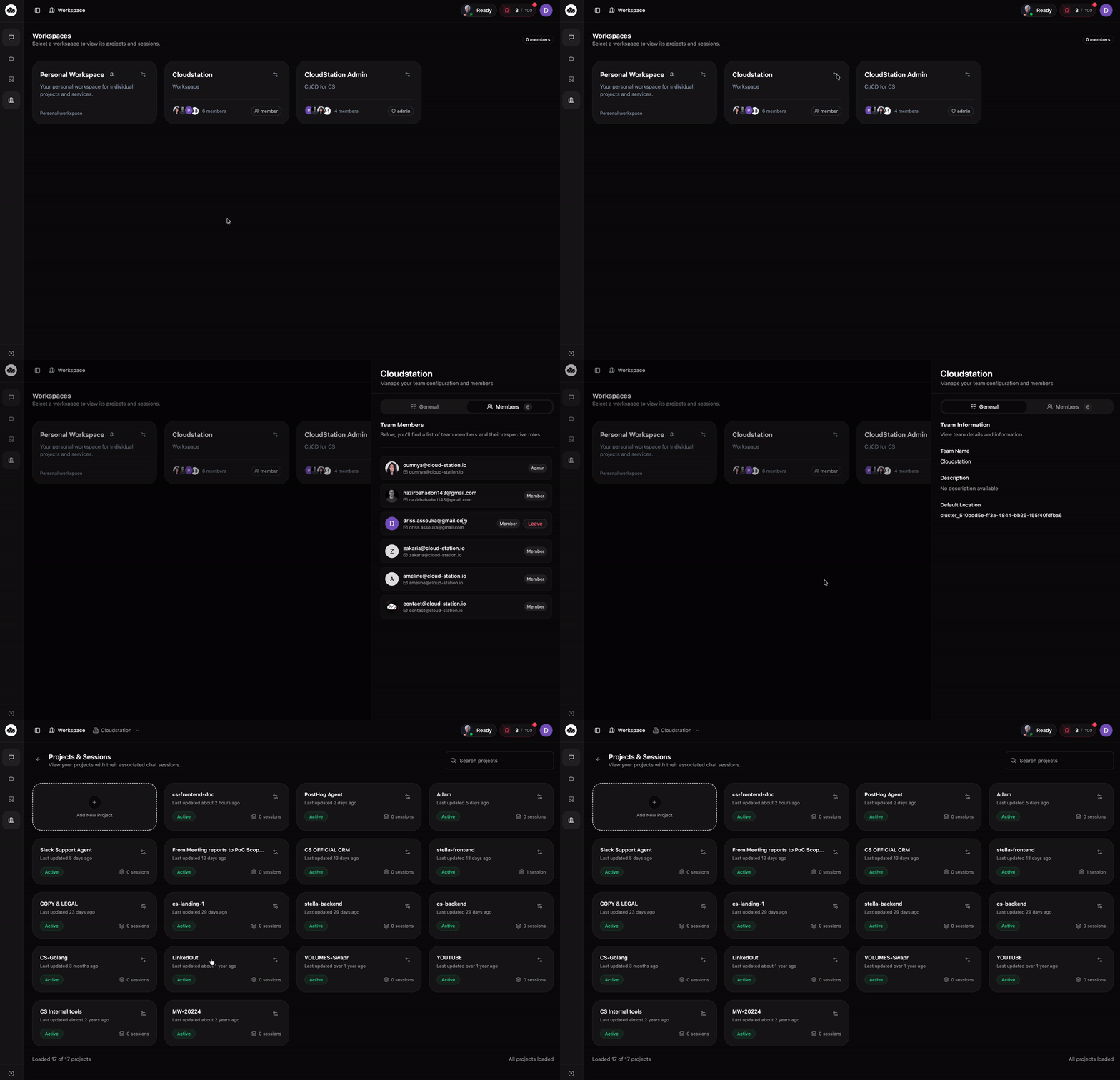
Every CloudStation account starts with a Personal Workspace. You can create or join team workspaces as your needs grow.
Workspace Hierarchy
CloudStation organizes your work in three levels:
Workspace (Team)
  └── Projects (Applications)
      └── Instances (Deployments)
1. Workspace Level
Your team's top-level container. All team members, billing, and settings are managed here.
Example: "Acme Inc" workspace for your company
2. Project Level
Individual applications or services within your workspace. Each project can have multiple instances.
Example: "Marketing Website", "Customer API", "Mobile App Backend"
3. Instance Level
Running deployments of your projects. You might have dev, staging, and production instances.
Example: "marketing-website-prod", "customer-api-staging"
Personal vs Team Workspaces
Personal Workspace
- Automatically created when you sign up
- Only you have access
- Good for personal projects and experimentation
- Free tier available
Team Workspace
- Created when you start collaborating
- Invite multiple team members
- Shared billing and resource management
- Collaboration features
Start with your personal workspace to learn CloudStation, then create a team workspace when you're ready to collaborate.
Quick Navigation
Use the sidebar to explore workspace documentation:
- Getting Started: Your first steps with workspaces
- Team Management: Adding and managing team members
- Settings: Configure your workspace
- Projects: Learn about organizing projects
- Instances: Deploy and manage instances
What's Next?
Ready to get started? Head to the Getting Started guide to set up your first workspace and project.