

Composer & Targeting
Write messages, attach files, and choose which workspace and project Charlie works in
Every message you send lands in a workspace (yours or a team's) and a project inside it. The composer makes that target explicit, so you always know where Charlie will do the work.

The parts of the composer
| Element | What it does |
|---|---|
| Paperclip | Attach files to your message |
| Input field | Your message — press Enter to send |
| Rocket | Opens the workspace & project picker |
| Arrow button | Send |
| Target chip | Shows the current target, e.g. Acme / Product · Change |
Attachments
Click the paperclip to attach files. The composer accepts images, videos (.mp4, .mov, .avi, .mkv, .webm), PDFs, Office documents (.doc, .docx), and text-based files (.html, .md, .txt, .json, .xml, .csv). Attached files show as chips above the input — click the × on a chip to remove it before sending.
Choosing where the work happens
The chip below the input reads workspace / project · Change. Click Change (or the rocket) to open the picker:
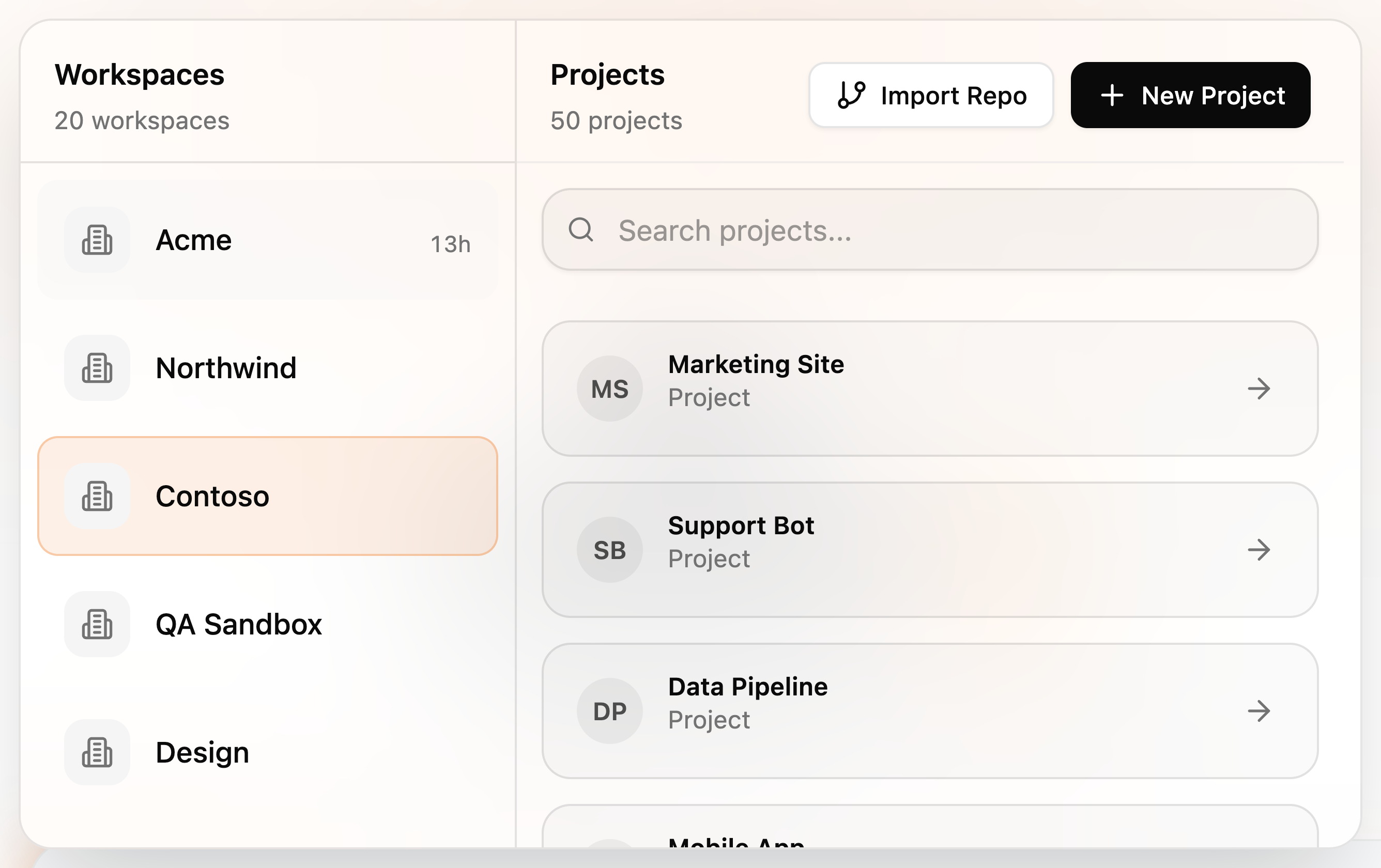
- Workspaces on the left — your personal workspace and every team workspace you belong to.
- Projects on the right — the selected workspace's projects, with search.
- New Project creates an empty project; Import Repo starts a project from a Git repository.
Pick a project and your next message — and the whole conversation it starts — runs against that project's files, services, and environment.
If you don't pick anything, the composer targets the last project you worked in. That project is marked · where you left off in the picker.
Sending and stopping
On the chat home, the send button is active as soon as you've typed something. Inside a thread, the same button turns into a stop control while agents are working:
- One agent working — the button shows a square; click to stop it.
- Several agents working — the button opens a small menu listing each agent, plus Stop All.
Mentioning agents
In a thread with multiple agents, type @ to open the Thread Agents list and address a specific agent directly. The placeholder switches to "Type a message..." when mention chips are active.
Related pages
- Chat with Charlie — the chat home
- Inside a conversation — what happens after you hit send
- Workspaces, projects & sessions — how targets are organized